
Widget: Ranking
The Ranking widget shows the top positions of one breakdown — countries, campaigns, sources, offers and so on — ranked by a metric.
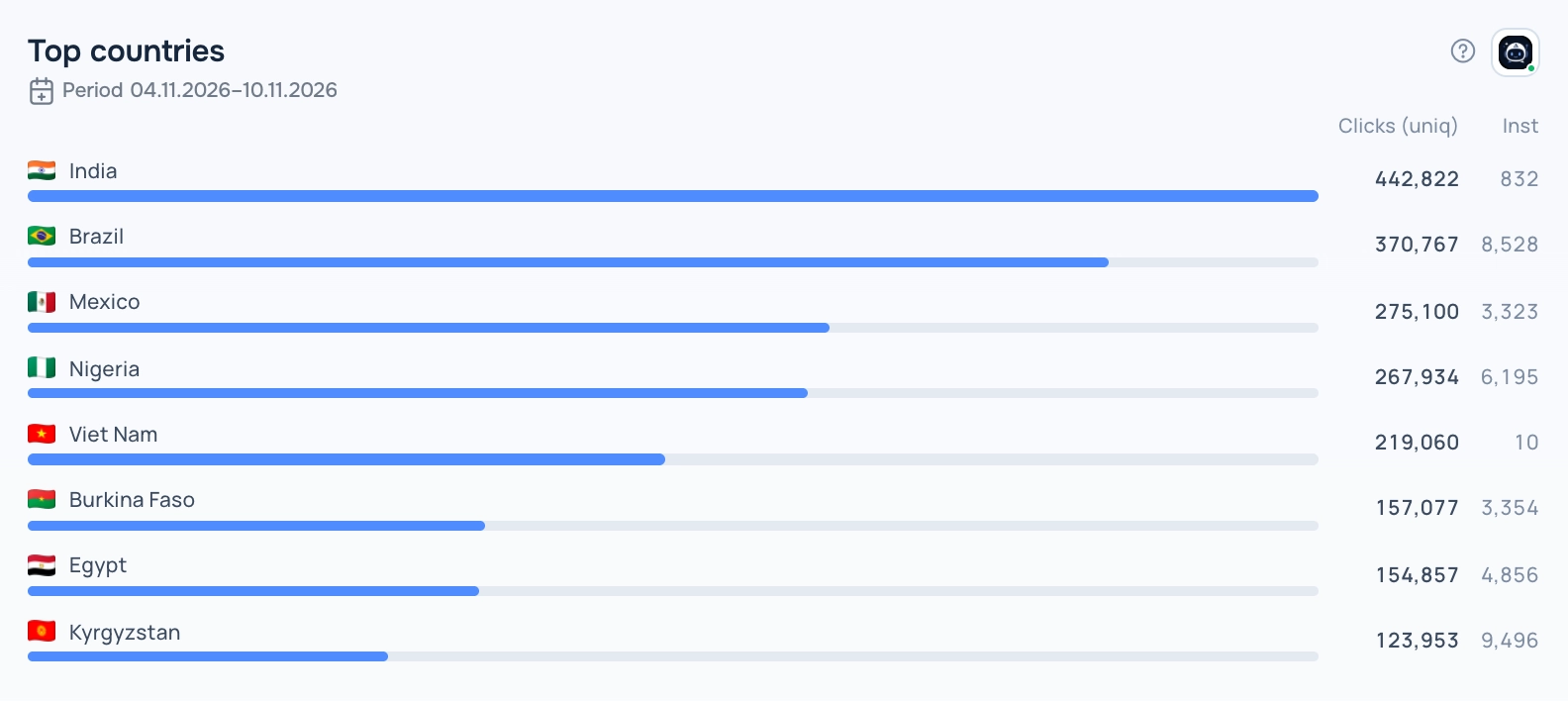
Ranking widget
What the report needs
A saved report with exactly one non-time grouping and at least one metric.
Views
The widget has several views. Switch the view in the widget header while the dashboard is in edit mode; the choice is saved with the dashboard.
Rating
Ranked rows with a bar, the value and the share of the total. Countries are shown with flags.
Podium
The top three on a podium and the rest as a list.
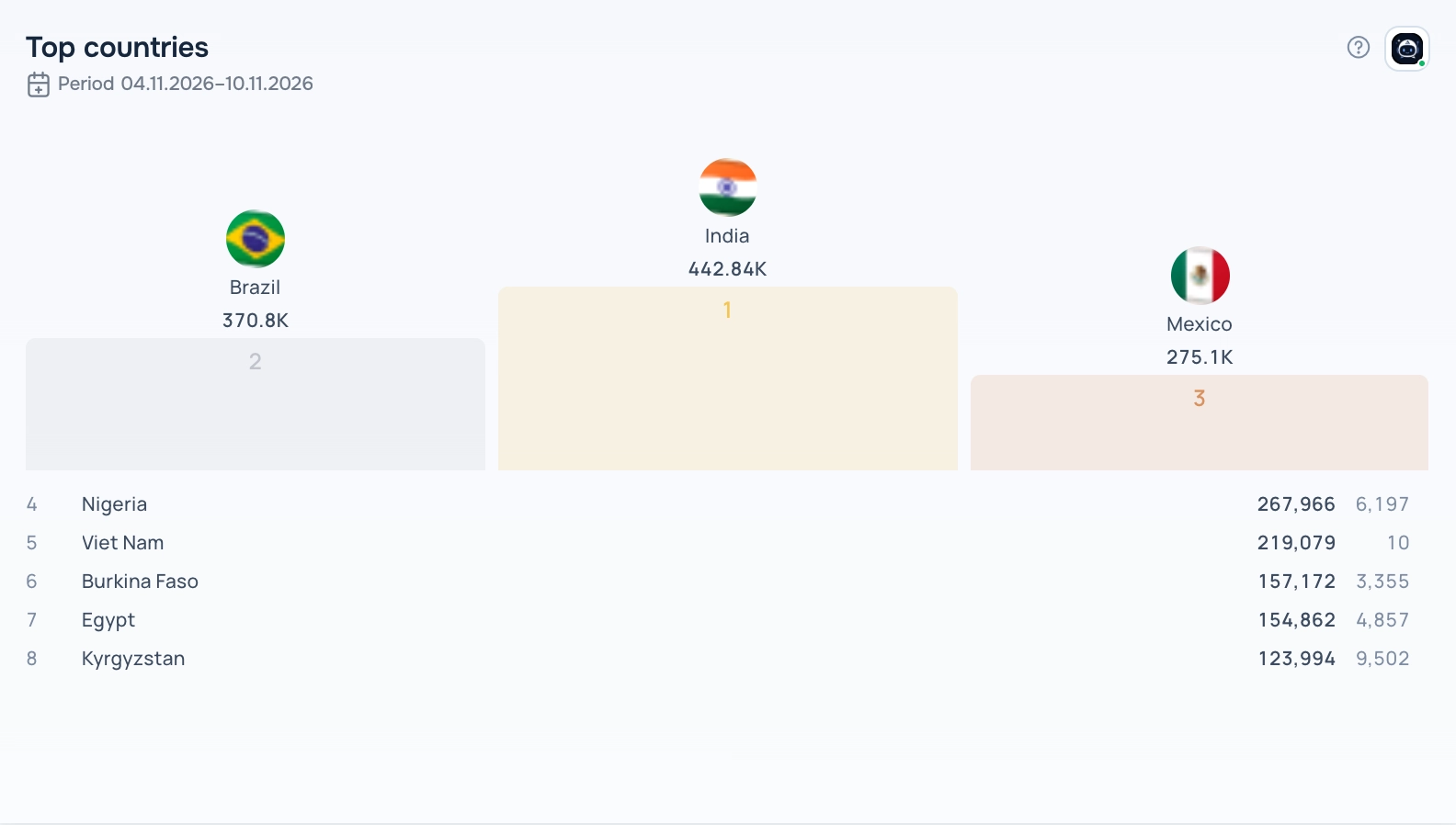
Ranking — Podium view
Places
A ranking with the change of place against the previous period.
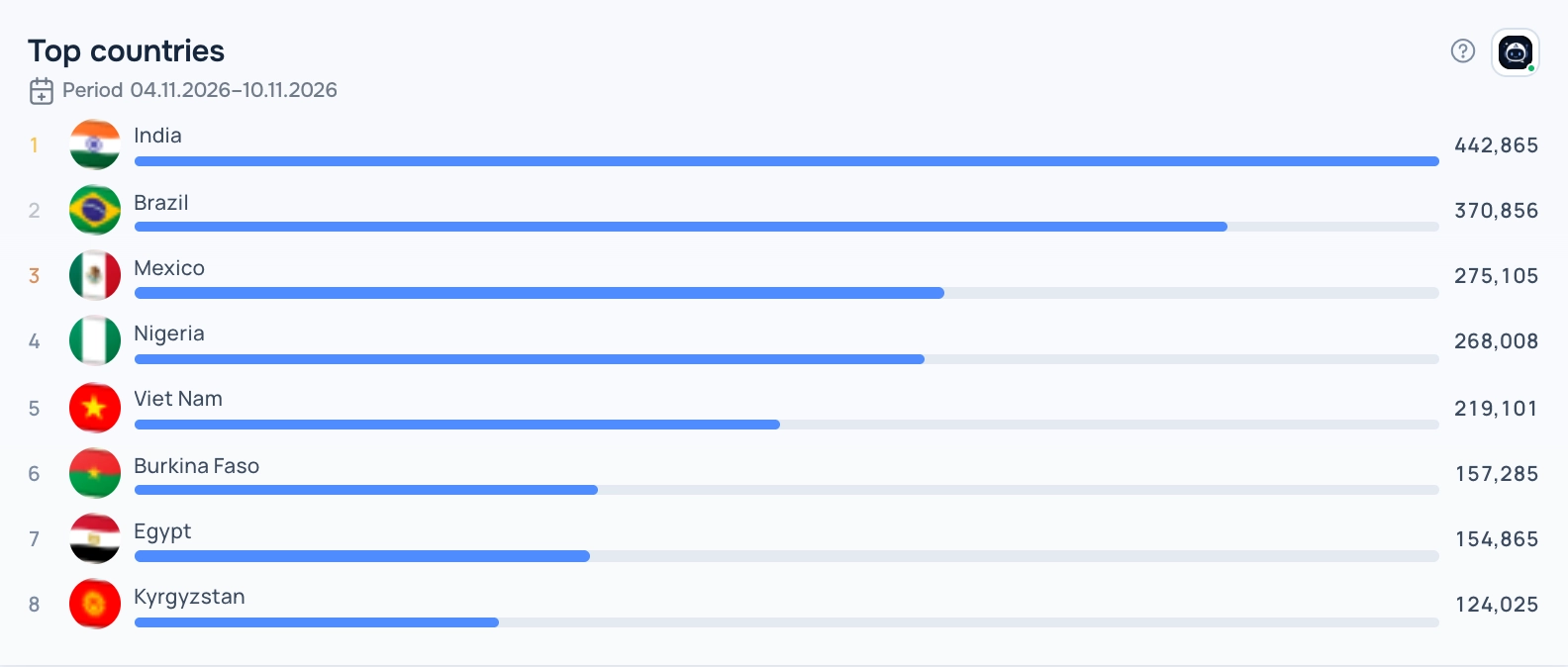
Ranking — Places view
Cards
Ranked cards, convenient on wide widgets.
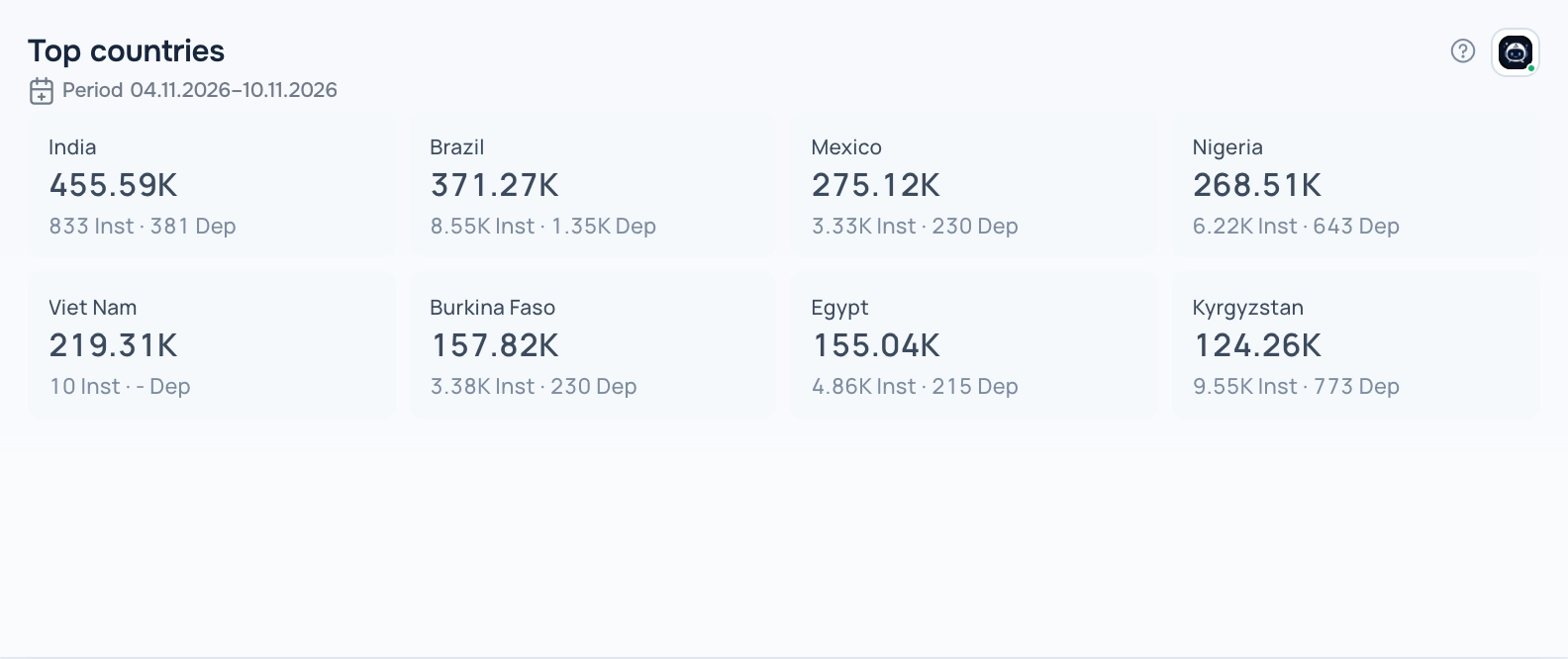
Ranking — Cards view
How to add the widget
- Open Tracker → Dashboard, open the dashboard list and click the pencil icon next to your dashboard to enter edit mode.
- Click Add Widget and choose Ranking in Display type.
- Pick a report in Select saved report. The list shows only reports that fit this display type. If it is empty, create a report in Tracker → Reports first.
- Set the optional title, width and height, the main metric and the rows limit, then click Save.
- Click Save on the dashboard toolbar to keep the changes.
Settings
- Main metric — the metric the positions are ranked by.
- Rows limit — how many positions to show.
Period
The widget shows data for the period saved in its report; the caption under the title shows the dates. When you change the dates in the dashboard date selector, all widgets switch to the dashboard period.
Tips
- To hide small positions, add a metric filter to the report, for example Clicks greater than 100.
- The Places view needs period comparison turned on in the report.
The ? button in the widget header opens this help article. The Adset AI button next to it opens the assistant with the widget context and ready-made questions about its data.