
Dashboard widgets: overview
A custom dashboard is built from widgets. Almost every widget draws a saved report from Tracker → Reports as a chart, a ranking, a table or a set of tiles. One widget type — the Assistant task — shows the answer of a recurring Adset AI task instead of a report.
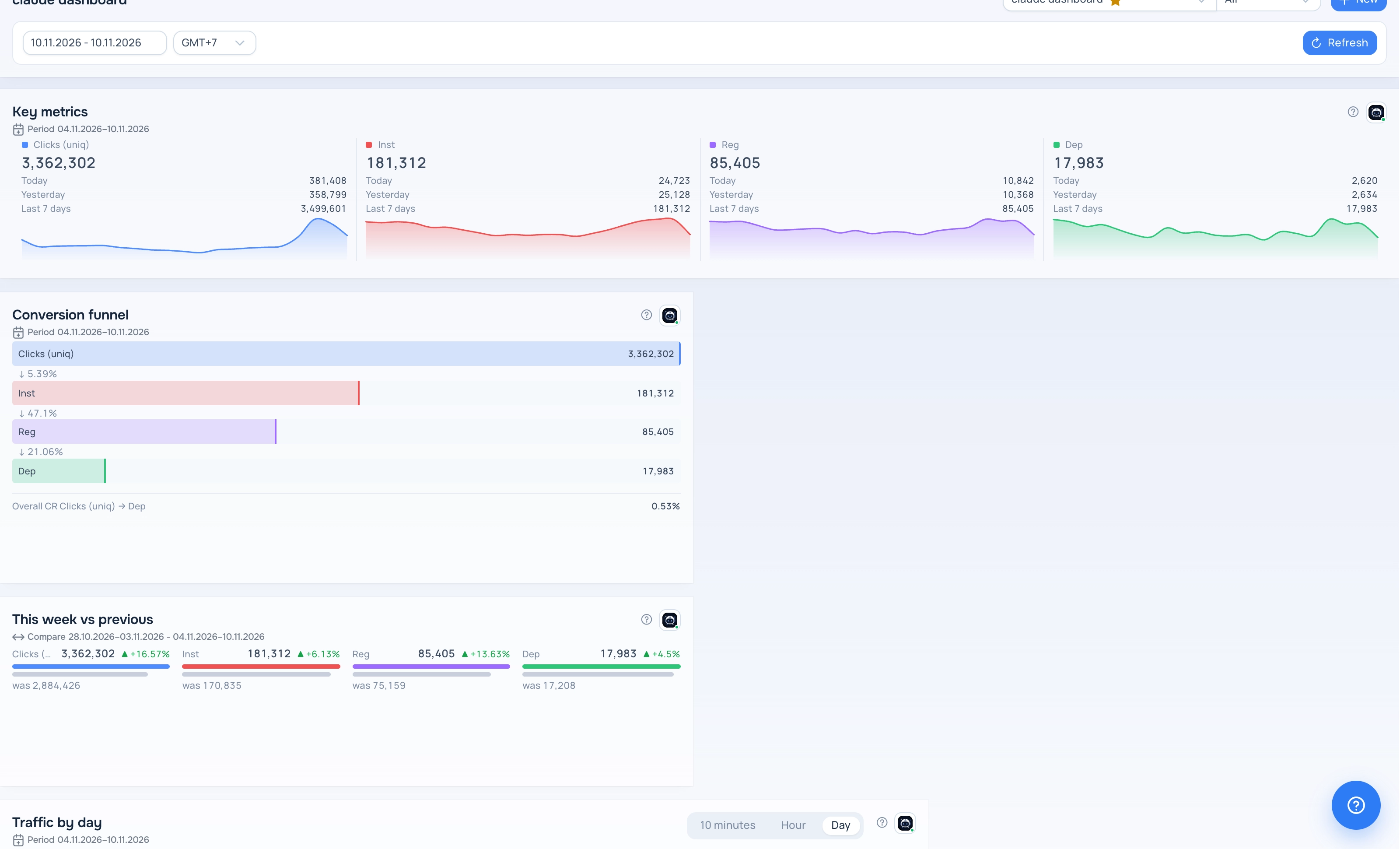
A custom dashboard with widgets
Widget types
- Totals: Key metrics, Period comparison, Funnel.
- Over time: Line chart, Bar chart.
- Breakdown: Ranking, Top movers, Share map, Scatter plot.
- Matrix: Heatmap.
- Table: Table.
- AI assistant: Assistant task.
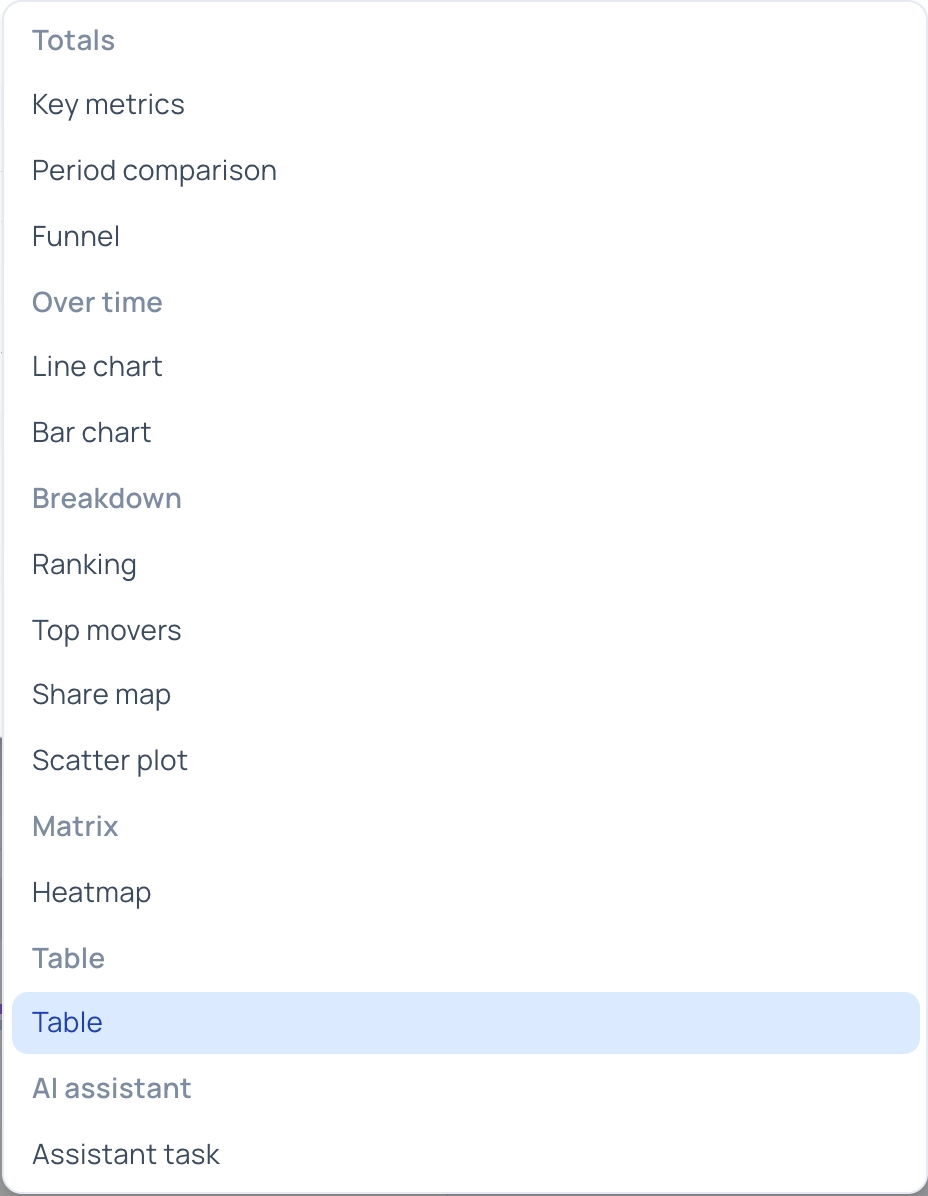
Display types in the Add Widget dialog
Adding a widget
- Open the dashboard list and click the pencil icon next to your dashboard to enter edit mode.
- Click Add Widget.
- Choose the Display type first. The report list below it then shows only the reports this type can draw.
- Select a saved report, set the optional title, the width in columns and the height in rows, and the settings of the type (main metric, rows limit, time step).
- Click Save in the dialog, then Save on the dashboard toolbar.
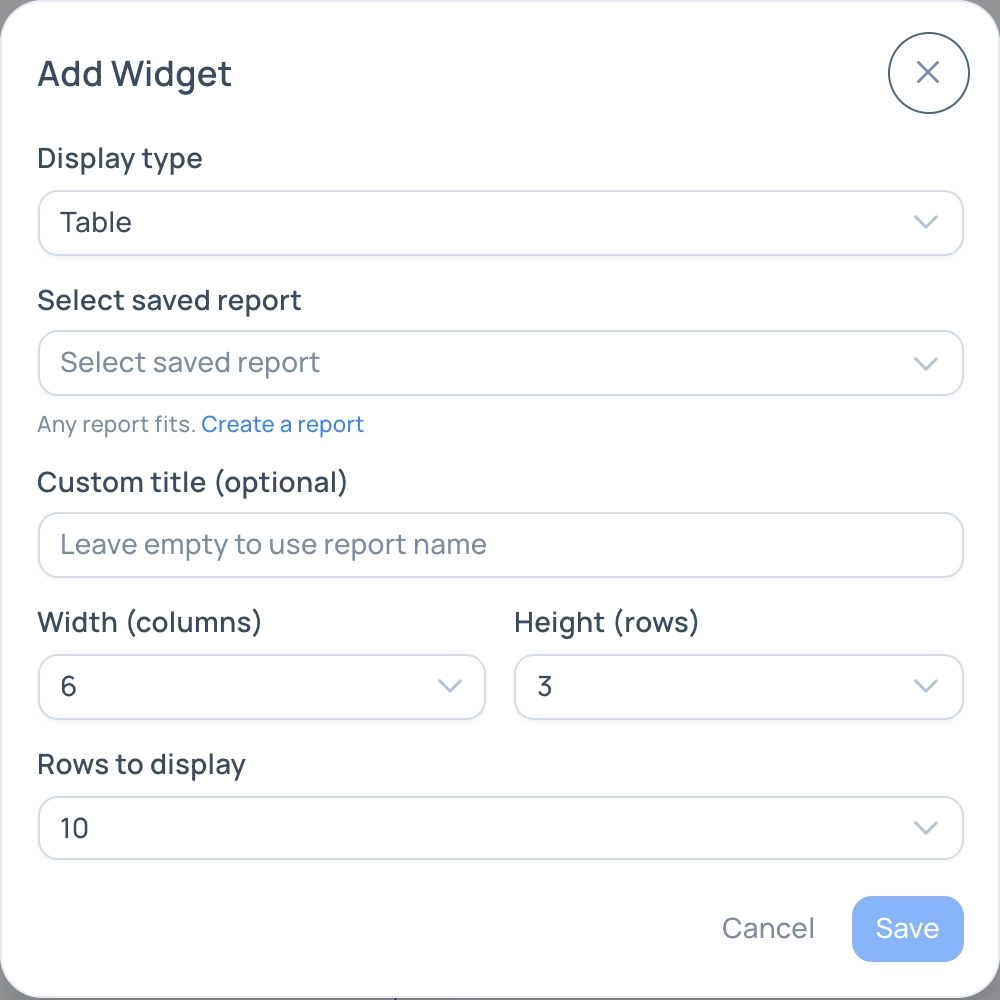
Add Widget dialog
Which reports fit a type depends on the report shape: its groupings, its metrics and whether period comparison is on. Each widget article lists the requirements. If you later change a report so that it no longer fits, the widget shows a message instead of data.
Edit mode
In edit mode the dashboard is a grid of 12 columns. Drag a widget to move it and drag its bottom right corner to resize it. The dashed frame shows where the widget will land. Widgets that are in the way move aside or down, and widgets below a freed place move up.
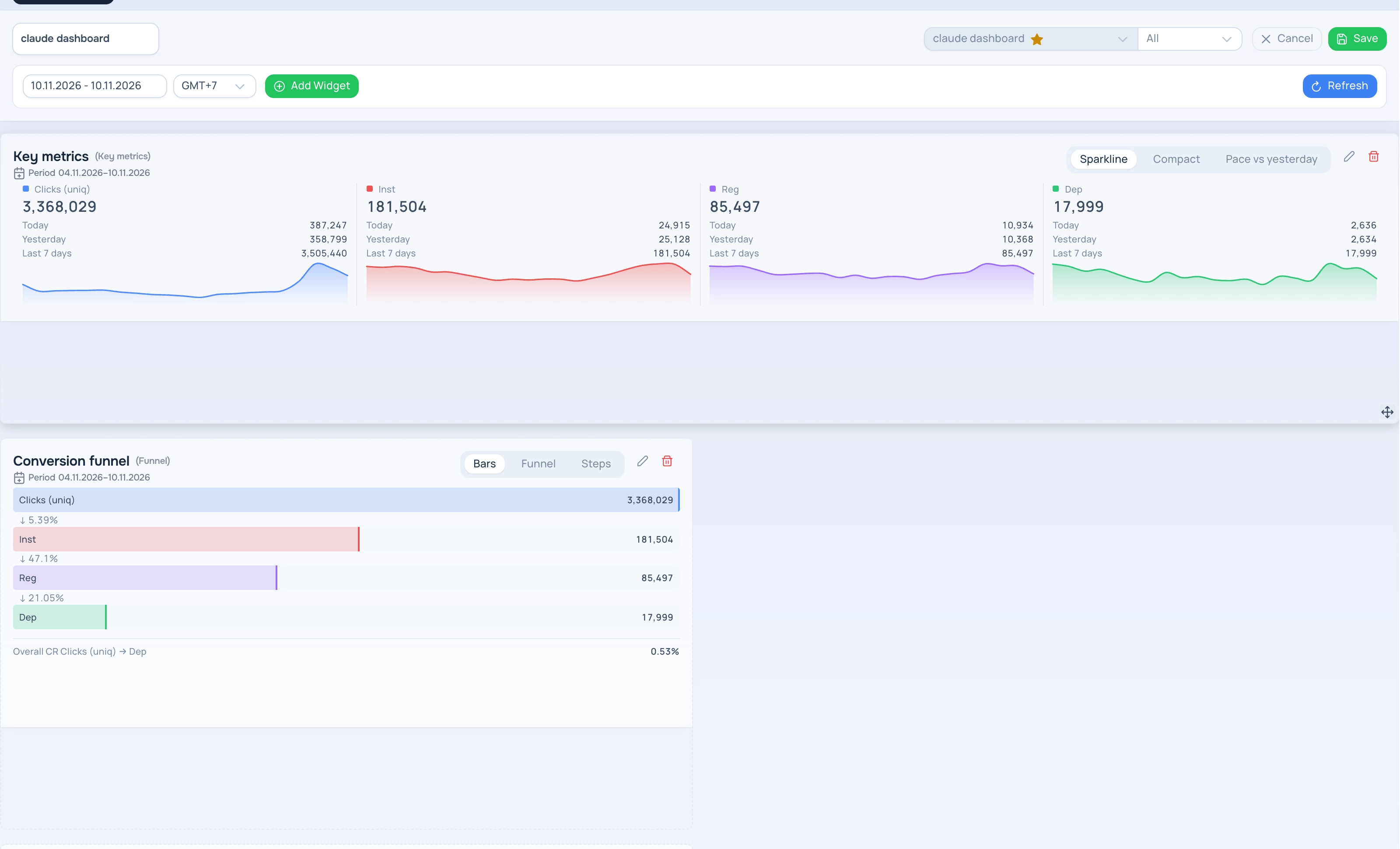
Dashboard in edit mode
In the widget header you can switch the view of the widget, open its settings (pencil) or remove it from the dashboard (bin). Exit without saving discards all changes made since you entered edit mode.
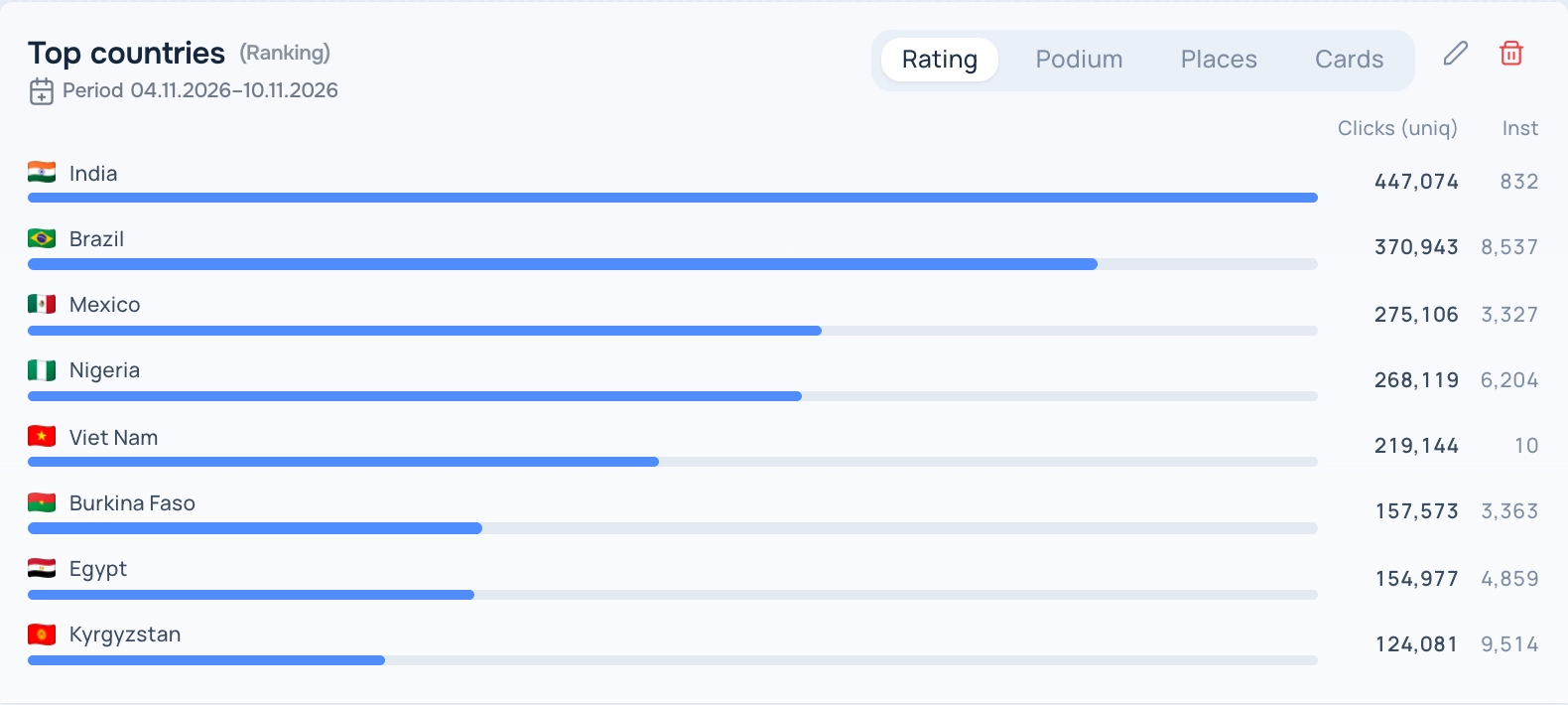
Widget header in edit mode: view switch, edit and remove
Period
Until you touch the dashboard date selector, each widget uses the period saved in its own report, and the caption under the widget title shows it. After you change the dates, the dashboard period applies to all widgets.
Help and Adset AI
Outside edit mode every widget has two buttons in the header. ? opens the help article for the widget type. The Adset AI button opens the assistant in a new chat with the widget context — its report, period, metrics and filters — and suggests questions about the data.
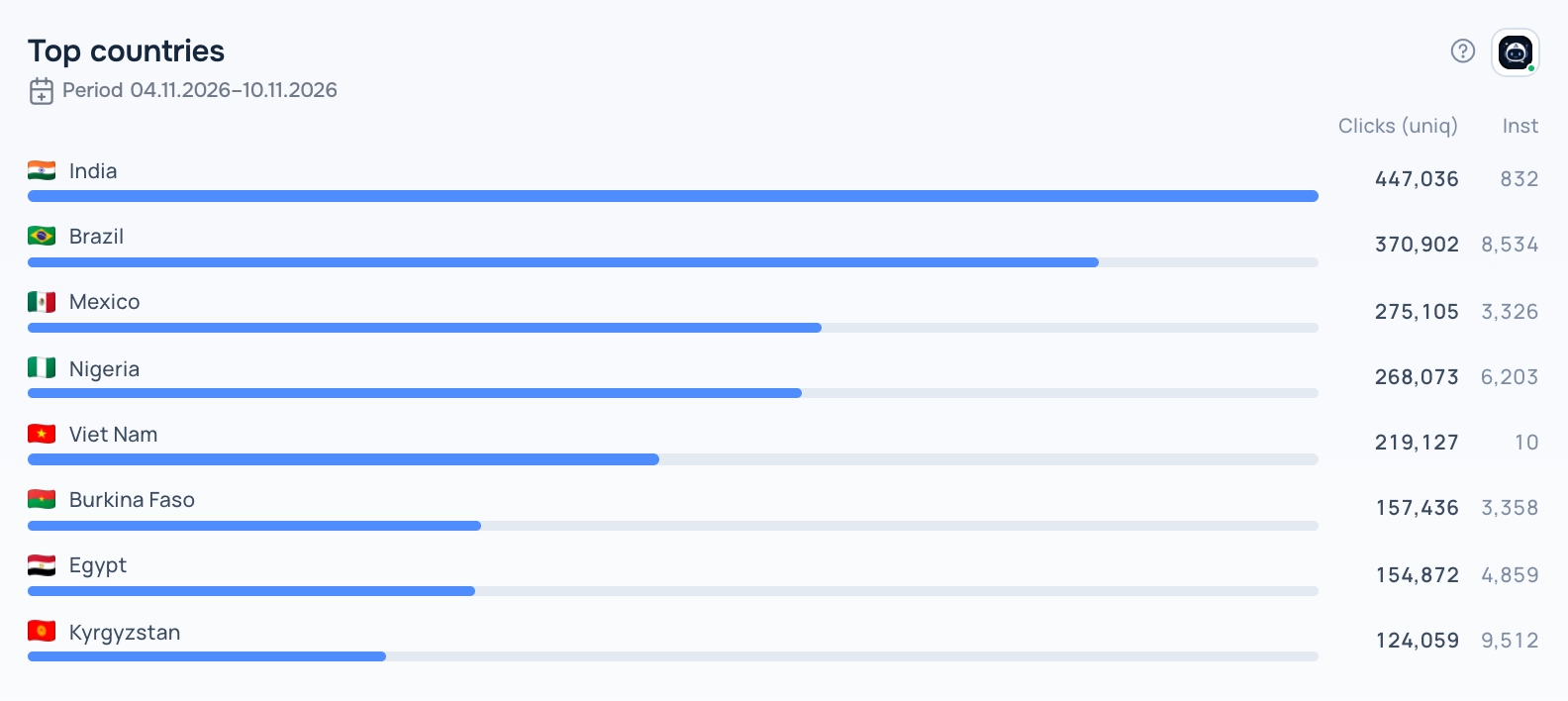
Widget header: help and Adset AI buttons
Tablets and phones
On narrow screens the dashboard rearranges itself: widgets go two in a row on tablets and in one column on phones, in the order of the saved layout. The saved layout itself does not change.
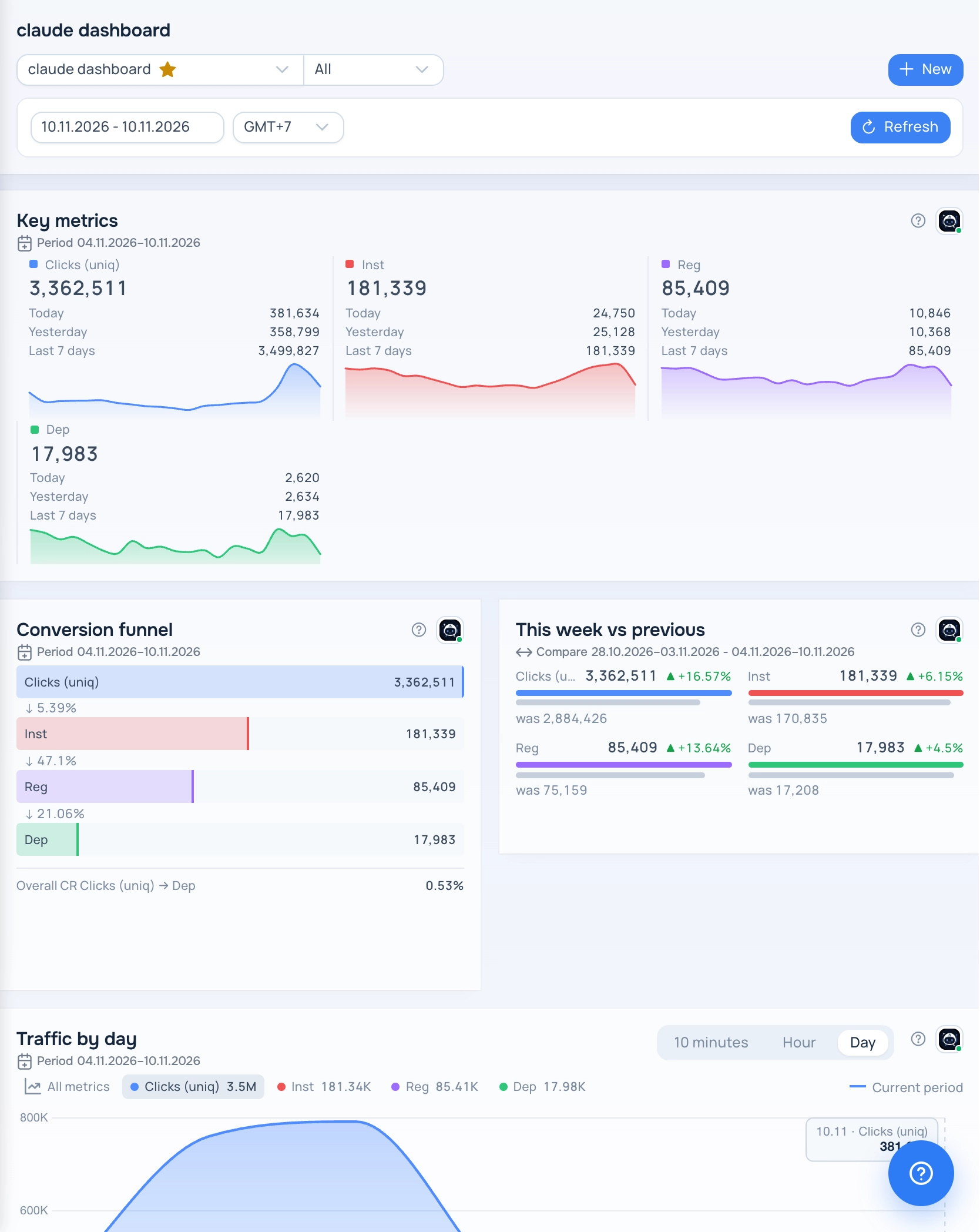
Dashboard on a tablet
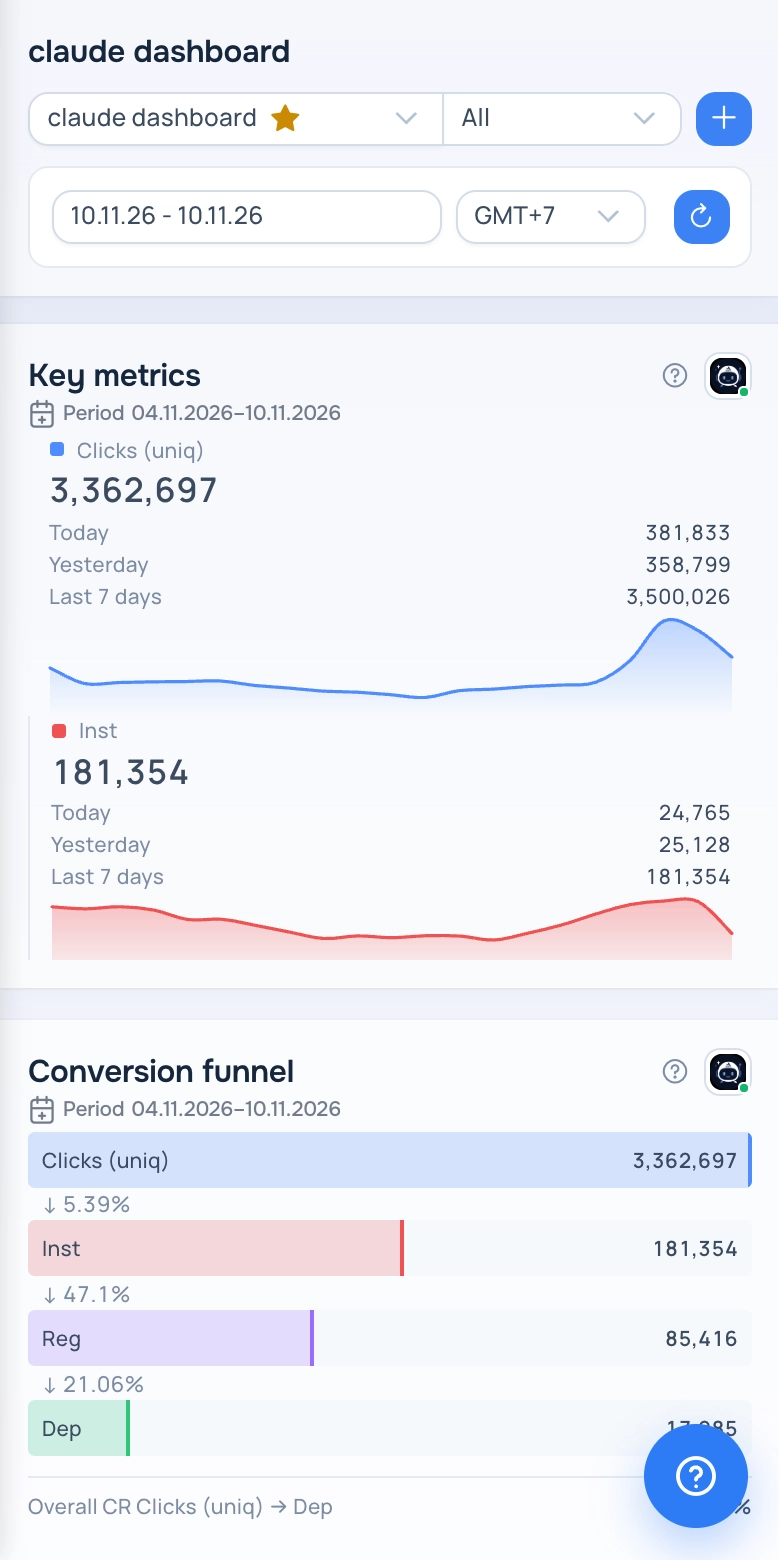
Dashboard on a phone