
Pixels
Pixels and postbacks are the mechanism for sending conversion events from the tracker to external systems:
- Facebook Conversions API — to optimize ad campaigns on Facebook/Instagram
- TikTok Events API — to optimize ad campaigns on TikTok
- HTTP Get postbacks — to send events to any system over HTTP
- Telegram Bot — to report conversions to a Telegram channel or group in real time
A pixel is attached to campaigns via the campaign set settings (Campaign Set → Settings → Pixels). Once attached, the tracker automatically sends conversion events to the configured pixel.
Pixel types
The platform supports four pixel types:
Type | Description | Use case |
|---|---|---|
Integration with the Facebook Conversions API (CAPI) | Sending server-side events to Facebook for ad optimization | |
TikTok | Integration with the TikTok Events API | Sending server-side events to TikTok for ad optimization |
HTTP Get | Universal HTTP postback | Sending events to any system that accepts GET requests |
Telegram Bot | Notifications to a Telegram channel/group | Real-time conversion alerts in Telegram for monitoring |
Managing pixels
Pixel list
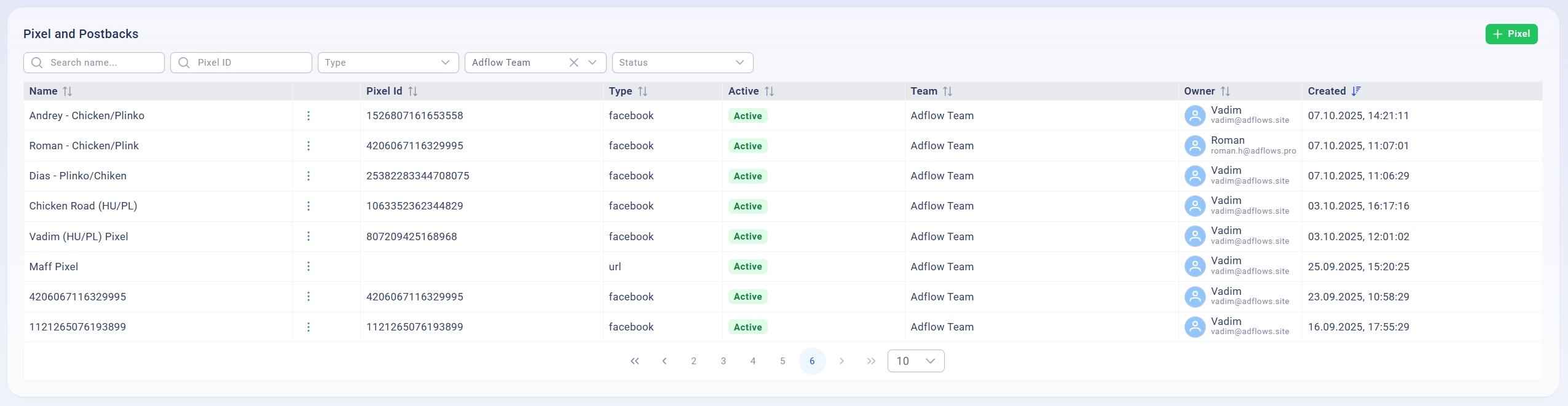
The main page shows a table of all pixels with the following columns:
Column | Description |
|---|---|
Name | Pixel name |
Actions | Menu with actions (Edit, Campaigns, Logs, Test) |
Pixel ID | Pixel ID or postback URL |
Type |
|
Active | Pixel status (Active/Inactive) |
Team | Team that owns the pixel |
Owner | Owner user with avatar and email |
Created | Creation date and time |
Filters
Search by name
Type part of a pixel name for a quick search.
Search by Pixel ID
Enter a Pixel ID to find a specific pixel.
Filter by type
- Facebook — show only Facebook pixels
- HTTP Get — show only HTTP Get postbacks
Filter by status
- Active — show only active pixels
- Inactive — show only inactive pixels
Pixel actions
Click the three-dot button (⋮) in a pixel row to open the menu:
Action | Description |
|---|---|
Edit | Open the pixel edit form |
Campaigns | View the list of campaigns using this pixel |
Logs | View the logs of sent postbacks |
Test | Test event sending (for Facebook and Telegram Bot) |
Creating and configuring pixels
Step 1: Create a pixel
- Go to the "Pixels and Postbacks" section
- Click the "+ Pixel" button
- The pixel creation form opens
Step 2: Fill in the basic fields
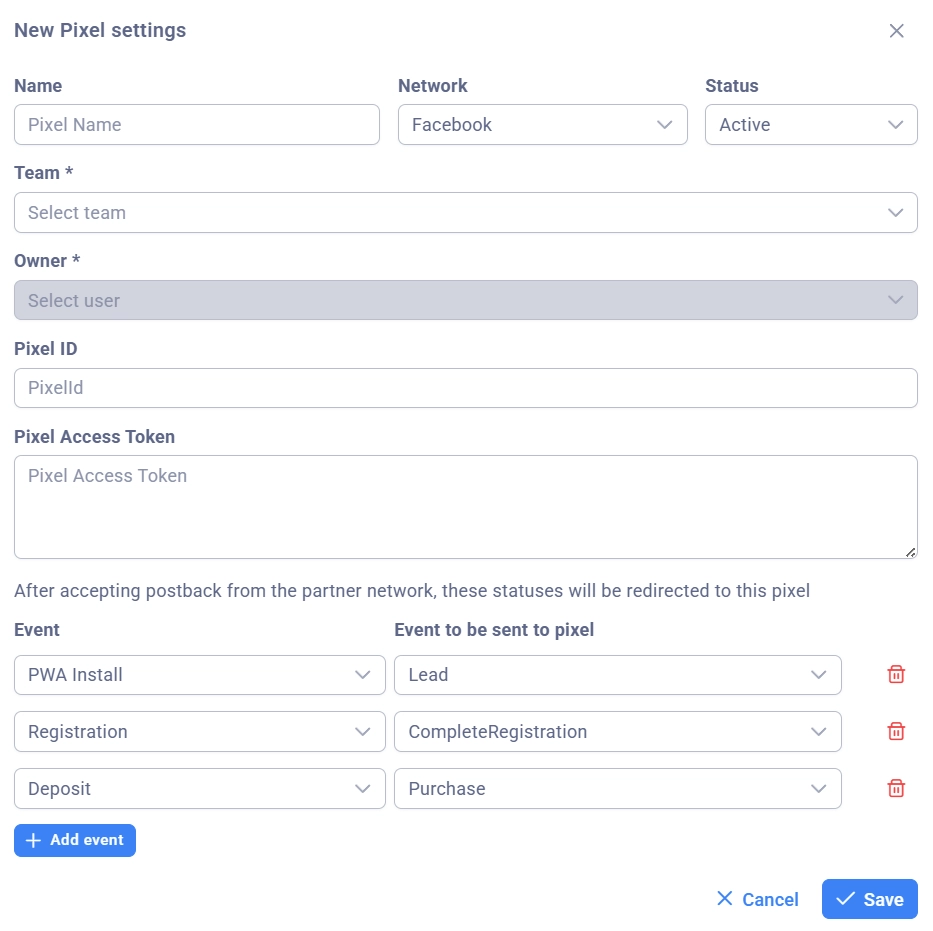
Name (required)
A clear name for the pixel. For example:
- "FB CAPI Main Account"
- "TikTok Pixel RU"
- "Postback to Affiliate Network"
Network (required)
Choose the pixel type:
- Facebook — for the Facebook Conversions API
- TikTok — for the TikTok Events API
- HTTP Get — for universal postbacks
Status (required)
- Active — the pixel works and sends events
- Inactive — the pixel is disabled (no events are sent)
Step 3: Choose the owner (for admins and team leads)
For admins:
- Team — pick a team from the list (required)
- Owner — pick a user from the team (required)
For team leads and tech users:
- Owner — pick a user from your own team
For buyers:
- The owner is set automatically (the current user)
Step 4: Type-specific settings
The remaining fields depend on the selected pixel type.
Tracker events and their mapping
Internal tracker events
The tracker generates the following conversion event types:
Tracker event | Internal name | Description |
|---|---|---|
Deposit |
| Deposit accepted — the lead paid and became a customer |
Registration |
| Registration — the lead signed up but has not paid yet |
Decline Lead |
| Lead declined by the affiliate network |
Trash Lead |
| Lead marked as trash |
PWA Install |
| PWA application install |
Event mapping
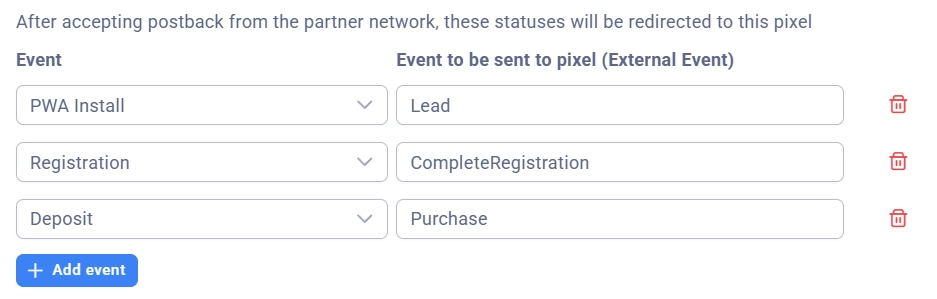
Each pixel needs an event mapping — a correspondence between tracker events and the external system's events.
Facebook example:
Tracker event | Facebook CAPI event | Description |
|---|---|---|
PWA Install |
| A PWA install is counted as a lead |
Registration |
| A registration is sent as a completed registration |
Deposit |
| A deposit is sent as a purchase |
HTTP Get example:
Tracker event | GET parameter | Description |
|---|---|---|
Registration |
| On registration, |
Deposit |
| On deposit, |
Mapping rules
- At least one event is required — a minimum of one mapping must be configured
- Each tracker event can be used only once — you cannot create two mappings for the same event
- The value cannot be empty — every event must have a value