
Presets: saved sets of columns, metrics and period
Presets are saved table setups: the set and order of columns and metrics, the data period with its time zone, and a “Favorite” flag. A preset is applied in one click — no need to re-check columns and pick a period every time.
Presets are available in the column picker dialog (the “Columns …” button) in the Campaigns, Traffic Sources, CPA Networks, Offers, and Flows tables, as well as in the Report Builder. In reports a preset also stores the table view mode (flat / tree) and the compare mode.
ℹ️ Presets are separate per section: every table and the Report Builder each have their own independent list.
Where presets live
Open the column picker dialog (the “Columns …” button). In the dialog header, to the right of the search field, there is a “Presets” button — it opens a panel with the list.
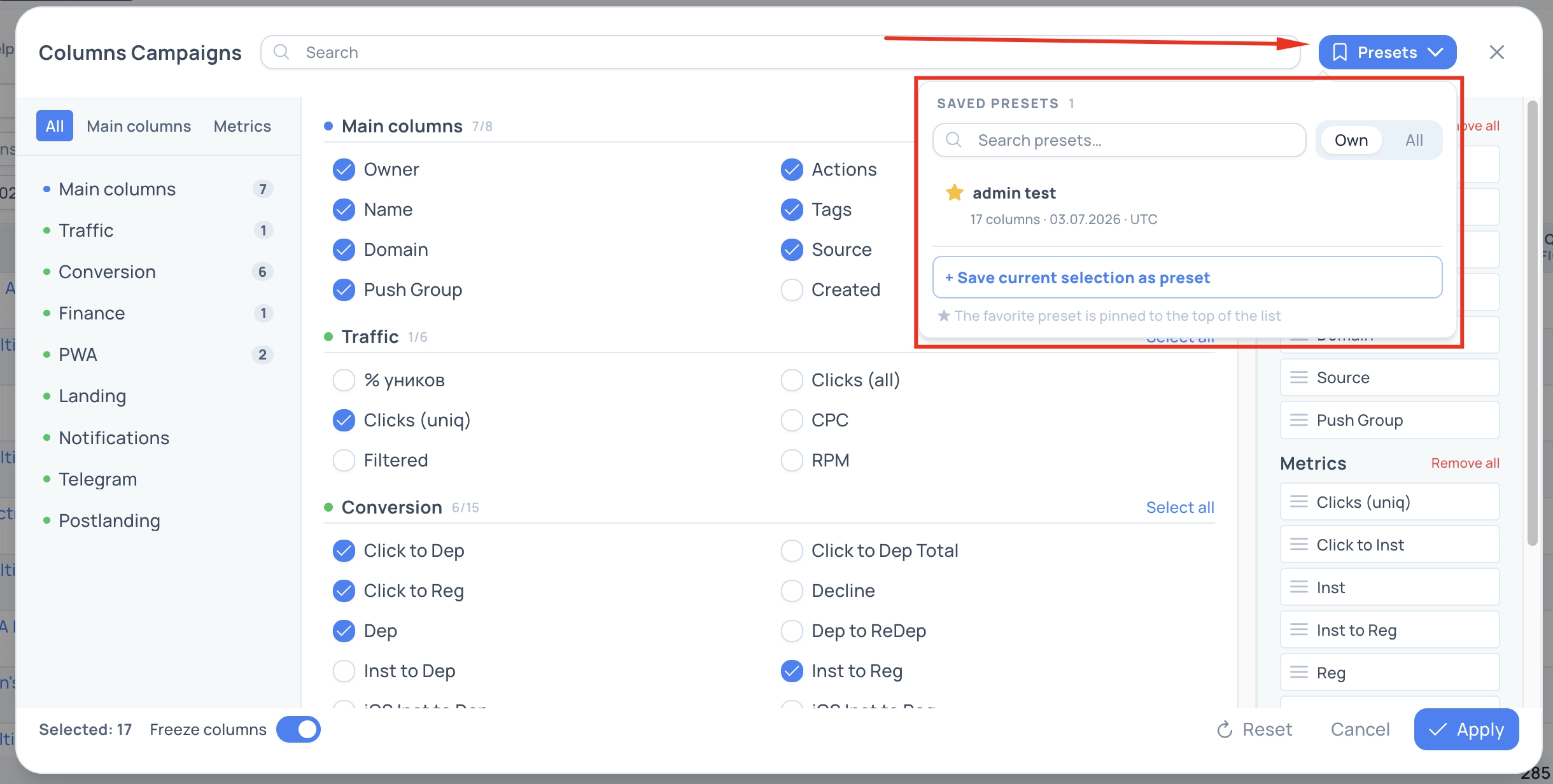
The preset list
- Preset row: a star ★, the name, and a caption “N columns · period · time zone”. Clicking the row selects the preset.
- Search by name.
- An “Own / All” toggle — the scope of the list.
- The list loads 5 at a time, with pagination below.
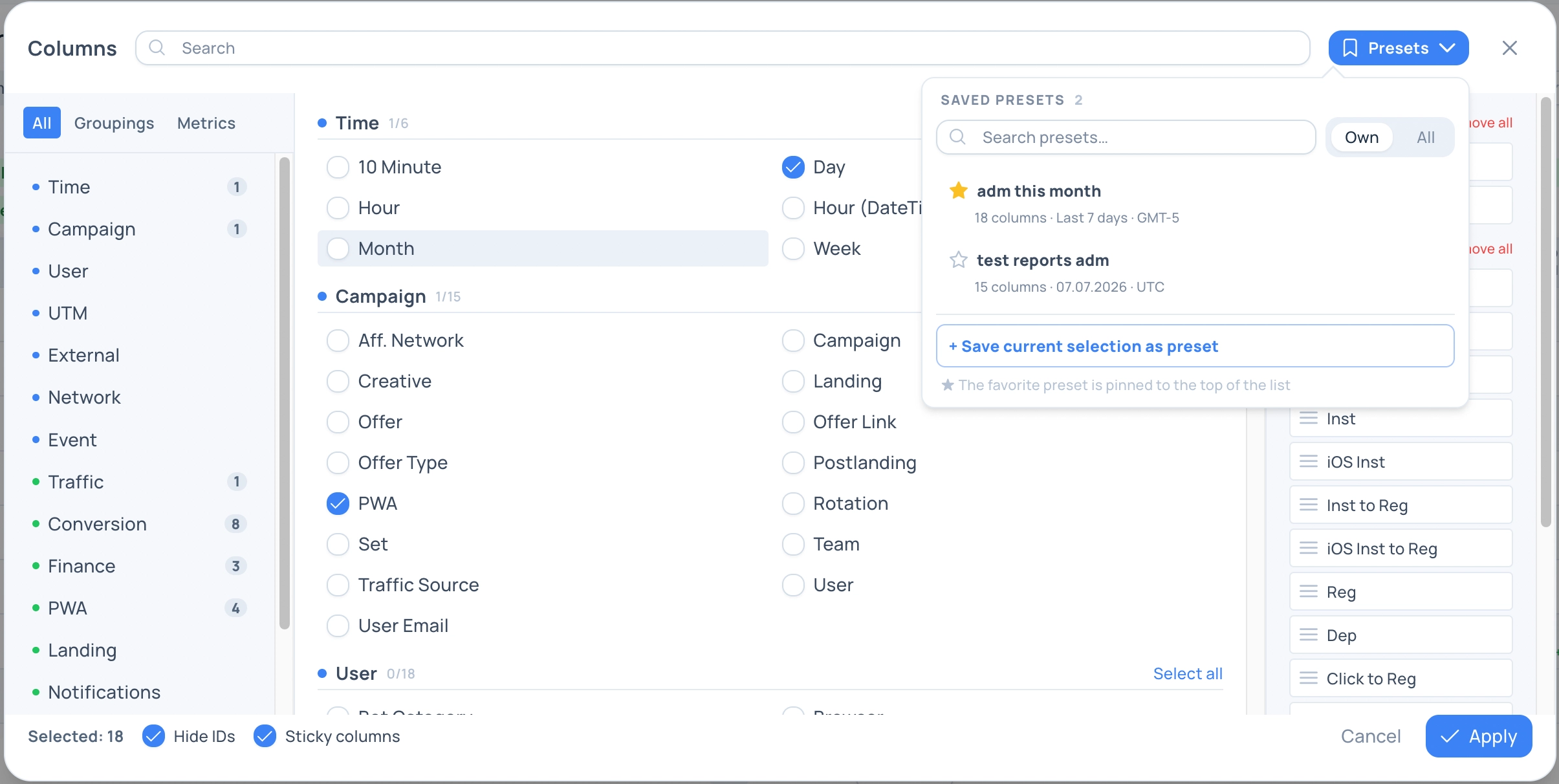
What a preset stores
- The set and order of columns and metrics.
- The data period: relative (e.g. “Today”) or specific dates, plus the time zone.
- The “Favorite” flag.
- Report Builder only: the table view mode (flat / tree) and the compare mode.
Creating a preset
Click “+ Save current selection as preset” — a form opens. The preset captures your current columns and metrics.
Form fields:
- Name.
- Period — a “Period / Dates” switch (see below).
- Favorite — pin to the top of the list.
- Overwrite columns with current selection — available when editing an existing preset.
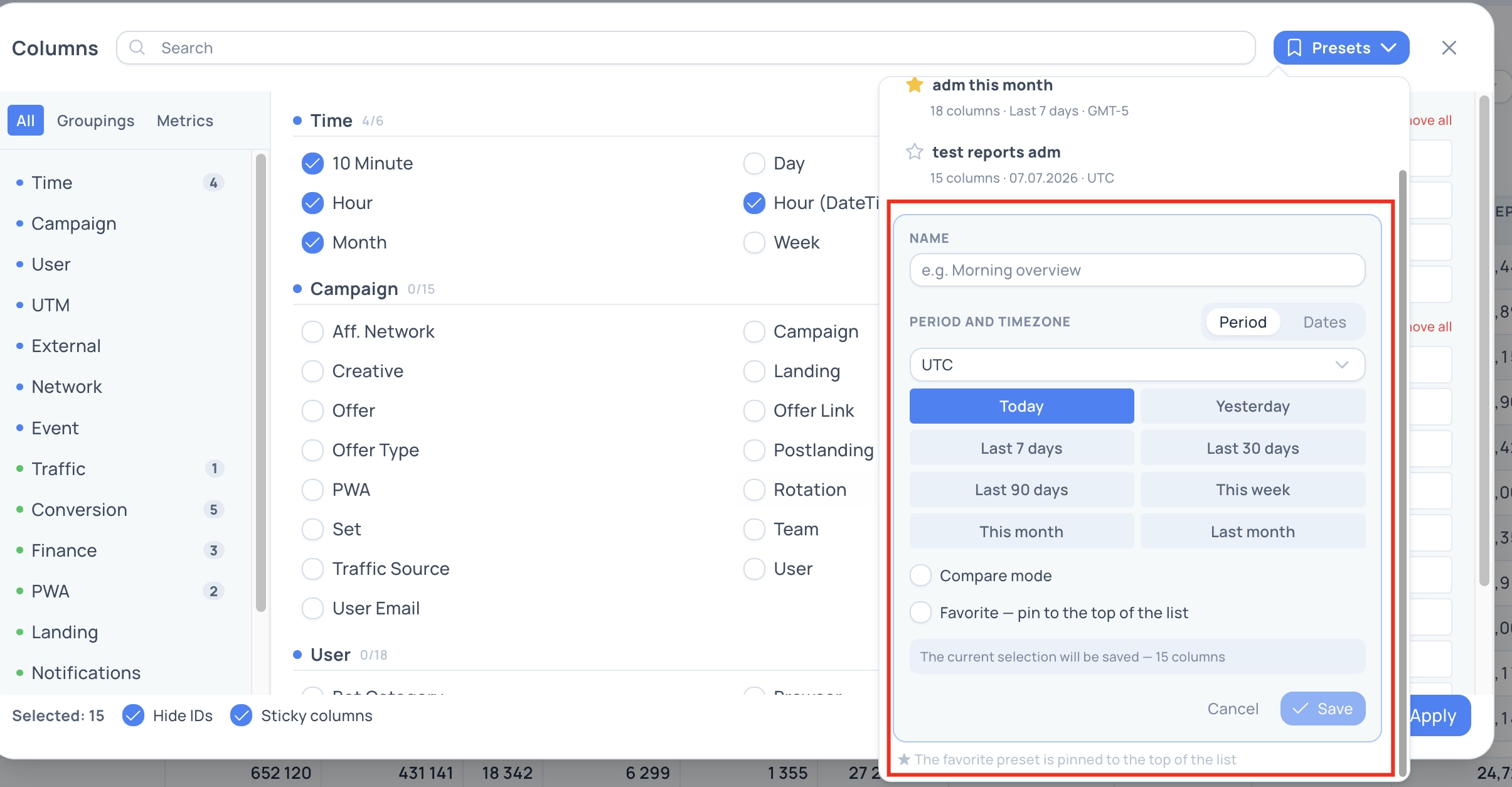
Period: relative or specific dates
- Period (relative): Today, Yesterday, Last 7 / 30 / 90 days, This week, This month, Last month. Such a preset is recomputed each time it is applied — for example “Today” always shows the current day.
- Dates (specific): pick a range in the calendar — a fixed period is stored.
💡 The time zone matters: it affects both the period boundaries and the breakdown by day/hour. For a relative period the time zone is set by a separate select in the “Period” block.
Applying a preset
- Clicking a preset row fills its columns and metrics into the dialog (the “Selected” list) and remembers the period.
- The changes are applied to the table with the “Apply” button in the dialog footer. Along with the columns and metrics, the period is applied too — the date filter is updated.
- The active preset is marked with a “✓ Applied” label.
Favorite preset (★)
- Each section can have only one favorite: picking a new one automatically clears the previous.
- The favorite is pinned to the top of the list.
- In the Report Builder your favorite preset is applied automatically when you open the page (unless the report is opened via a direct link with parameters).
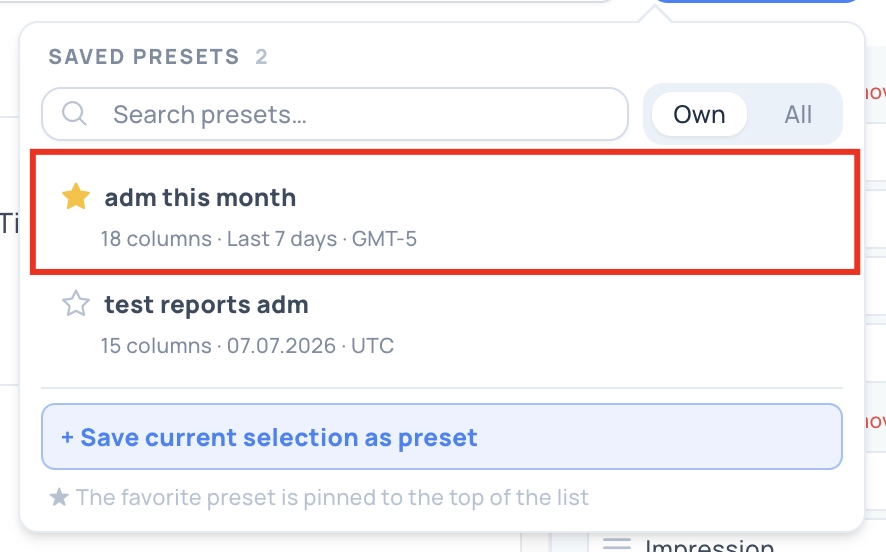
“Own / All” and access rights
- Own — only your presets. All — all presets available to you (within your team and permissions).
- You can edit, delete, and change the favorite only for your own presets. On the “All” tab these buttons are hidden.
- For the Buyer role the toggle is hidden — a buyer always sees only their own presets.
Compare mode (Report Builder only)
Check the “Compare mode” box to make the preset include period comparison. Settings:
- Compare base: Adjacent — a period of the same length immediately before the selected one; Prev. month — the same period one month earlier. The base is derived from the preset’s main period.
- Show: Difference, Percent, or Absolute.
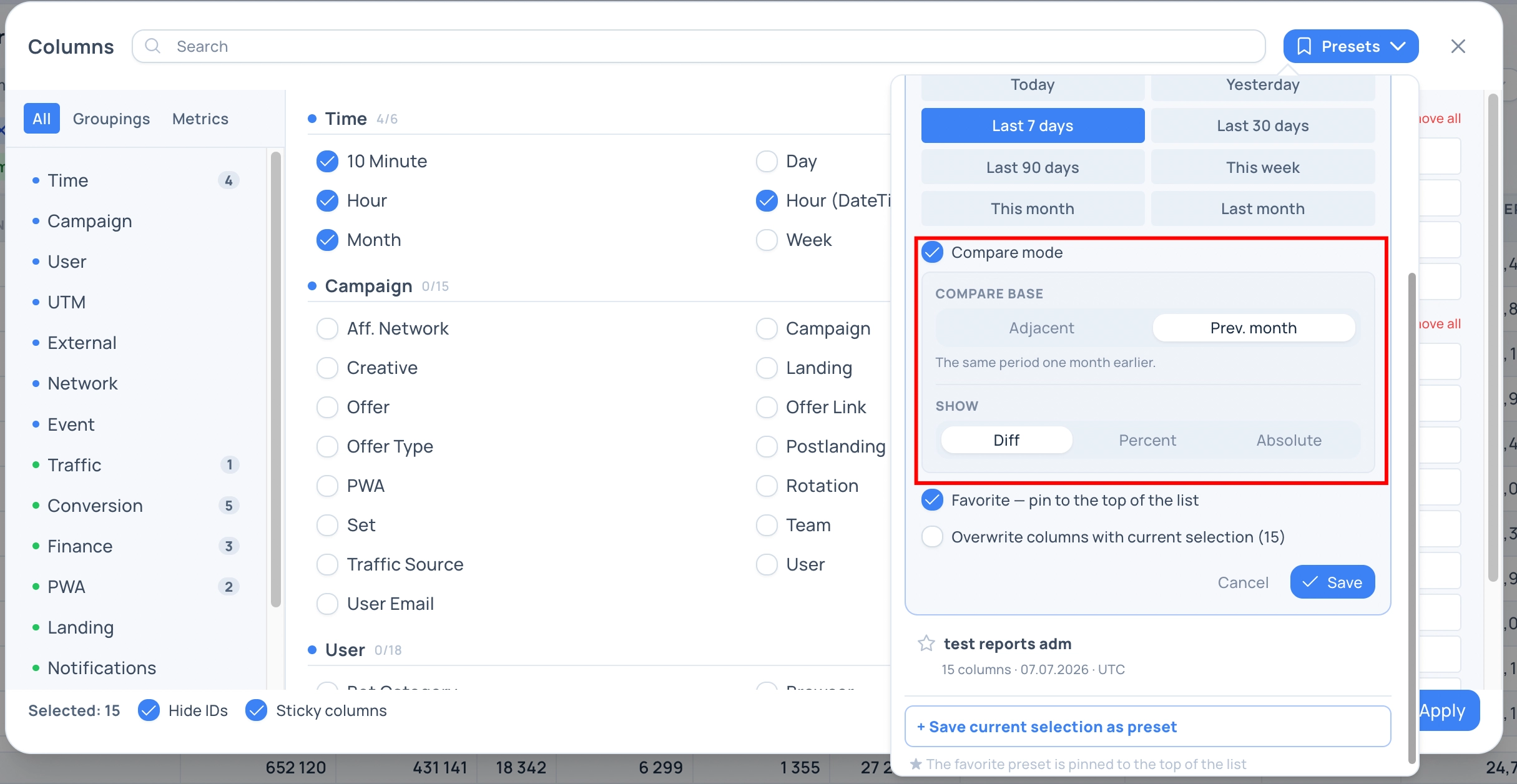
ℹ️ No separate date is set for comparison: the comparison period is always computed from the preset’s main period at apply time.
Editing and deleting
- ✎ Edit — opens the preset form with the current values.
- ✕ Delete — with inline confirmation. Deleting is available only for your own presets.