
Team extension: one antidetect agent archive for the whole team
Team extension is a variant of the global antidetect agent installation for teams whose antidetect browser works in team access mode. The team lead installs a shared archive once, and each buyer selects themselves on the first launch of a profile — the social profile in Adset.pro is created under them, and spend is counted in their name.
This is an addition to the article “Global installation of the antidetect agent: one archive for all profiles”. That article describes the personal archive and installation in each antidetect; this one covers why the team variant is needed, which tasks it solves and how it differs.
Why it is needed
The personal archive assumes that each buyer has their own antidetect or their own set of extensions: the buyer downloads an archive with their key, and all profiles the extension connects are created under them.
In an antidetect with team access, this does not work:
extensions there are shared — a buyer cannot install an extension that only they will have;
if you put someone's personal archive into a shared antidetect, all team profiles will be created under one person — whoever downloaded the archive. The whole team's spend will merge under one name, and per-buyer statistics will become meaningless;
the only option left is the old manual way: the team lead creates a social profile for each antidetect profile, issues a token and hands them out to buyers. With dozens of profiles, that is hours of work and constant mistakes.
The team extension solves exactly this: one extension for everyone, but each profile has its own owner.
Which tasks it solves
Task | How the team extension solves it |
|---|---|
Install the agent in a shared antidetect once | The team lead downloads one team archive and adds it as a shared extension — it appears in all profiles of all buyers |
Count spend for the person who actually runs the profile | On the first launch of a profile, the buyer answers the “Who are you” question — the social profile is created under them, not under the team lead |
Avoid creating social profiles and tokens manually | The buyer connects the profile themselves, in a minute, without the team lead and without tokens |
Avoid giving the buyer extra access | The social profile is created with the buyer's own permissions: in the form, they see only the traffic sources available to them in the dashboard |
Hand over profiles between buyers | The new buyer clicks “This is my profile” in the extension — the social profile is reassigned to them, history and settings are kept |
Work with one profile from different computers | A profile opened on another machine keeps syncing without reconfiguration |
See who connected what | The extension log in the dashboard and a notification to the team lead about each connection and each handover |
Cut off access quickly | The team key is revoked with one button, separately from the personal one; profiles that are already connected do not stop |
Personal or team archive
Personal archive | Team archive (this article) | |
|---|---|---|
Who it suits | Each buyer has their own antidetect or their own extensions | An antidetect with team access, extensions shared by everyone |
Who downloads it | Each buyer themselves | The team owner, team lead or tech — once |
Who social profiles are created under | Whoever downloaded the archive | Whoever the buyer selected in the extension (“Who are you”) |
Connecting without asking | Yes, if a source is selected | No: the “Who are you” question is asked on the first launch of each profile |
Handing a profile over to another buyer | Only in the dashboard | In the extension, with the “This is my profile” button |
Control | Not needed: the buyer connects only their own profiles | The extension log and notifications to the team lead |
The personal and team archives are the same extension with different keys. There is no need to install both in one antidetect.
Specifics of the team variant
The team archive is available to the whole team, so it works differently from the personal one. It is worth knowing this before handing it out.
How access works
The key in the archive only connects. It does not sync spend itself: on connection, each profile gets its own access and works with it from then on. That is why the team key can be revoked without stopping profiles that are already running.
The key is tied to whoever downloaded the archive. The “Who are you” list is built based on their access: a team lead sees themselves and their subordinates, a tech and the team owner see the whole team. If the person who downloaded it is no longer a manager or has been moved to another team, the key stops connecting new profiles.
You cannot log in to the Adset.pro dashboard with this key. It works only for the extension.
How the owner is selected
The “Who are you” question is asked once per profile — on the first connection. Connecting “without asking”, as with the personal archive, is not available here: it is not known in advance whose profile it is.
The buyer selects themselves, without confirmation. Any member from the list can be selected. Instead of confirmation, control applies: a log entry and a notification to the team lead.
An already connected profile does not ask about the owner again. If another buyer opened the profile, it keeps working for the previous owner until the new one clicks “This is my profile”.
What everyone with the archive can see
— the connection key: it can be used to connect a profile under any member from the list and to get access to the sync of an already connected profile of any of them. Each such issue is visible in the log;
— the antidetect key, if it was specified when downloading. For Dolphin Anty, Vision and Multilogin, this is access to all team profiles in the antidetect. Adset.pro does not restrict this access.
Hand out the team archive only to those you already trust with access to the shared antidetect.
Limitations
Only the team owner, team lead or tech can download the team archive.
Up to 100 connections per hour through one team archive.
There is no automatic matching of antidetect users and Adset.pro users — the buyer selects themselves manually.
A profile can be handed over from the extension only if the manager who downloaded the archive has permission to change the owner of this profile in the dashboard.
What you need
The team owner, team lead or tech role — only they see the “Team extension” toggle.
A supported antidetect browser: AdsPower, Dolphin Anty, Vision or Multilogin X, with the ability to install shared (team) extensions.
Each profile needs a proxy, a logged-in Facebook and an open Ads Manager tab. The requirements are the same as for the personal installation.
Buyers must be members of your team in Adset.pro.
For the team lead: step 1. Download the team archive
Open Meta → Social profiles and click “Download extension”.
Select the antidetect browser and, if needed, specify the antidetect key — as with the personal installation.
Turn on “Team extension”.
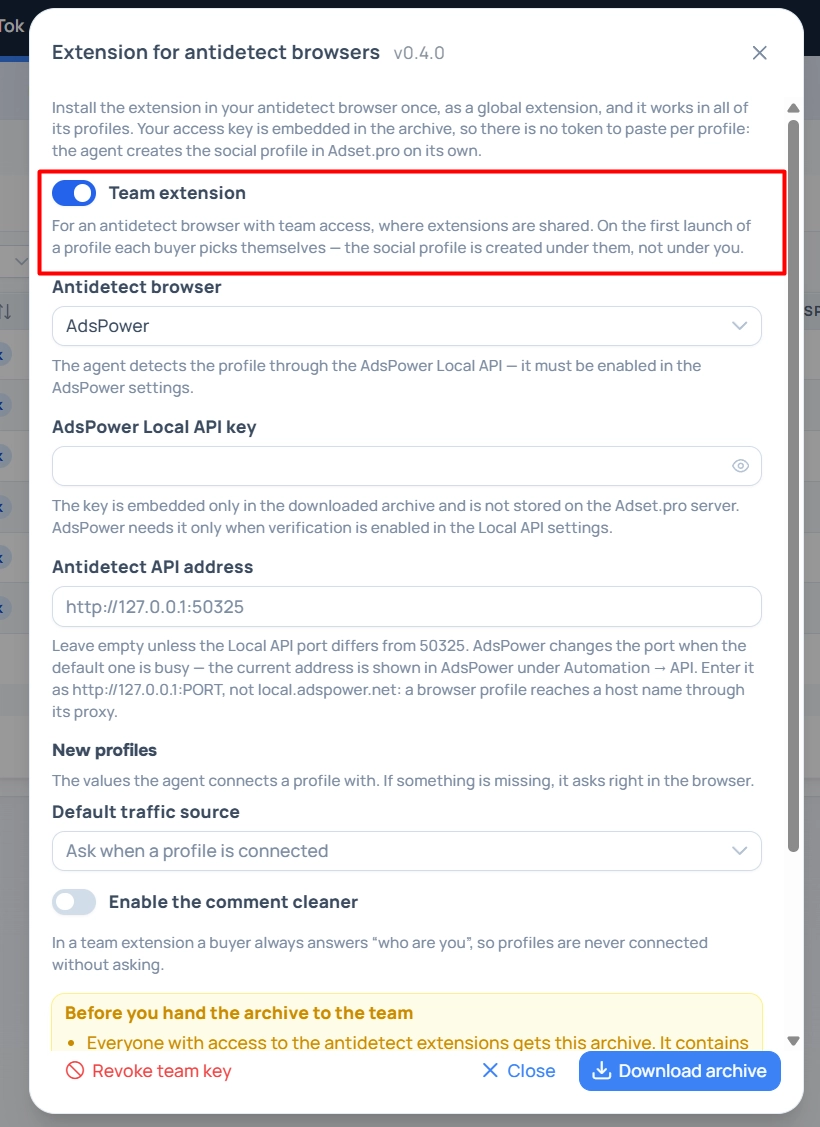
After turning it on, the dialog changes:
the “Connect profiles without asking” block disappears — in the team extension, the buyer always answers who they are;
the “Before you hand the archive to the team” warning appears — it briefly repeats the “Specifics” section above.
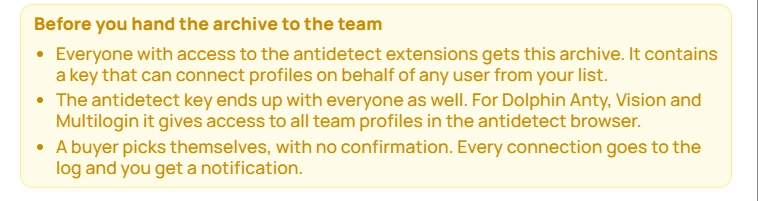
The default traffic source and comment cleanup can be set as usual. The buyer can change the source when connecting: they are shown only the sources they themselves see in the dashboard.
Click “Download archive”. The file is named adset-spend-agent-team-…zip.
For the team lead: step 2. Install it as a shared extension
Upload the archive to the antidetect as a team (shared) extension — so that it appears for all buyers. The steps for each browser are the same as in the article about the global installation; the only difference is that the extension is added to the team's shared section, not the personal one.
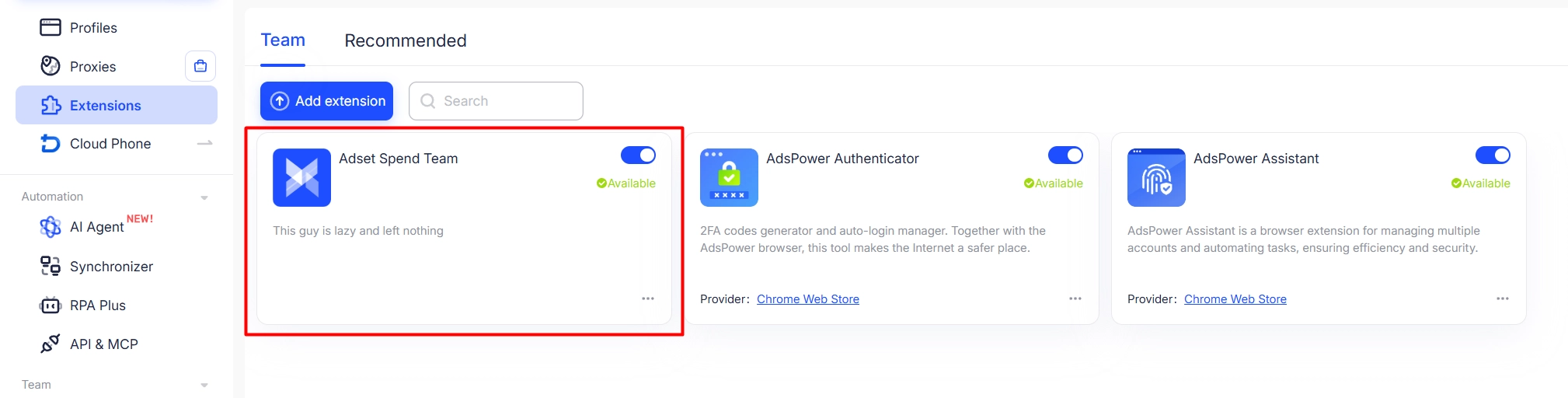
For the buyer: step 3. First launch of a profile
Launch the antidetect profile, log in to Facebook and open Ads Manager.
The extension opens the “Connect the profile” tab. If the tab did not open, click the extension icon and the “Connect the profile” button.
In the “Who are you” field, select yourself. If there are many members, start typing the name.
Check the traffic source and profile name and click “Connect”.
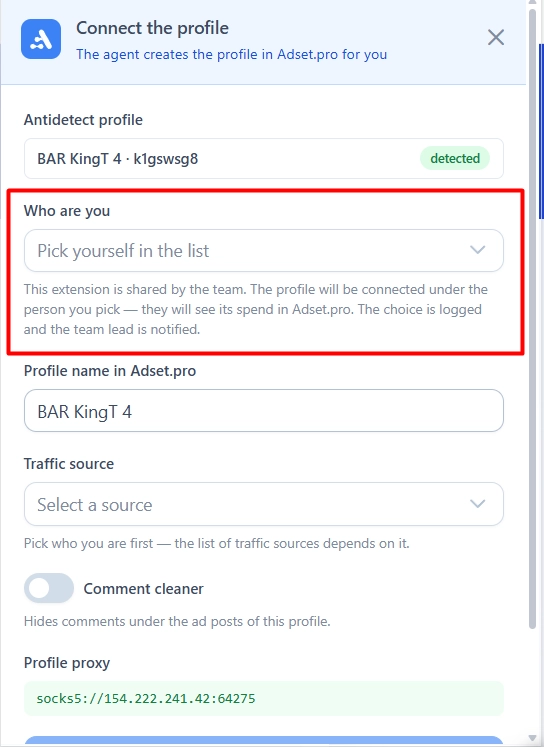
The social profile appears in Adset.pro in your name; spend starts coming in after the first server run (up to 30 minutes). After that, the extension works on its own.
Select yourself specifically. The profile's spend is counted for whoever is selected as the owner. Your choice is visible to the team lead in the log.
If the profile is already connected by someone from the team (for example, you opened it on another computer), the extension does not ask anything — the profile keeps working for the previous owner.
The profile has passed to another buyer
When an antidetect profile is handed over to another buyer, the social profile in Adset.pro remains with the previous owner, and spend continues to be counted for them. The new buyer reassigns the profile to themselves directly from the extension:
Open the extension. On the main screen, the “Owner” line shows the current owner of the profile.
Click “This is my profile”, select yourself and click “Reassign”.
📷 Screenshot: the extension's main screen with the “Owner” line and the “This is my profile” button
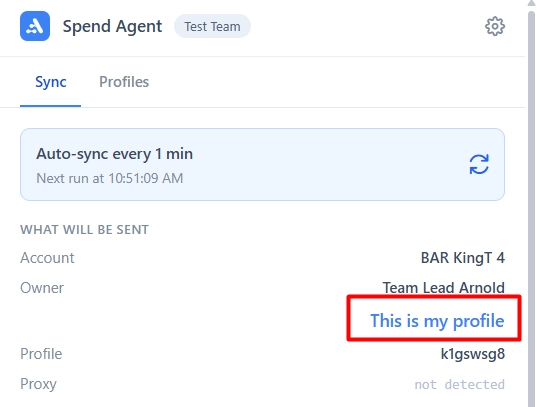
the social profile stays the same — history and settings are kept, no duplicate is created;
spend from the moment of handover goes to the new owner. The current day and several previous days are also recalculated for them — the sync re-reads them; earlier days stay with the previous owner;
the handover is recorded in the log, and the team lead receives a notification.
If the extension replied that the profile cannot be handed over, the manager who downloaded the archive does not have permission to change the owner of this profile. Ask them to change the owner in the dashboard (in the social profile card).
Extension log and notifications
The team lead has access to the “Team extension log” tab on the Meta → Social profiles page. It shows every action performed through the team archive: when, which profile, who was selected as the owner (and who the owner was before), through whose archive, the antidetect profile and IP. There are three kinds of actions:
Connected — a buyer connected a profile and selected the owner;
Handed over — the profile was reassigned to another member;
Token issued — an already connected profile was opened on a new machine (or after a reset), and the extension got access to its sync. This is a routine action, no notification is sent about it; such entries can be filtered out in the log filter.

A team lead sees actions performed through their own archive.
The team owner and tech see actions across the whole team.
The tab is not shown to buyers.
For each connection and handover, whoever downloaded the team archive receives a notification in the notification bell. Email and Telegram are off by default — when rolling out to a team, there would be too many messages. You can turn them on in the notification settings, the “Ad integrations” section, event “Team extension: profile connected”.
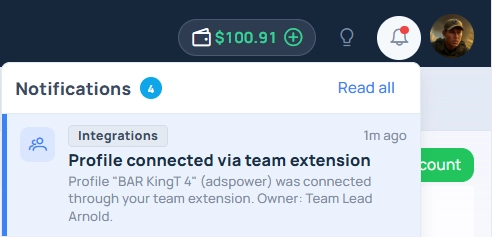
Revoking the key and stopping a profile
In the download dialog, the team lead has two buttons: “Revoke key” (personal) and “Revoke team key”. They are independent.
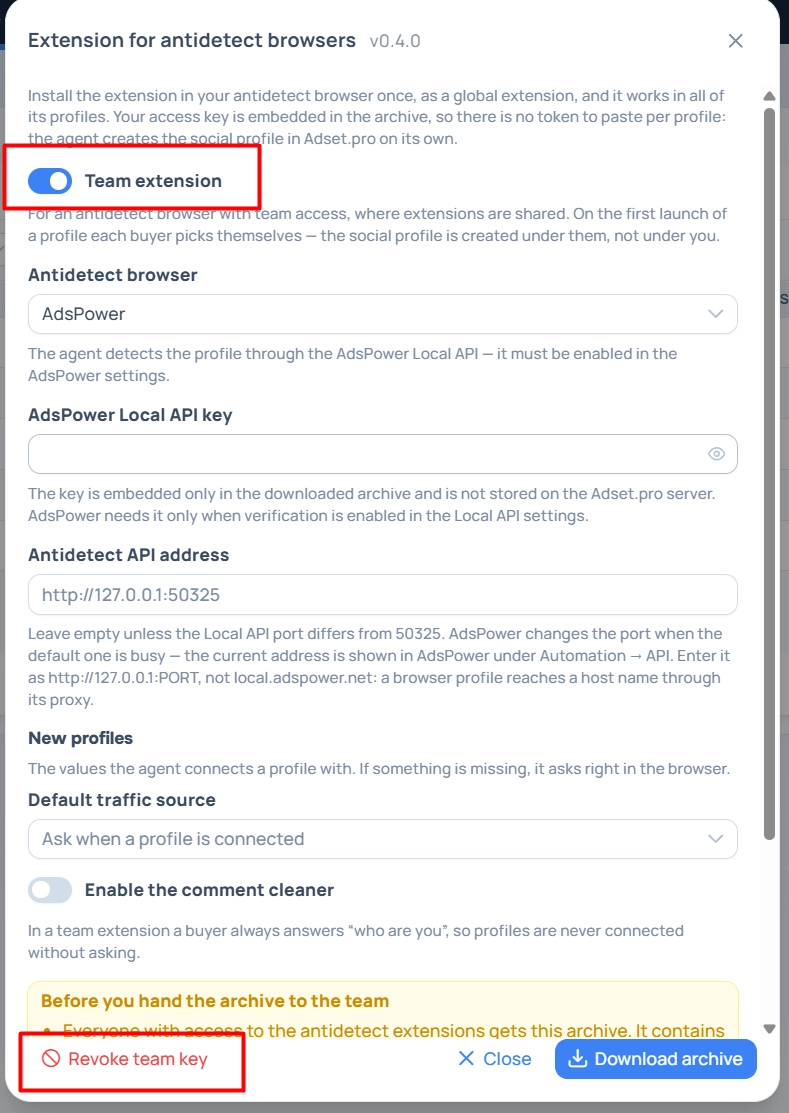
Revoking the team key stops connecting new profiles and handing profiles over. Profiles that are already connected keep syncing. To continue connecting, download the team archive again and replace the extension in the antidetect.
To stop a single profile, close it in the dashboard (status “Closed”). Reissuing the profile token will not stop the profile while the team key is valid: the extension will get new access on its own.
The team key also stops working by itself if the person who downloaded the archive is no longer the team owner, team lead or tech, or has been moved to another team. In this case, another manager must download the archive and replace it.
FAQ
The dialog has no “Team extension” toggle
It is visible only to the team owner, team lead and tech. A buyer and an administrator without a team do not get a team archive.
The buyer is not in the “Who are you” list
The list is built based on the access of whoever downloaded the archive. A team lead sees themselves and their subordinates: add the buyer to the subordinates, or ask a tech or the team owner to download the archive — their list includes the whole team.
The buyer selected someone else
The right buyer clicks “This is my profile” in the extension and reassigns the profile to themselves. Alternatively, the team lead changes the owner in the social profile card in the dashboard.
The traffic source is unavailable
In the team extension, sources are shown according to the permissions of the selected buyer. Select another source or give the buyer access to the required one.
The profile was copied (cloned) in the antidetect
A clone is a new antidetect profile. The extension in it asks to connect again, and a separate social profile is created for the clone. The clone's data does not get into the original's social profile.
The previous owner of the profile left the team, the profile is closed
The extension treats such a profile as not connected: the new buyer selects themselves, and a new social profile is created for the antidetect profile. The closed one remains in the history.
The team already uses personal archives — do we need to redo everything
No. Profiles connected with a personal archive or a token keep working. The team archive is needed only where the antidetect is shared and extensions are installed for the whole team.
Do I need to reinstall the extension when updating
When replacing the team archive with a new version, profiles that are already connected do not need to be connected again — they keep working.