
Global installation of the antidetect agent: one archive for all profiles
A guide to the global installation of the antidetect agent: the extension is installed in the antidetect browser once and works in all of its profiles, and it creates the social profiles in Adset.pro on its own. This builds on the method described in the parent article “Syncing Facebook spend via the antidetect agent”: there, each profile needs its own token and its own setup; here, none of that is required.
The general cost setup (mapping FB macros in the source, the track link in the creative) is described in “Pulling spend (costs) from Facebook” and is still required.
How global installation differs from the previous model
Previous model (token per profile) | Global installation (this article) | |
|---|---|---|
Installation | Separately in each antidetect profile | Once, as a global antidetect extension |
Token | A separate one for each social profile, entered manually | A single buyer key, already embedded in the archive |
Social profile in Adset.pro | Created manually before installation | Created by the agent itself on the first launch of the profile |
Settings | In each profile | Set once when downloading the archive |
The previous model keeps working: profiles already set up with tokens do not have to be reinstalled.
What you need
A supported antidetect browser: AdsPower, Dolphin Anty, Vision or Multilogin X (Multilogin support is in beta).
A proxy on every profile that will be synced. The Adset.pro server accesses Facebook only through the profile proxy; without a proxy, sync does not run.
A logged-in Facebook and an open Ads Manager tab in the profile: the agent reads access from it.
For Dolphin Anty, Vision and Multilogin — the antidetect API key (where to get it is described in the section for your browser below). AdsPower usually does not need a key.
An Adset.pro account that is a member of a team. The agent key is issued to a team member — the archive cannot be downloaded as an administrator or while signed in as another user.
Step 1. Download the archive in Adset.pro
Open Meta → Social Profiles.
Click “Download extension” to the right above the profile list.

A dialog with the archive parameters opens. Everything you select here goes into the archive and is the same in all antidetect profiles — you will not have to change it in each browser.
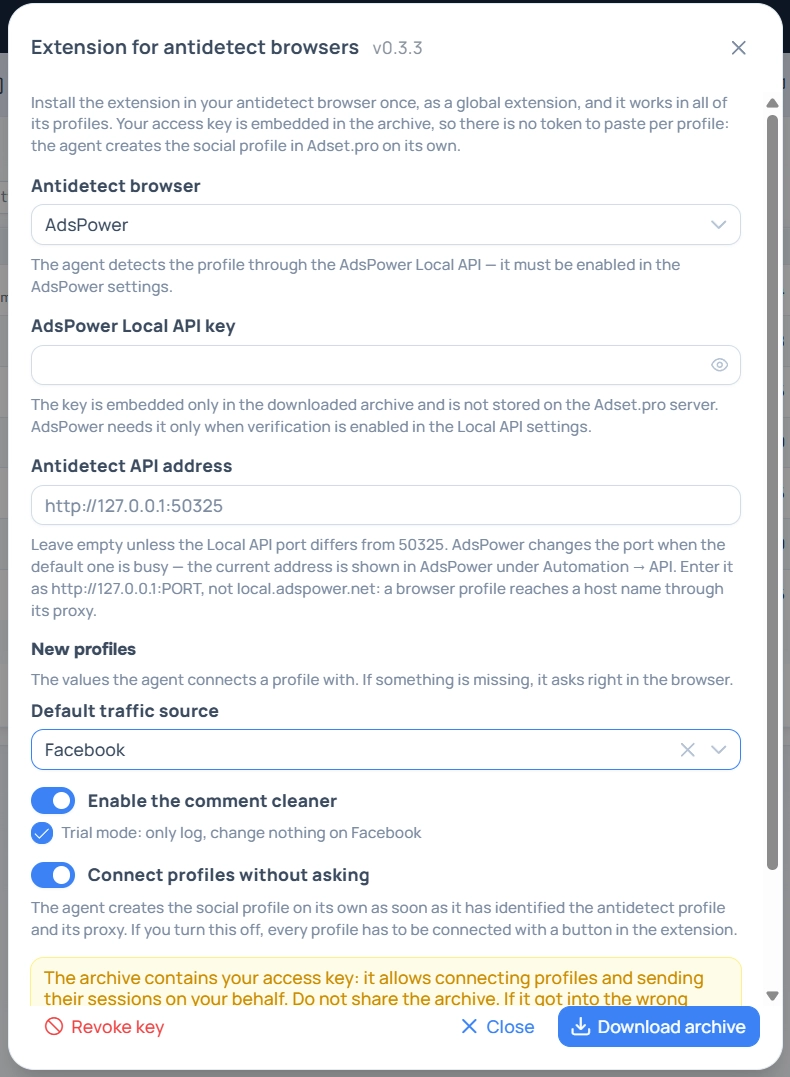
Antidetect browser and key
Antidetect browser — the one you install the extension in. The choice determines how the agent finds profiles and proxies.
Antidetect key / token — required for Dolphin Anty, Vision and Multilogin; for AdsPower it is needed only when Local API verification is enabled. The key is embedded in the archive and is not stored on the Adset.pro server.
Antidetect API address — leave it empty. It is filled in only in non-standard cases, for example when AdsPower has changed its Local API port (see “FAQ”).
New profiles
The values the agent will use to connect profiles:
Default traffic source — which source new social profiles are linked to. If not selected, the agent will ask about it in the browser when connecting each profile.
Enable the comment cleaner — whether to enable it on new profiles. By default it starts in trial mode: it keeps a log and changes nothing on Facebook. Trial mode can be turned off later in the social profile settings.
Connect profiles without asking — turns on automatically as soon as a source is selected. With it, the agent creates the social profile without your involvement. If you turn it off, each profile has to be connected with a button in the extension.
Click “Download archive”. By downloading the archive, you confirm that the agent reads the FB session of the profiles it is installed in and sends it to Adset.pro to sync spend.
The archive contains your personal access key. Do not share the archive with other people. If it falls into the wrong hands, click “Revoke key” in the same dialog: all previously downloaded copies stop working, and the extension will have to be downloaded and installed again.
Downloading again (a new version, a second computer) does not disable earlier copies — the key is revoked only with the button.
Step 2. Install as a global extension
The archive is a regular zip with a Chrome extension (the manifest.json file at the root). Install it through the extensions section of the antidetect browser itself, not via chrome://extensions inside a single profile: only then will the extension appear in all profiles. The exact steps for each browser are below.
AdsPower
Key. Usually not needed. It is required only if Local API access verification is enabled in AdsPower. To check and get the key: in the AdsPower app, open API & MCP, the API Settings block. If verification is enabled, click Generate api-key and copy the key into the download dialog.
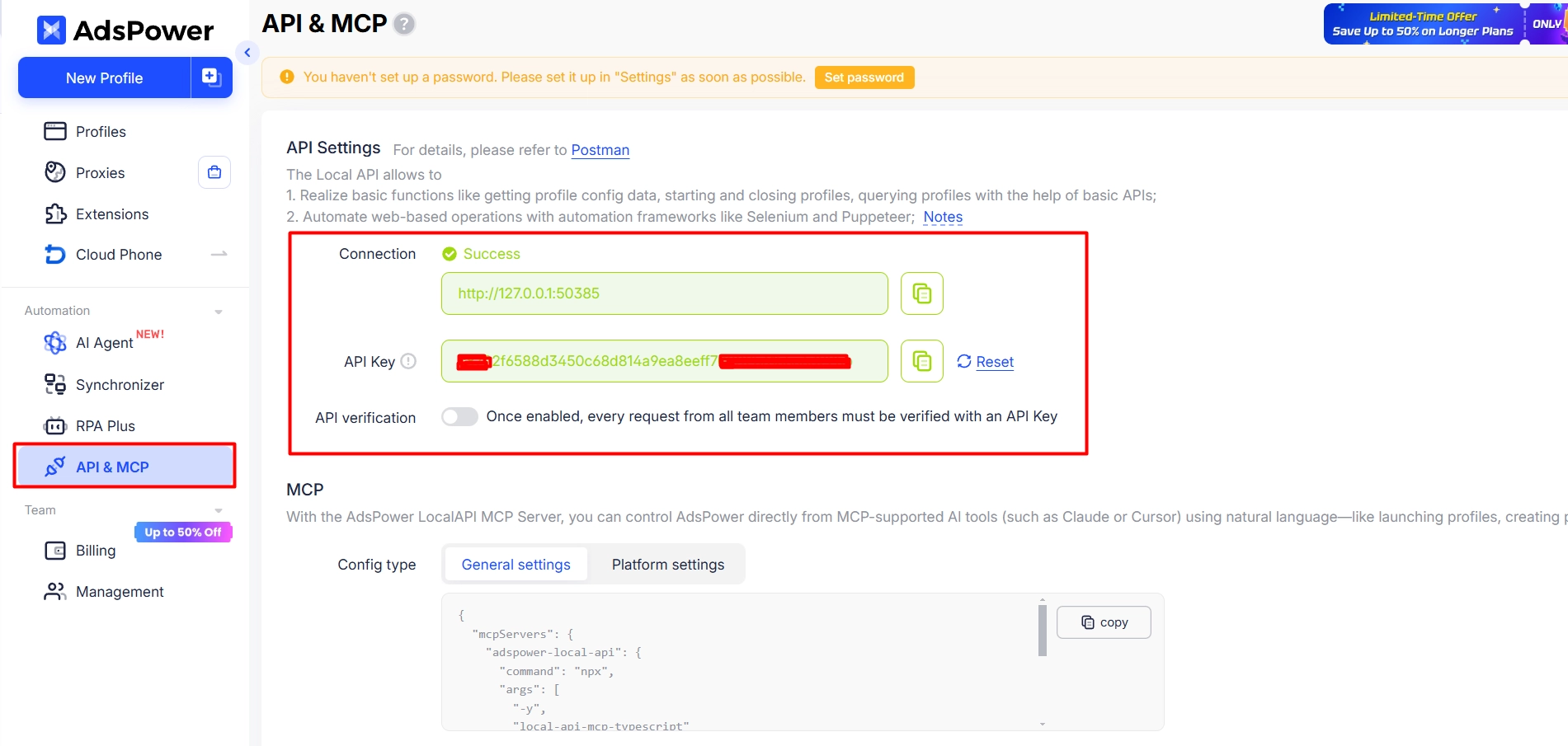
Installation.
In AdsPower, open the Extensions section, the Team tab.
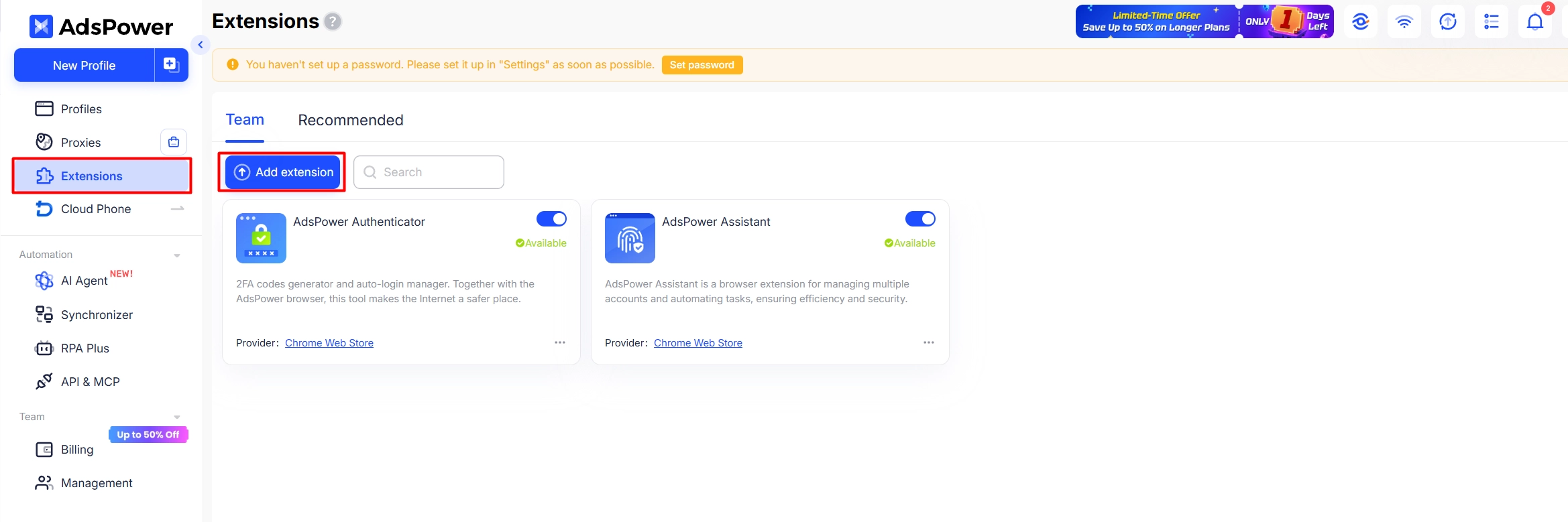
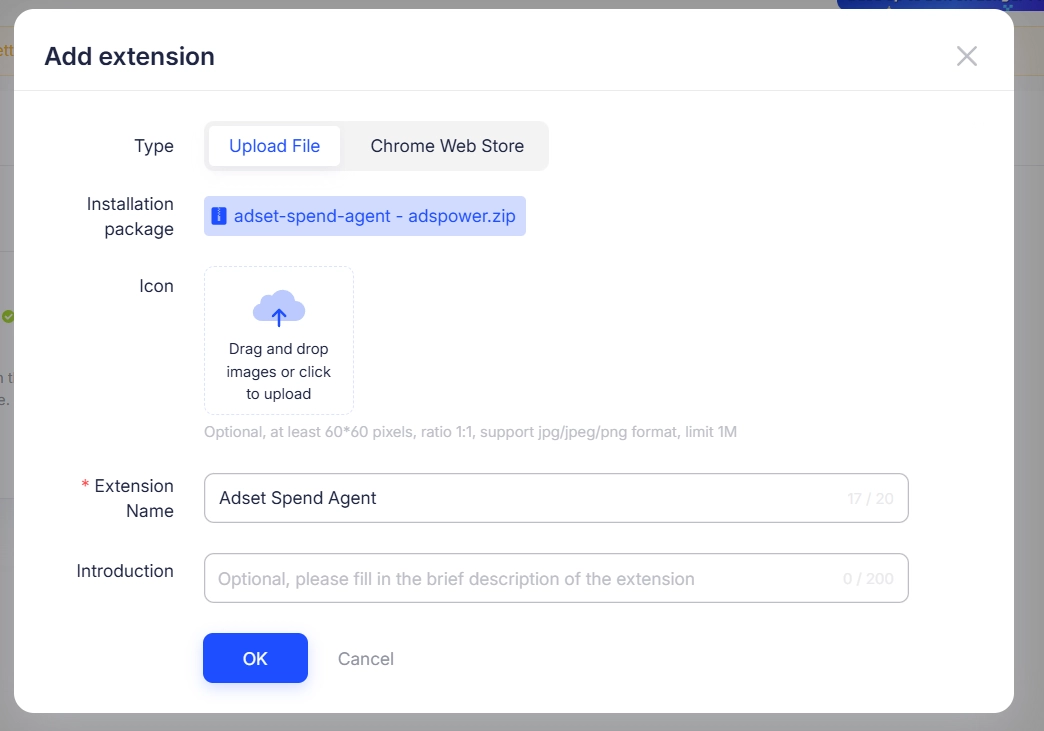
Click Add extension, select the downloaded zip archive (the AdsPower limit is 60 MB; the agent archive is much smaller), set a name and confirm.
Enable the extension for profiles. For new profiles, it is convenient to add it to an extension category (Category → New category) and select that category when creating a profile; for existing ones, select the profiles and open Profile → Edit extension.
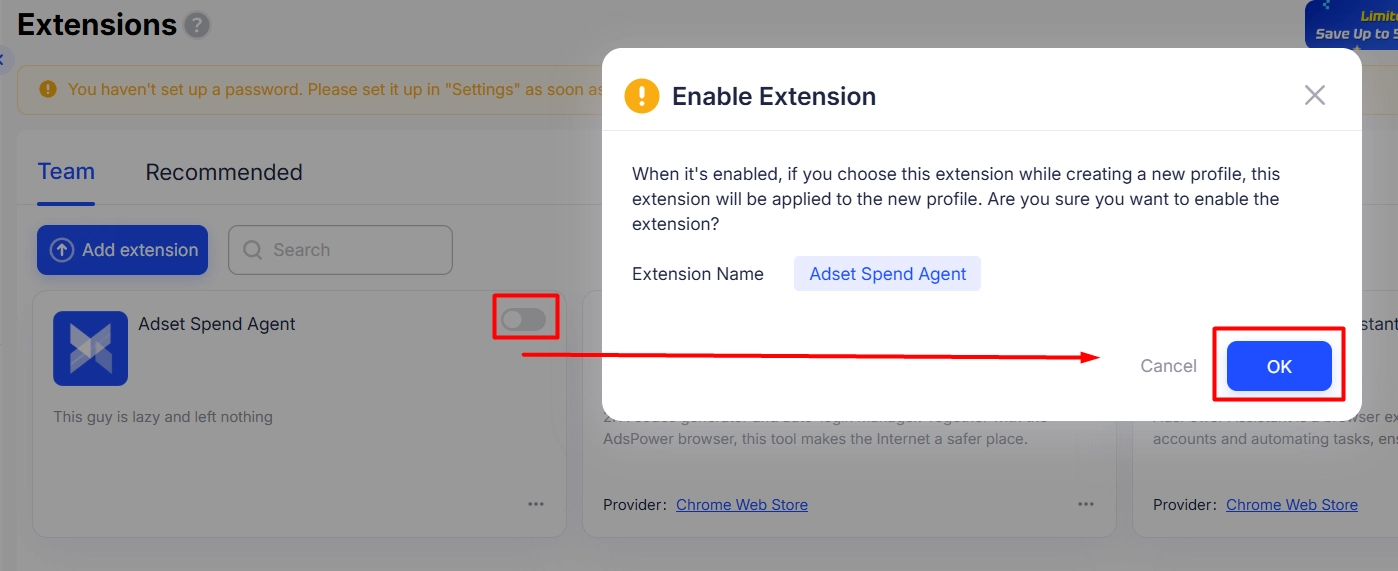
Specifics. The agent detects its profile automatically via the AdsPower Local API — no confirmation is needed. The agent also takes the profile proxy with login and password from AdsPower. The Local API must be enabled.
Dolphin Anty
Key. Required. The token is created in your Dolphin Anty account on the website, in the API section: enter a token name, choose the validity period and create it. The token is shown only once — copy it into the download dialog right away. Choose the maximum validity period: when the token expires, the agent stops seeing profiles and the archive will have to be downloaded again.
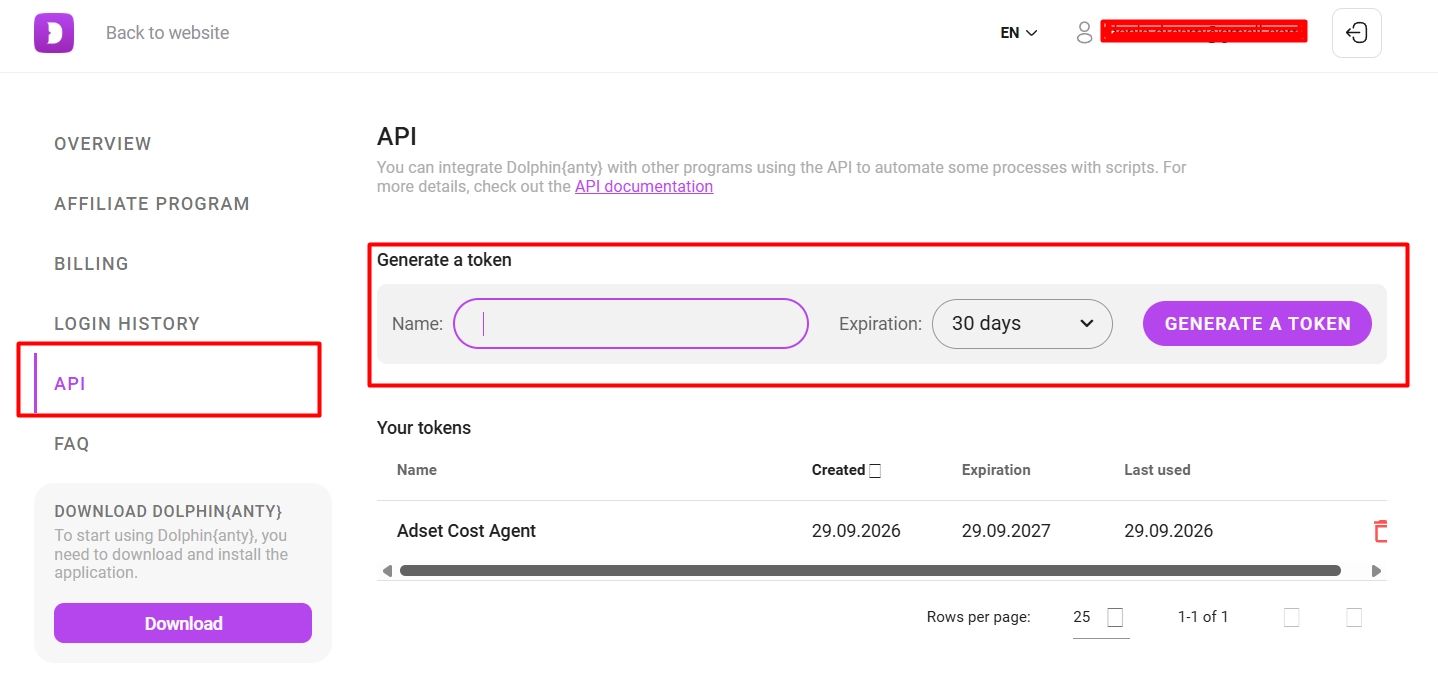
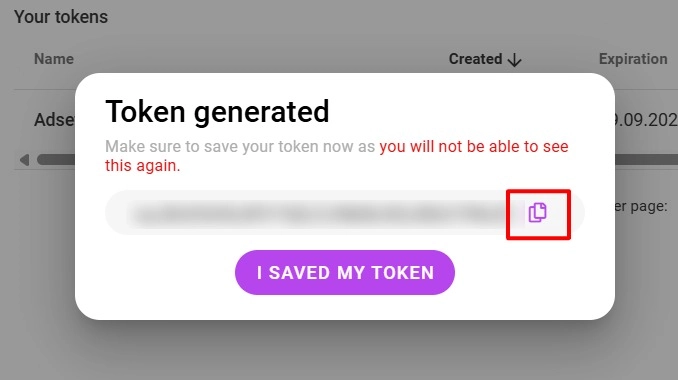
Installation.
In the Dolphin Anty app, open the Extensions section (side panel) — these are shared extensions installed in all profiles.
Click “+” in the top right corner and add the extension from the downloaded zip archive.
If the extension should work for the whole team, turn on the corresponding toggle in the extension card.
📷 Screenshot: Dolphin Anty, “Extensions” section, adding from an archive
(Whoever sends this screenshot gets 15 USD credited to their account: contact support)
Specifics. Dolphin does not report which profile is currently open, so the agent identifies its profile by its fingerprint (cores, memory, GPU, network parameters from the profile settings). For this, a tab with a website must be open in the profile — Facebook works fine. If two profiles have the same fingerprint, the agent will ask you to pick the right one once. The agent takes the proxy, including login and password, from Dolphin.
Vision
Key. Required — the X-Token. In the Vision app, open Settings → Extended Features and copy the X-Token into the download dialog. If the app runs in team mode, X-Team-Token is shown instead of X-Token — use that.
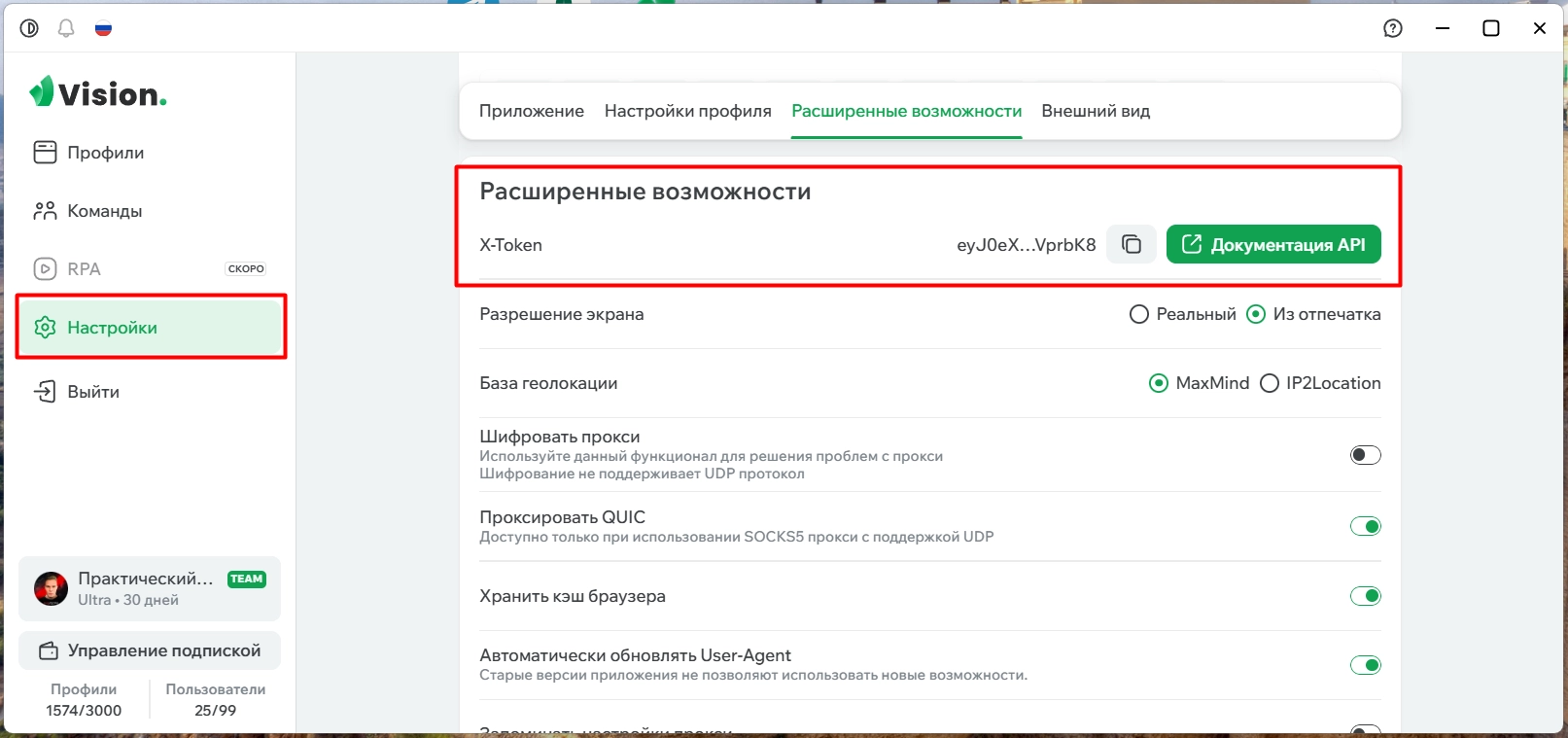
Installation.
In Vision, open the Extensions section.
Add the extension from the zip archive.
The extension applies to all profiles in the current folder. If the profiles are spread across several folders, add it in each one.
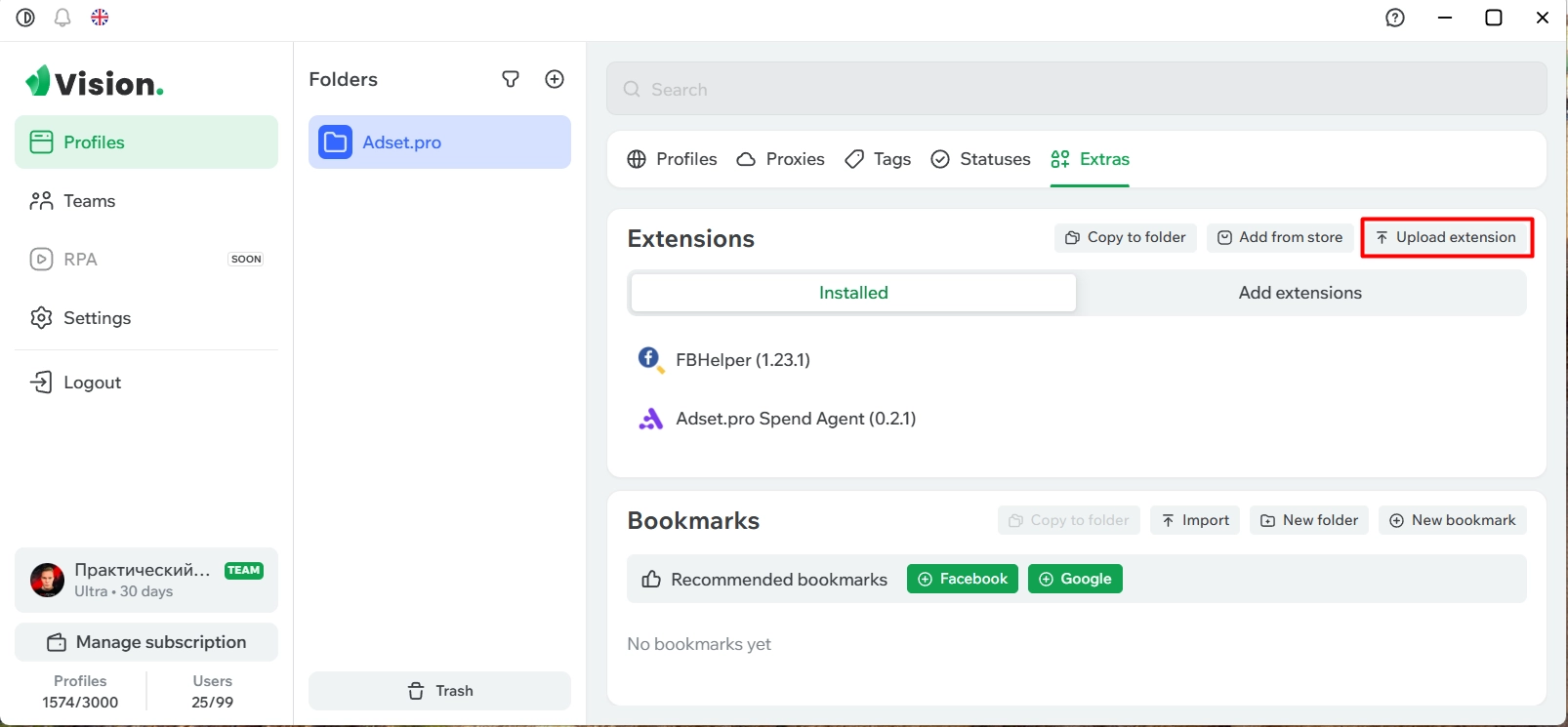
Specifics. Vision does not report which profile is open, so the agent detects its profile automatically only when there is just one. Otherwise, on the first launch of a profile the agent will ask you to confirm it — once; after that the profile is pinned. The agent takes the proxy from the Vision profile settings.
Multilogin X (beta)
Key. Required — the workspace automation token. Multilogin issues it through its API (the “Automation token” guide in the Multilogin knowledge base). When creating it, set the maximum validity period: a regular sign-in token is short-lived, and the agent stops seeing profiles once it expires.
📷 Screenshot: getting an automation token in Multilogin
(Whoever sends this screenshot gets 15 USD credited to their account: contact support)
Installation.
In the Multilogin X app, open the extensions section.
Upload the extension from the archive and assign it to the required profiles.
📷 Screenshot: Multilogin X, adding an extension and assigning it to profiles
(Whoever sends this screenshot gets 15 USD credited to their account: contact support)
Specifics. Multilogin support is in beta. The agent sees open profiles through the local Multilogin launcher. The proxy is not read from Multilogin: the agent takes the proxy address from the browser settings, and the login and password must be entered once in the extension settings — or set the whole proxy manually. If something does not work, contact support with a description — this helps us finish the integration.
Step 3. Launch the profile
Launch the antidetect profile and open Facebook Ads Manager in it.
Within a minute, the agent identifies the profile, picks up the proxy and creates a social profile in Adset.pro — it appears in Meta → Social Profiles with the antidetect profile name and the selected source.
From then on everything runs on its own: the agent refreshes access once a minute while the profile is open, and the Adset.pro server pulls spend on schedule.
The status is shown in the extension window (the icon on the browser toolbar).
📷 Screenshot: the extension window, “Sync” tab with a connected profile
When the agent asks a question
The agent acts on its own only when it is certain. Otherwise, it opens the connection form once and puts a badge on the icon:
“Confirm the antidetect profile” — the agent could not unambiguously determine which profile it is running in (several open profiles with the same characteristics). Select the profile in the list — after that it is pinned.
No source selected — no default source was set when downloading. Select it in the form.
Proxy not detected — the agent could not get the complete profile proxy. Enter it in the form or in the extension settings.
“This profile is not connected to Adset.pro yet” — connecting without asking was turned off when downloading. Click “Connect the profile”.
📷 Screenshot: the profile connection form in the extension
If a profile does not need to be connected (it has no ads), the form has the option “Do not connect this profile” — the agent goes silent in it.
FAQ
The extension is installed, but the profile does not connect and asks nothing.
Check that the profile has a logged-in Facebook: without an FB session, the agent contacts neither the antidetect browser nor Adset.pro. Then open the extension window — the “Sync” tab says what is missing.
“The antidetect browser does not respond”.
The antidetect browser is not running, its API is disabled, or the key is wrong. For AdsPower, a common cause is that the Local API port has changed: AdsPower picks a different port when the default 50325 is busy. Fully close AdsPower and start it again — the port usually comes back. If not, check the current address in Automation → API, download the archive again and enter it in the “Antidetect API address” field as http://127.0.0.1:PORT. Specifically 127.0.0.1, not local.adspower.net: the profile resolves a host name through its proxy.
“This antidetect profile is already connected by another team member”.
A colleague has already connected this antidetect profile. It cannot be connected a second time — spend would be doubled. If the profile has been handed over to you, ask your colleague to close their social profile in Adset.pro: a closed profile does not block connection.
The profile connected with the wrong source or without the cleaner.
Default values are taken from the archive. The source and the cleaner of an already created social profile can be changed in Adset.pro; for new profiles, download the archive again with the required settings.
I need to install the extension on a second computer.
Download the archive again — the first one keeps working. There is no need to revoke the key.
The key has been exposed to third parties.
Click “Revoke key” in the download dialog. All downloaded archives stop working in all browsers; then download a new archive and reinstall the extension.
What about old profiles with per-profile tokens?
They keep working as before. When the extension is reinstalled from the global archive, the agent finds such a profile by its ID in the antidetect browser and connects to the existing social profile; there is no need to create it again.
The extension version has been updated.
An installed extension does not update itself: download the archive again and replace it in the antidetect extensions section. The key stays the same.