
MCP Service Adset
The Adset.Pro platform provides a public MCP service (Model Context Protocol) that allows language models (ChatGPT, Claude, and compatible clients) to directly request your statistics from Adset.Pro.
Available tools (tools):
Tool | Scope | Purpose |
|---|---|---|
|
| Request aggregated statistics with time presets |
|
| List of available metrics, groups, and filters |
|
| Export the entire sample to CSV without pagination |
Base URL of the MCP server: https://app.adset.pro/mcp
Two authentication methods are supported:
-
OAuth 2.0 (PKCE) — for ChatGPT and other clients that conduct the user through the consent screen themselves. Suitable for connecting via the ChatGPT UI.
-
Personal API key (
mcp_…) — for Claude Desktop, Cursor, Claude Code, and any clients with a fixed Bearer token.
Below are step-by-step instructions for both scenarios.
Connecting to ChatGPT (OAuth)
ChatGPT establishes a connection to the MCP server independently via OAuth 2.0 with PKCE. No tokens need to be copied manually — the user authorizes on adset.pro through the standard consent screen.
Step 1. Enable Developer Mode
This step is mandatory — without developer mode, the Add App option does not appear in the ChatGPT settings.
-
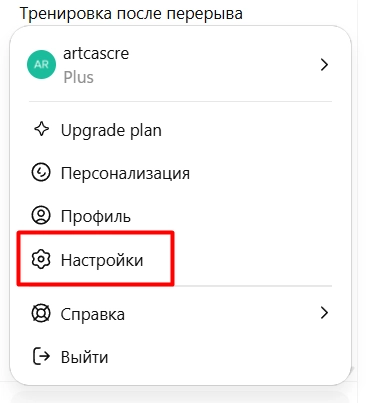
Open ChatGPT → Settings.
-
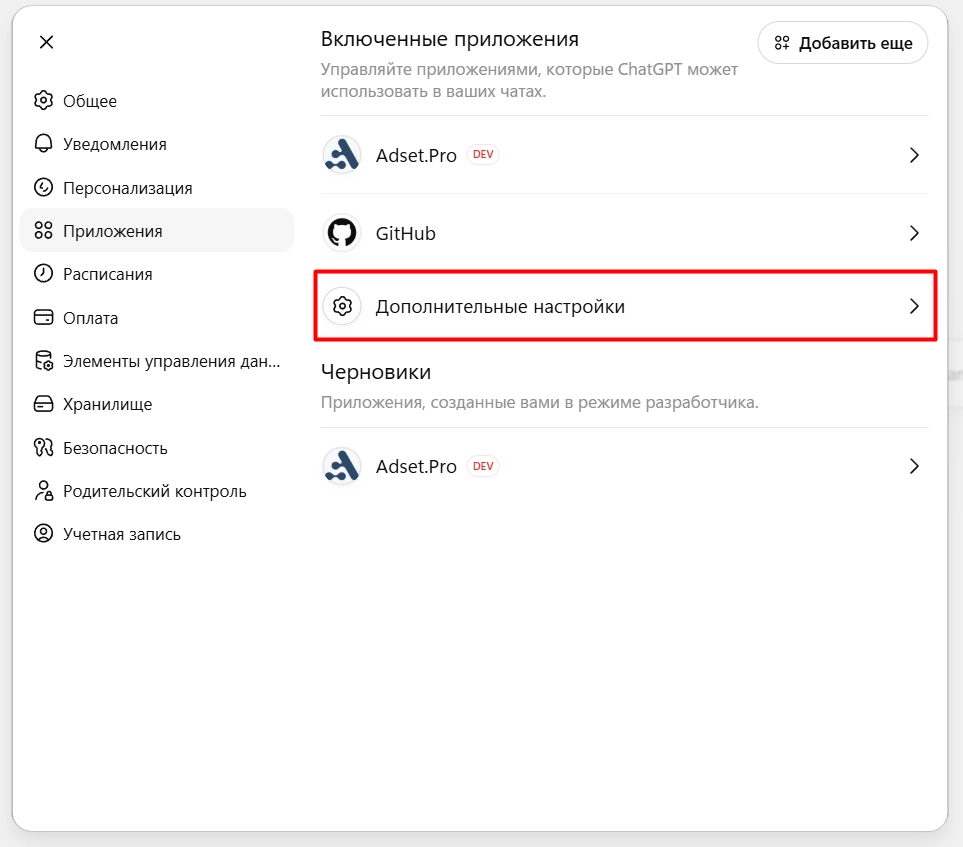
Go to the Apps (Apps & Connectors) section.
-
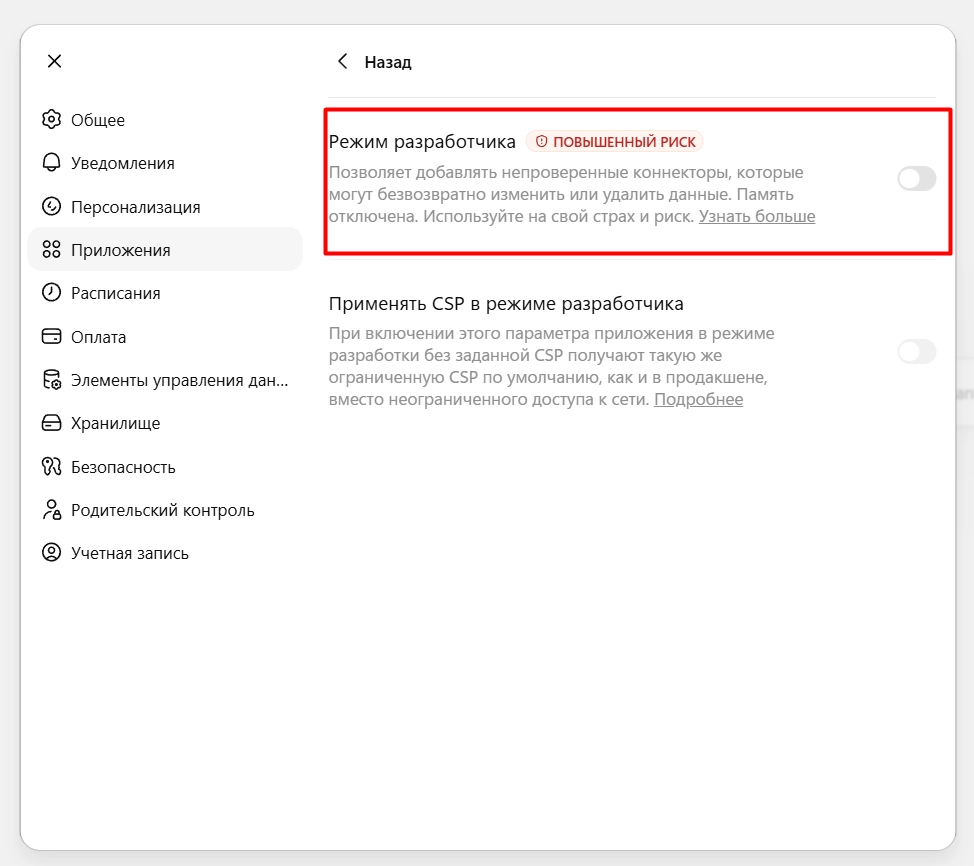
Open Advanced Settings.
-
Enable the Developer Mode toggle.
Step 2. Add AdSet App
-
Return to Settings → Apps.
-
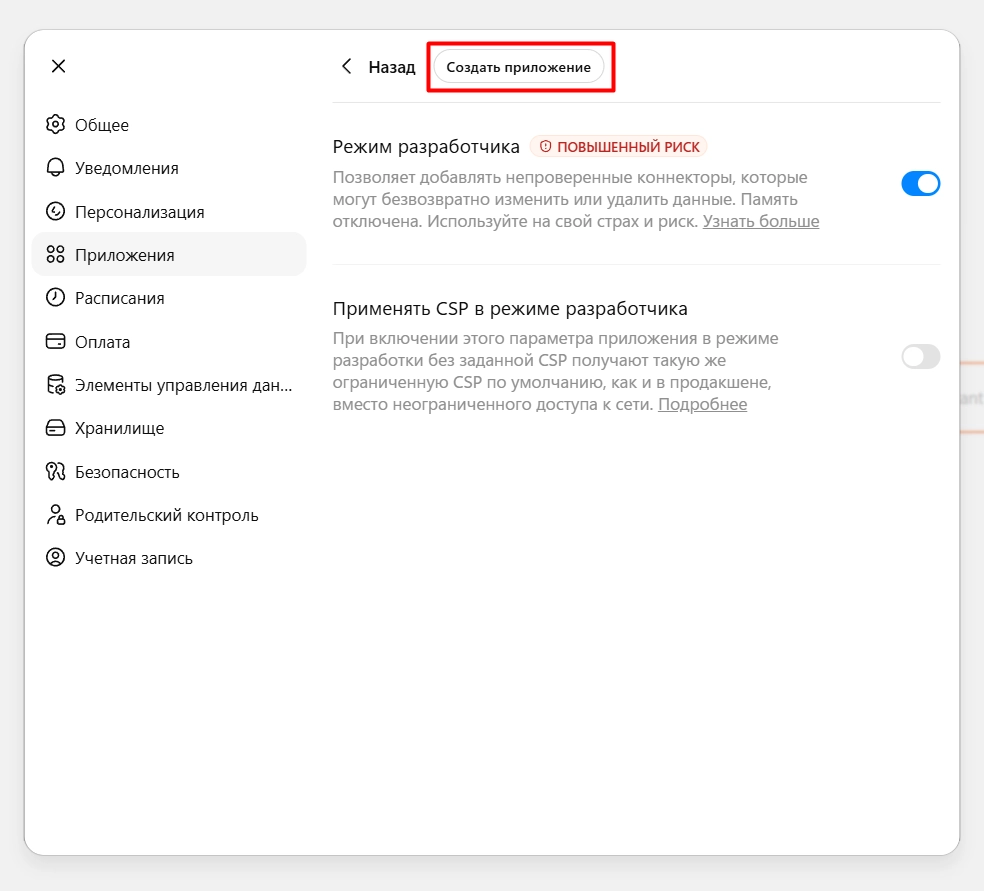
Click Add App (Add app / Create).
-
Fill in the fields:
-
Name:
AdSet -
Description:
AdSet statistics connector -
MCP server URL:
https://app.adset.pro/mcp -
Authentication:
OAuth
-
-
Click Connect / Add.
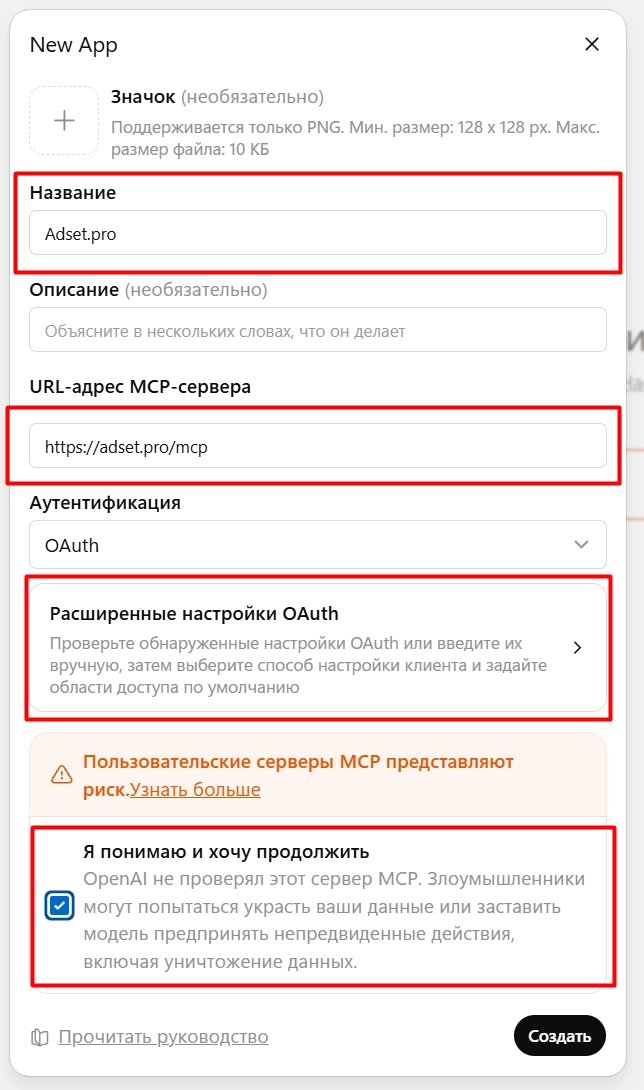
Step 3. Authorization and Consent
ChatGPT will open a popup window with the screen https://adset.pro/oauth/authorize:
-
If you are not logged in yet — enter the email and password of your Adset.Pro account.
-
On the consent screen, you will see your account name and a list of requested scopes:
-
stats:query— read aggregated statistics -
stats:meta— read metadata (metrics/groups/filters) -
stats:export— export CSV
-
-
Click Approve / Allow.
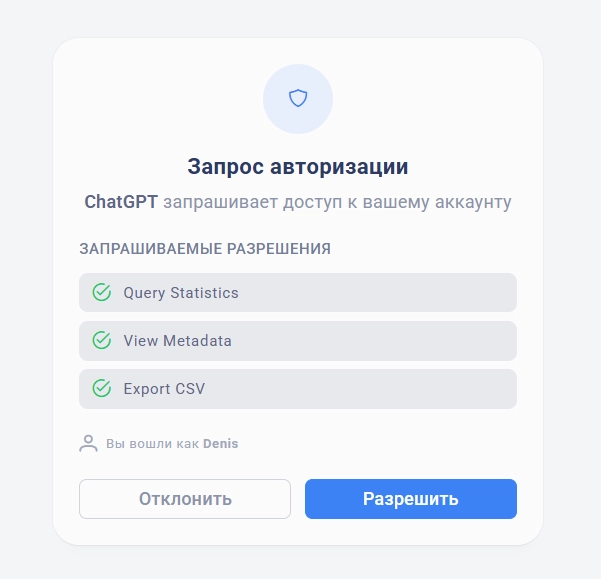
After approval, the window will close automatically. The app in ChatGPT settings will change to Connected status.
Step 4. Usage
Open a new chat and ask ChatGPT to use the tool, for example:
"Show statistics for campaigns over the last 7 days via AdSet — clicks, spend, ROI."
ChatGPT will automatically call query_stats with the correct parameters and render a table.
Revoking Access
To revoke the token from ChatGPT:
-
In ChatGPT: Settings → Apps → AdSet → Disconnect.
-
On the AdSet side: Profile Settings → MCP Keys — the issued OAuth client will appear in the list (the
OAuth clientssection appears only if you have such connections).
Connecting to Claude (Personal API Token)
Claude Desktop, Claude Code, and Cursor connect to the MCP server using a fixed Bearer token. You issue this token yourself in the AdSet profile settings.
The full token is shown only once — immediately after creation. Save it in a secure place (password manager). It cannot be restored — only reissued (rotate).
Step 1. Issue API Key in Adset.Pro
-
Log in to the AdSet cabinet: https://adset.pro.
-
In the upper right corner, click on the avatar → Settings.
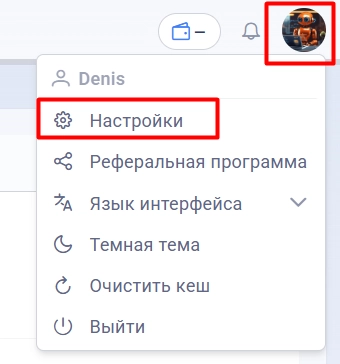
-
Open the MCP Keys tab.
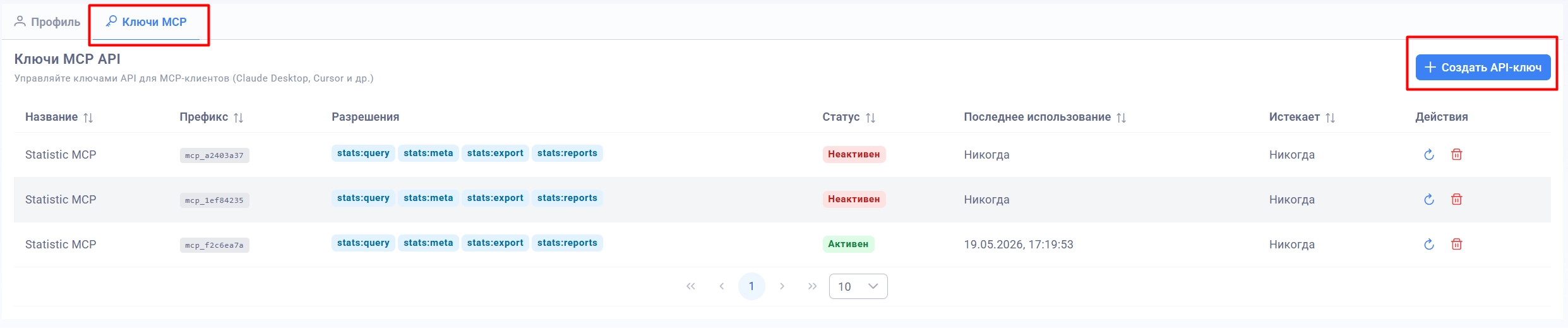
-
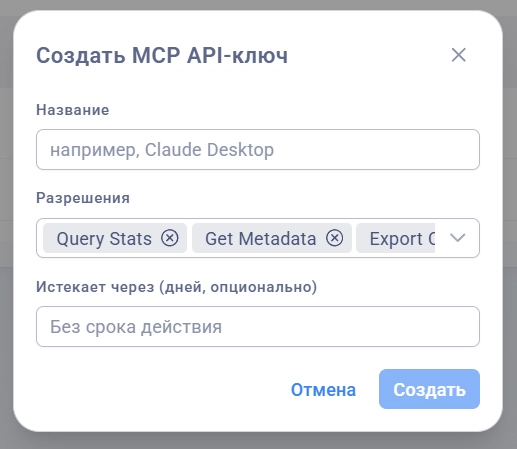
Click the Create API Key button.
-
Fill in the form:
-
Name — any name for the key, for example
Claude Desktop. -
Scopes — leave all three (
Query Stats,Get Metadata,Export CSV) or limit as necessary. -
Expires in — expiration period in days. Leave blank for a lifetime key.
-
-
Click Create.
-
A dialog will appear showing the token once in the format:
mcp_a1b2c3d4e5f6...Copy it using the Copy button and close the dialog.
Step 2. Connecting in Claude Desktop
Claude Desktop reads MCP servers from the configuration file:
-
macOS:
~/Library/Application Support/Claude/claude_desktop_config.json -
Windows:
%APPDATA%\Claude\claude_desktop_config.json -
Linux:
~/.config/Claude/claude_desktop_config.json
Open the file (create it if it does not exist) and add the mcpServers section:
{
  "mcpServers": {
    "adset": {
      "type": "http",
      "url": "https://app.adset.pro/mcp",
      "headers": {
        "Authorization": "Bearer mcp_YOUR_TOKEN_HERE"
      }
    }
  }
}
Save the file and completely restart Claude Desktop (Quit, not just close the window).
After starting, an AdSet tools icon (query_stats, get_metadata, export_csv) should appear at the bottom of the chat window.
Step 3. Connecting in Claude Code (CLI)
claude mcp add adset \
  --transport http \
  --url https://app.adset.pro/mcp \
  --header "Authorization: Bearer mcp_YOUR_TOKEN_HERE"
Check:
claude mcp list
The list should show the entry adset with the status connected.
Step 4. Connecting in Cursor
-
Cursor → Settings → MCP → Add new MCP server.
-
Enter:
-
Name:
adset -
Type:
http -
URL:
https://app.adset.pro/mcp -
Headers:
-
Key:
Authorization -
Value:
Bearer mcp_YOUR_TOKEN_HERE
-
-
-
Save and restart Cursor.
Step 5. Checking Connection via curl
If something is not working, a quick check from the terminal:
curl -i https://app.adset.pro/mcp \
  -H "Authorization: Bearer mcp_YOUR_TOKEN"
The expected response is 200 OK or 400 Bad Request (without the body of the MCP request). A response of 401 Unauthorized means that the token is incorrect, revoked, or expired.
Managing Keys
In the Profile Settings → MCP Keys section, the following are available:
-
Creating new keys (
Create API Key). -
Reissuing (rotate, icon ↻) — the old token is immediately revoked, and a new one is issued.
-
Revoking (Delete, trash can icon) — the token immediately stops working.
-
Viewing the name, prefix, scopes, status, last used time, and expiration time.
Scopes and Limits
Scope | What it allows |
|---|---|
| Call |
| Call |
| Call |
Any request automatically applies security filters by teamId and user role — the client receives only the data they have access to in the cabinet.
Limits:
-
query_stats.limit— a maximum of 1000 rows per request; for larger samples, useexport_csv. -
export_csv— a soft limit of 100,000 rows (can be extended for specific tariffs).
Common Errors
Symptom | Cause and Solution |
|---|---|
| The token has been revoked, expired, or copied with a space. Reissue the key. |
ChatGPT: "connection error" after Approve | The authorization code has expired (>10 min), or the client changed the |
ChatGPT does not see tools | Developer mode is not enabled, or the app is not confirmed in the OAuth window. |
| The key does not have the required scope selected ( |
Empty tables in responses | The account does not have access to the requested team/teamId — check RBAC. |
Useful Links
-
Public OpenAPI specification: https://adset.pro/openapi.json
-
OAuth Authorization Server Metadata: https://adset.pro/.well-known/oauth-authorization-server
-
OAuth Protected Resource Metadata: https://adset.pro/.well-known/oauth-protected-resource