
Pulling Costs from Facebook into Adset.pro
User Guide: how to connect Facebook so that advertising costs automatically go to Adset.pro and are reconciled with traffic and conversions for your campaigns.
This is a high-level guide to connecting and working with costs. The step-by-step issuance of the System User token in Meta is described in a separate article "How to Get a Facebook Dev Token to Connect Ad Accounts to Adset Pro" (section "Integrations"). Here we provide an overview of both methods and general setup.
What it is and why
Adset.pro pulls advertising costs (spend), impressions, and clicks from Facebook and reconciles them with your traffic and conversions. As a result, you see ROI/profit by campaigns without manual export from Ads Manager.
Where the data appears:
Meta Section (menu → Meta): tables Accounts → Campaigns → Ad Sets → Ads — spend, impressions, clicks, CPC, CTR, CPM for each entity.
Tracker Campaign Reports — spend is added to the cost of traffic (
cost) if macro mapping is set up (see below). This is how the overall profit "traffic + platform" is calculated.
Two Ways to Connect
Dev Token (server sync) | Browser Extension (Chrome plugin) | |
|---|---|---|
How it works | Adset.pro pulls data from FB Marketing API using the system token | Data is collected from your logged-in FB session directly in the browser |
Meta token needed | Yes — System User token (separate article) | No — no need to create a Meta token |
Automation | Fully automatic sync on schedule (15/30/60 min) | Launch from the plugin manually or auto-sync by timer, while the browser is open |
Data selection | All ad accounts available to the token are synced | You choose yourself which ad accounts and campaigns to sync |
When to choose | Have access to Business Manager / System User, need full automation | No access to System User or don’t want to create a Meta app |
You can connect different social profiles in different ways.
General Setup (needed for both methods)
To ensure that the spend not only appears in the Meta section but also is linked to your campaigns in the tracker reports, perform the preparation.
1. Social Profile and Traffic Source
Open Meta → Social Profiles and create (or select) a Facebook profile.
The profile must have a traffic source (Source) specified — the one from which you are driving traffic from this account.
2. Macro Mapping in the Source (important!)
In the traffic source settings, map at least one Facebook macro to a parameter (slot):
Facebook Macro | What it is | Where to map |
|---|---|---|
| FB campaign ID | sub / utm (e.g. |
| FB ad set ID | sub / utm (e.g. |
| FB ad ID | sub / utm (e.g. |
It is recommended to map all three. These same macros should be in the click link of your campaign — then the spend will reconcile with the traffic along one axis.
If you add a source from a template, all the necessary macros are already set.
Without mapping, the spend will still appear in the tables of the Meta section, but will not appear in the campaign report — the system will not have an axis to link the spend to the traffic.
3. Linking Ads to Campaigns
Adset.pro automatically determines your campaign — by the click link of the creative (link of the form …/track/<id>/ads or …/<alias>). Ads with such a link will link themselves. Ads without it will only be visible in the Meta tables (without linking to the campaign).
Method A. Dev Token (Server Synchronization)
Issue a System User token in Meta — according to the article "How to Get a Facebook Dev Token…" (section "Integrations").
In Adset.pro: Meta → Social Profiles → create/edit Facebook profile.
Connection method — "Through Dev Token".
Paste the token into the Developer access token field. The field hides the token with asterisks — click on the "eye" to check the value. (This is not a password field — password managers should not insert your account password there.)
Proxy (Recommended) — if requests to FB need to be sent through a proxy, add the proxy that is used to access the social profile through the AntiDetect browser.
Sync interval — 15 / 30 / 60 minutes (available values depend on the plan). For operational expenses, choose 15 or 30 minutes.
Save. Further synchronization goes automatically on schedule.
Method B. Browser Extension (Chrome Plugin "Adset.pro Cost Sync")
Connecting in Adset.pro
Meta → Social Profiles → create/edit Facebook profile.
Connection method — "Through Browser Plugin".
Save the profile (the token is generated for an already existing profile).
In the plugin block, click "Generate Token" and copy it.
The token is shown once. Reissuing makes the previous token invalid. Keep it as a secret (not in open chats, not in Git).
Step 1. Installing the Plugin and Entering the Token
Open the required profile in the AntiDetect browser.
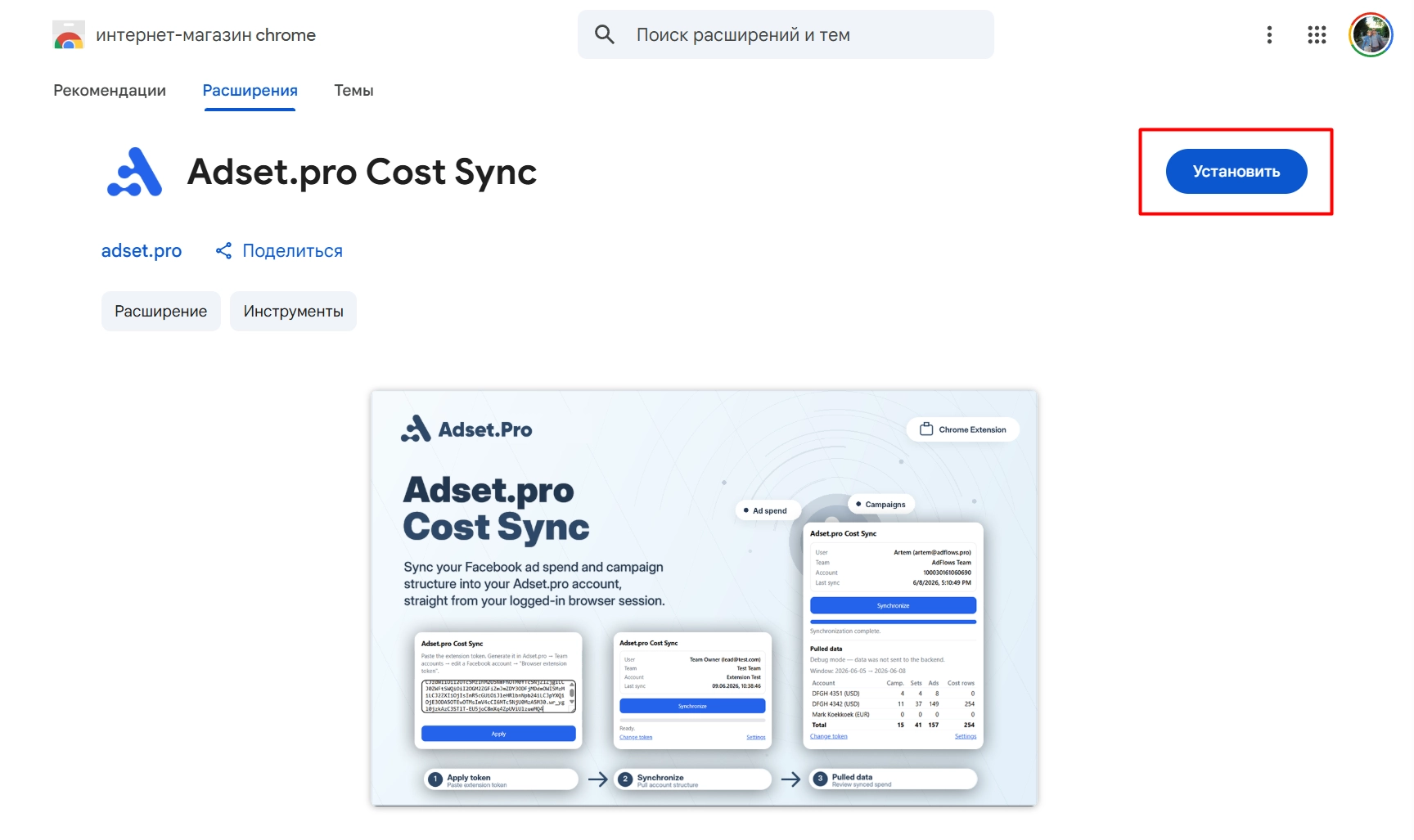
Install the extension "Adset.pro Cost Sync" in Chrome.
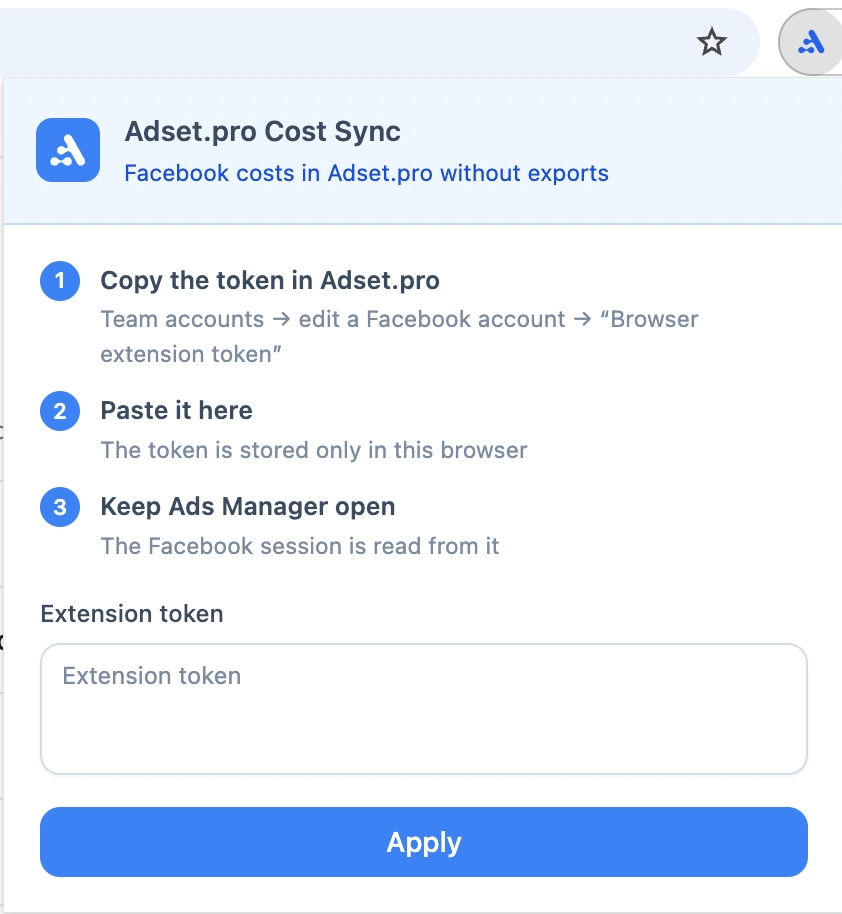
Open the plugin. On the start screen, paste the copied token and click "Apply". The plugin will validate the token and show the bound user, team and social profile.
Step 2. Choose the Sync Scope
The plugin syncs only what you have selected. This is done so that other people's or outdated ad accounts and old campaigns are not pulled into Adset.pro.
Open Facebook Ads Manager (
adsmanager.facebook.com) under the required account and wait for the page to fully load — without it the plugin will not see the list of ad accounts.In the plugin, go to the "Scope" tab and select the ad accounts in the top list. The list can be filtered by name and by ad account ID.
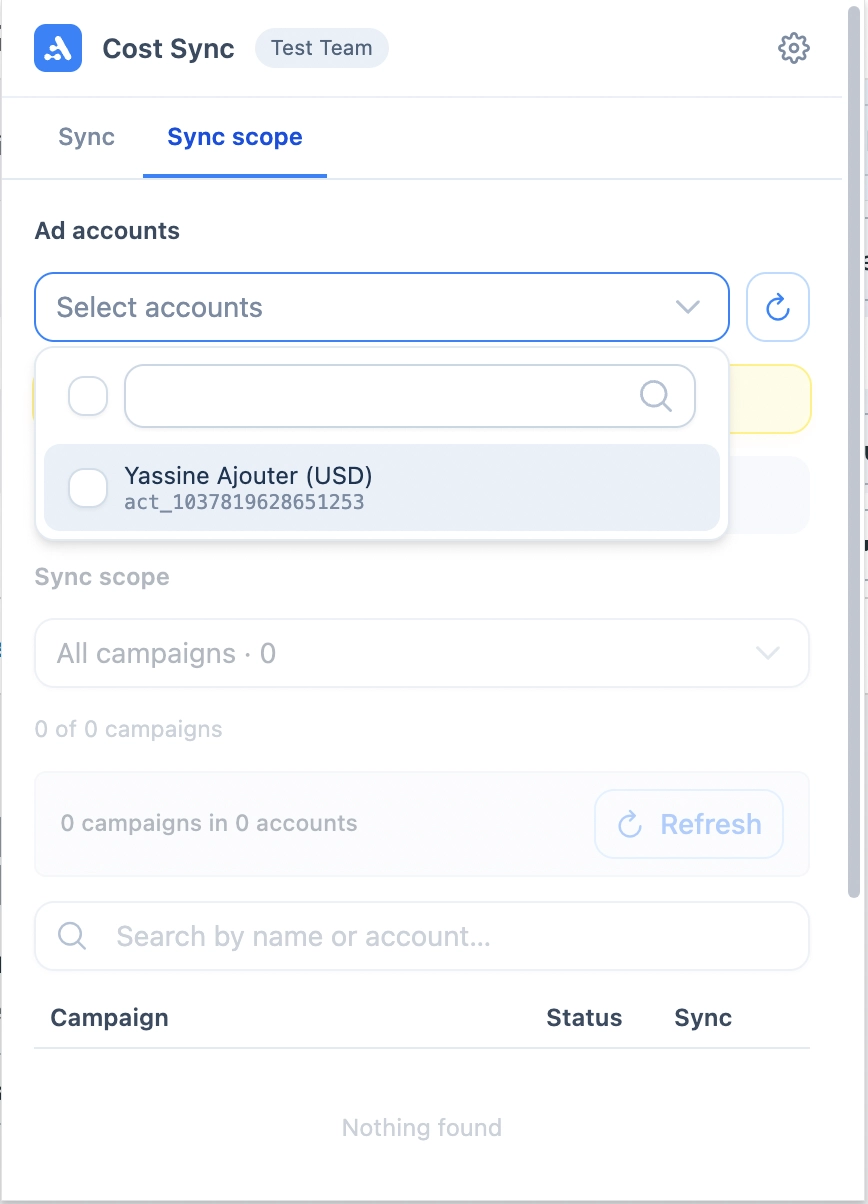
After you select the ad accounts, the plugin will load their campaigns. Below, choose which campaigns to sync — by a status preset or manually with checkboxes:
Option | What will be included in the sync |
|---|---|
All | All campaigns of the selected ad accounts, including archived and deleted ones |
Active | Only campaigns with the ACTIVE status |
Paused | Only campaigns with the PAUSED status |
Active + paused | Working campaigns without archived and deleted ones — the recommended option |
Manual selection | Only the campaigns checked in the table |
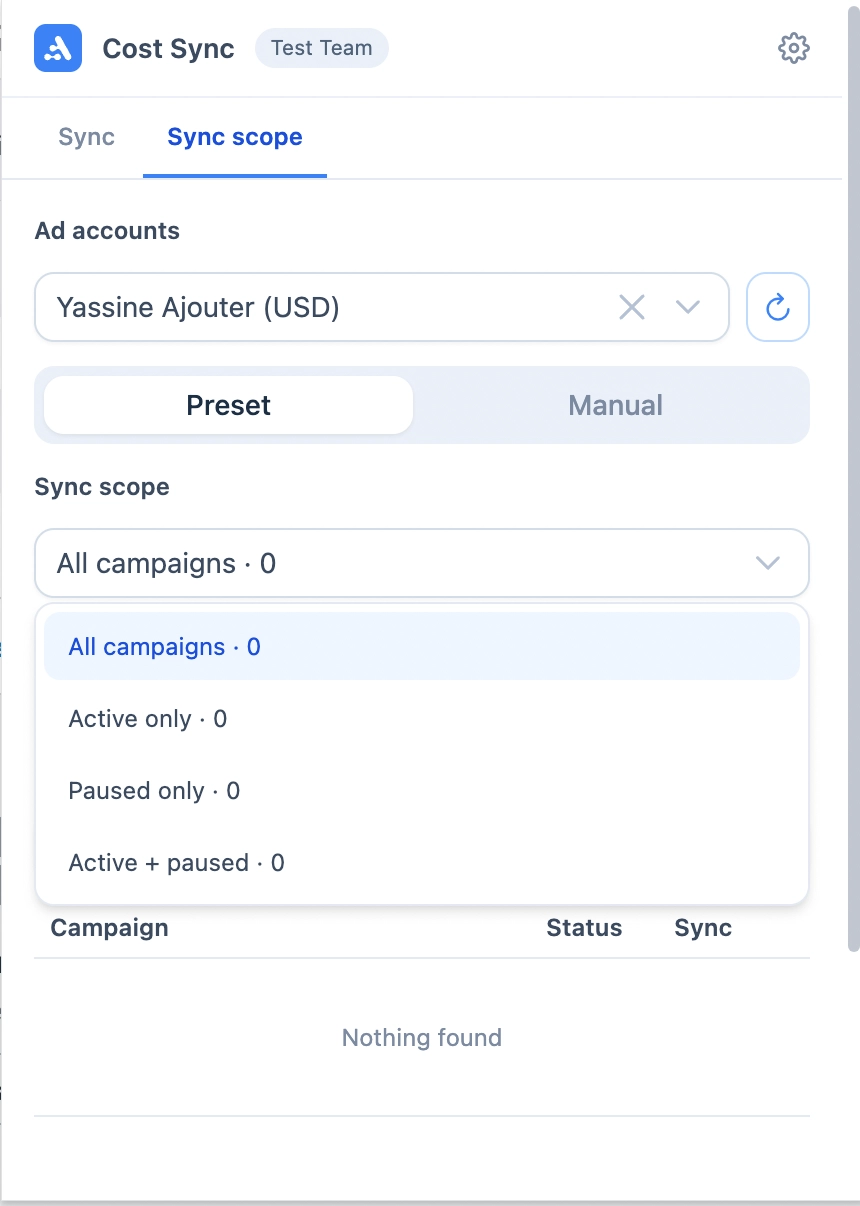
Click "Save". The selection is stored locally in the browser and is used on every sync, including the automatic one.
Important: if no ad account is selected, the sync will not send any data. An empty selection means "nothing", not "everything".
"Active + paused" is not the same as "All": archived and deleted campaigns are only included in the "All" preset. If you need historical spend for an old campaign — choose "All" or check it manually.
Step 3. Run the Sync
Make sure the Ads Manager tab is open and you are logged in.
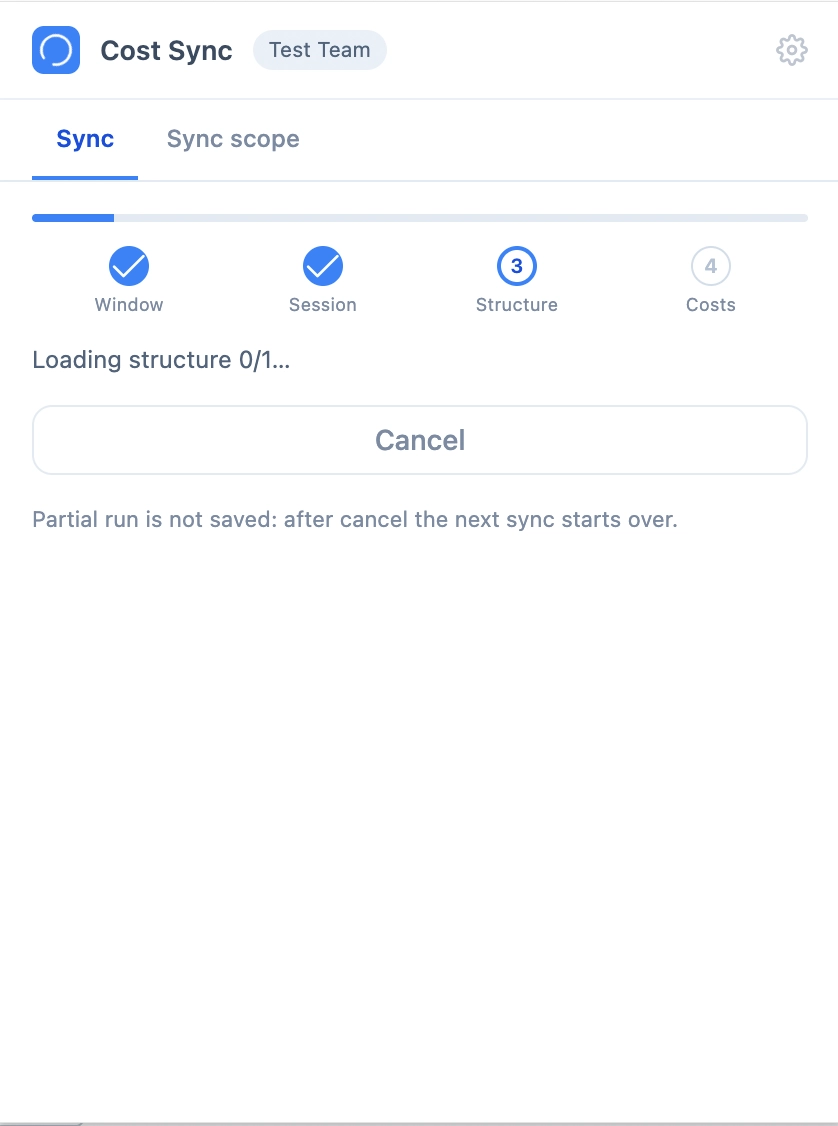
On the "Sync" tab, click "Synchronize". The plugin will go through the stages: date window → Facebook session → structure (accounts/campaigns/ad sets/ads) → costs. The progress is shown on the stage bar, and the sync can be cancelled with the button next to it.
When it finishes, the plugin shows the "Last sync" block: when it ran, how long it took, how many ad accounts, campaigns and cost rows were sent, and for which period. The "Detailed report" link opens the breakdown per ad account.
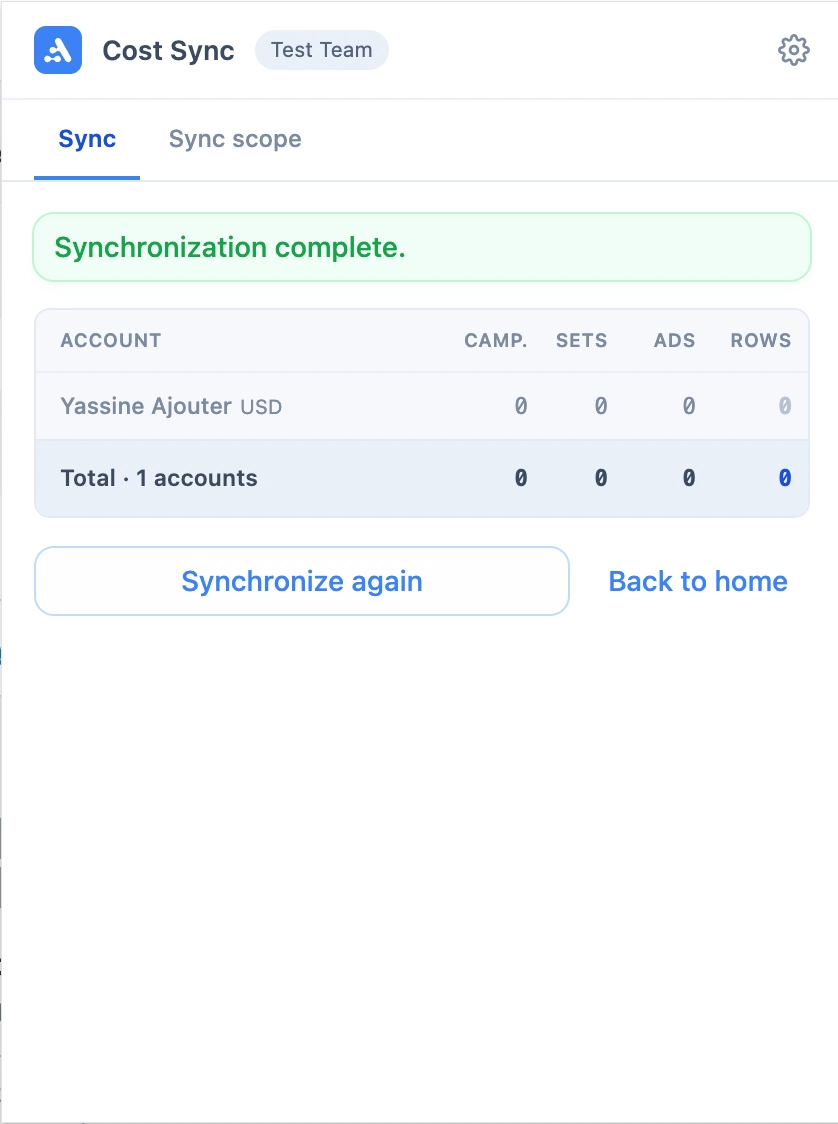
If some of the ad accounts were not sent (for example, because of a temporary network error), the sync will finish with the "partial" status — the problematic ad accounts will be listed in the report, and their data will arrive on the next run.
Plugin Settings
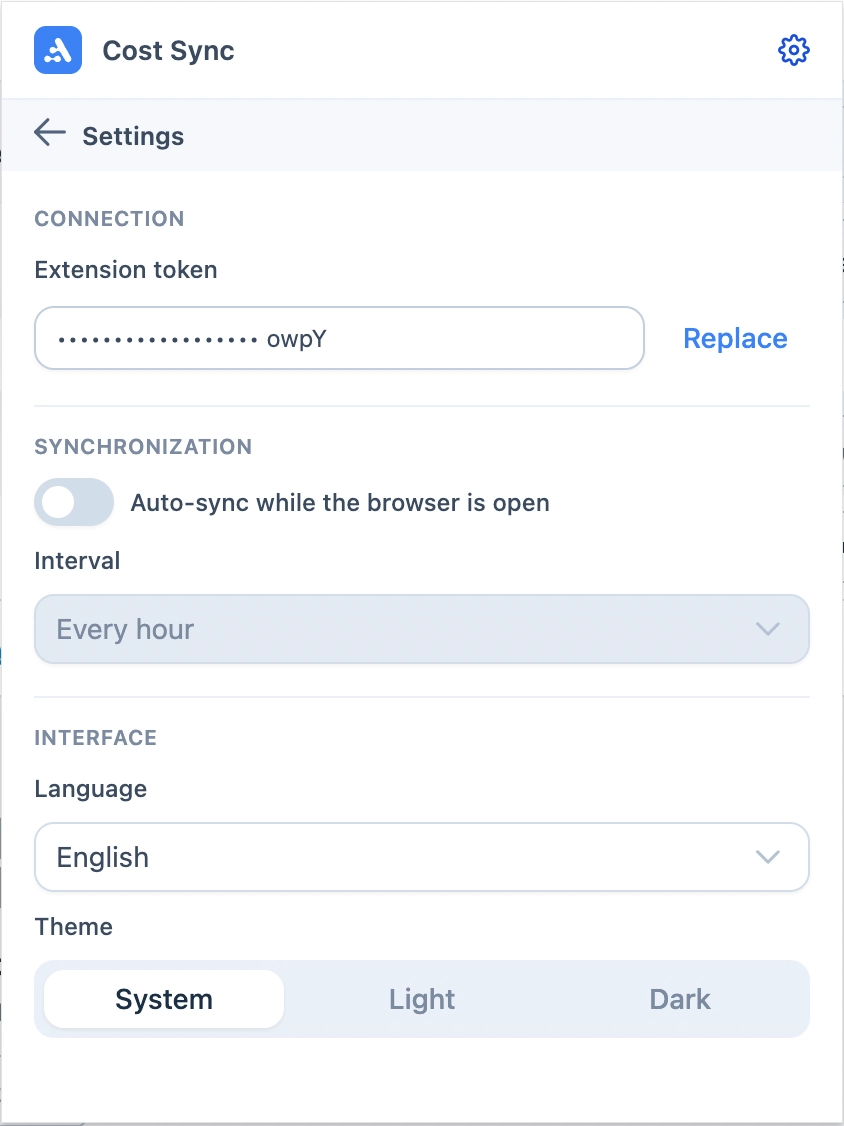
Settings are opened with the gear icon in the top right corner and are applied immediately, without a separate save button.
Auto-sync — turn on the toggle and choose the interval: 15 minutes, 30 minutes, 1 hour, 2 hours or 6 hours. It works while the browser is open and there is a logged-in Facebook tab.
Language — Russian, English or Ukrainian.
Theme — system, light or dark.
Token — shown masked. The "Replace" button lets you paste a new token if you have reissued it in Adset.pro.
Requirements for the Extension
An open and logged-in tab
adsmanager.facebook.com(fully loaded). The same requirement applies to auto-sync: if there is no logged-in Facebook tab at the moment the timer fires, the run will finish with an error.At least one ad account is selected on the "Scope" tab (see Step 2).
If the plugin shows a session reading error: open Ads Manager, ensure you are logged in, reload the page and repeat the sync.
Date Window and Frequency
Syncs current day + retro: on the first sync — the last ~7 days, then an overlap of ~3 days. This is needed to catch Facebook data corrections retroactively. The period is chosen by Adset.pro automatically — you do not need to set it in the plugin.
Today's figures in Facebook are not final and are clarified throughout the day — Adset.pro updates them with each sync. Therefore, with frequent resync (15/30 min), today's data appears and updates promptly.
Where to View Spend
Meta → Accounts / Campaigns / Ad Sets / Ads — spend, impressions, clicks, CPC, CTR, CPM. The date picker defaults to today.
The "Social Profile" filter at the top of the tables — select a profile to see only its data. When drilling down (account → campaigns → ad sets → ads), the filter is preserved.
Tracker Campaign Reports — spend is added to the cost (if Step 2 of the General Setup is completed).
Frequently Asked Questions and Solutions
Spend is in Meta tables, but not in the campaign report.
FB macro mapping in the source is not set up (Step 2 of the General Setup), or the ad is not linked to your campaign — there is no track link in the creative (Step 3 of the General Setup). Check the source and click link.
No spend for today.
Wait for the next sync — today's FB data is incomplete and is being clarified. For promptness, set the interval to 15/30 min (Dev Token) or launch sync from the plugin.
Spend is not available for all ads.
Ads without linking to your campaign (without track link) are only shown in Meta tables and do not appear in campaign reports. This is expected.
Plugin: the sync completed, but there is no data in Adset.pro.
Most likely the sync scope is not selected. Open the "Scope" tab and make sure that at least one ad account is checked and that the chosen preset covers the campaigns you need. An empty ad account selection means "sync nothing".
Plugin: no spend for an old (archived) campaign.
The "Active", "Paused" and "Active + paused" presets do not include archived and deleted campaigns. Choose the "All" preset or check the campaign manually and run the sync again.
Plugin: "failed to read Facebook session".
Open the logged-in adsmanager.facebook.com, wait for it to fully load, reload the page, and repeat. The plugin looks for the session token specifically on the Ads Manager page.
Plugin: auto-sync does not fire.
Auto-sync only works while the browser is open, and a logged-in Facebook tab is required at the moment it fires. Check that the toggle is enabled in the settings and that the AntiDetect browser profile is not closed between runs. The minimum available interval is 15 minutes.
Facebook and Adset.pro data do not match "penny for penny."
This is normal: Facebook clarifies today's/recent figures retroactively, and Adset.pro syncs with a delay and overlap. Final sums match as the data "ripens."
Token Security
Dev Token (System User) — gives access to ad accounts; store in a password manager, do not publish. If compromised, revoke the token in Business Settings → System Users.
Extension token — tied to a specific social profile and user. Reissuing invalidates the previous one. When the profile owner changes or the user is deactivated, the token stops working. The plugin stores the token only locally in your browser and does not sync it between devices.