
How to Get a Facebook Dev Token to Connect Ad Accounts to Adset Pro
What You Will Need Before Starting
Before creating the token, you need to have:
access to Meta Developers;
admin access to the required Meta Business Portfolio / Business Manager;
ad accounts, pages, or other assets that need to be connected;
a working email;
a link to the Privacy Policy, because Meta requires filling out basic app settings before publication. In the Meta app settings, the name, contact email, Policy URL, and other basic parameters are specified.
Step 1. Create an App in Meta Developers
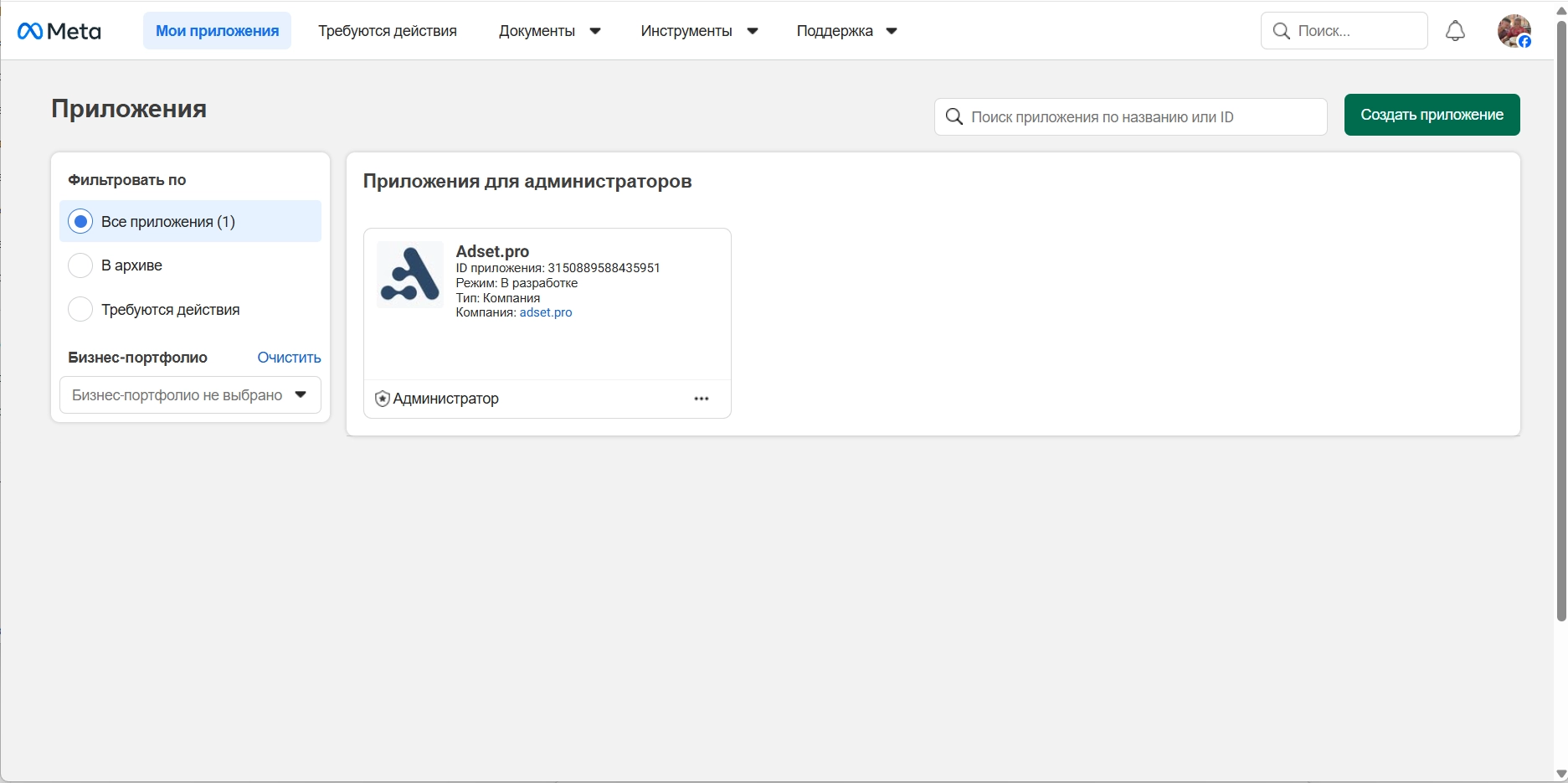
Open: developers.facebook.com → My Apps → Create App
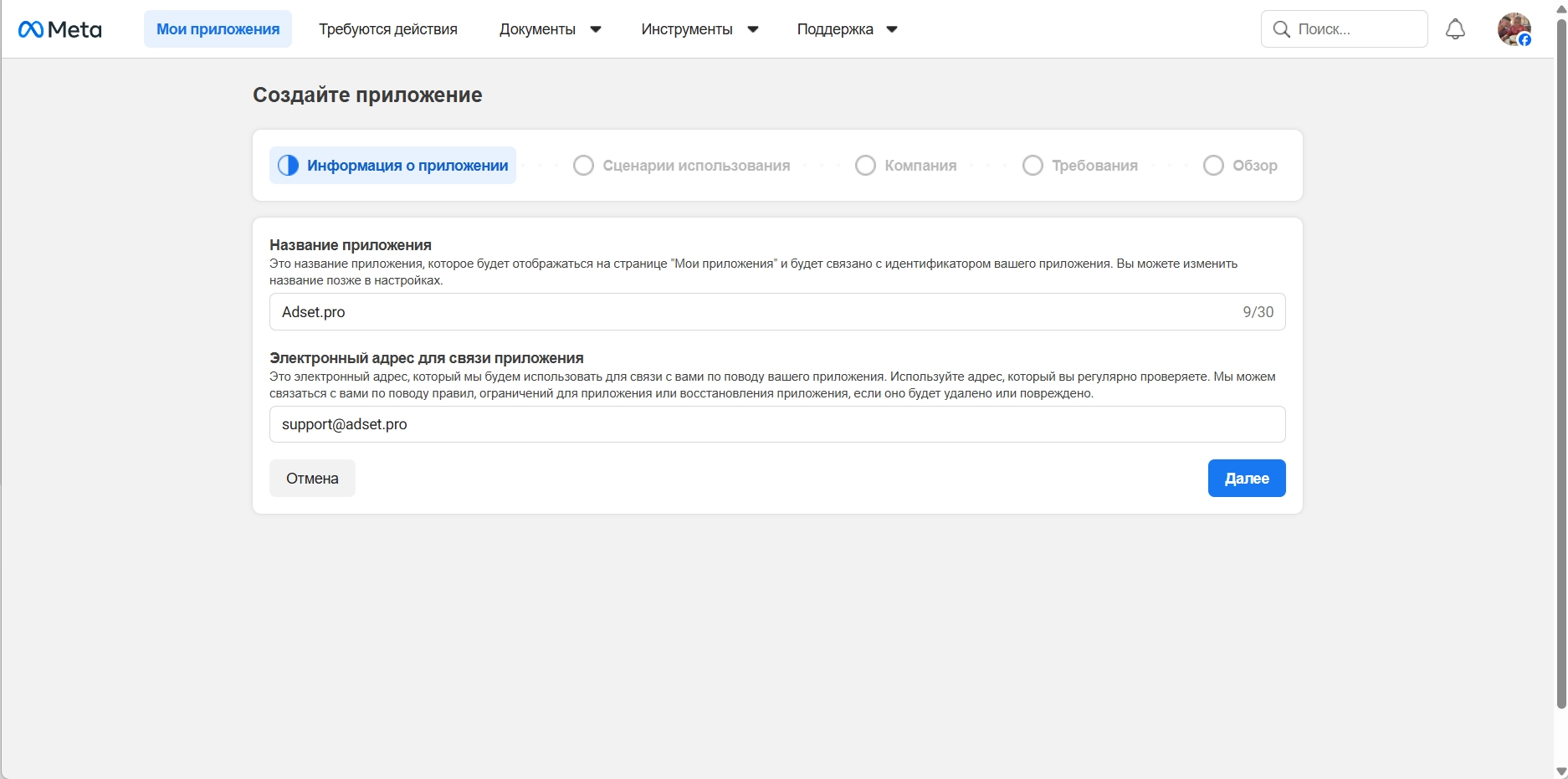
In the app creation wizard, fill in:
App Name — for example
Token,Cabinet Partners Token,Facebook Ads Connector.App Contact Email — an email that you have access to.
Next, select the Use Case:
Create & manage ads with Marketing API
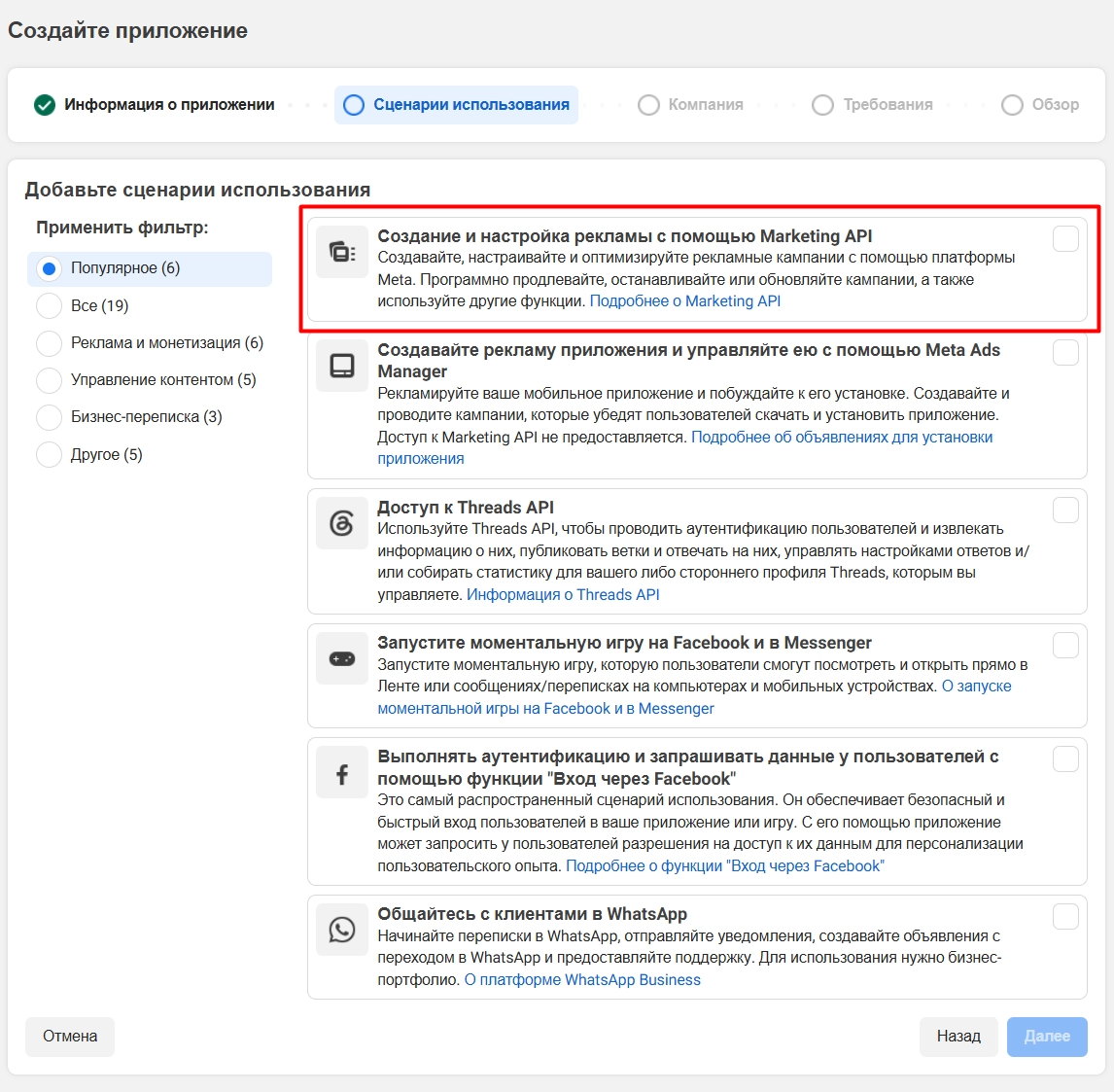
This option is needed if the token will be used to work with ad accounts, statistics, and ad objects. Meta states in the Marketing API documentation that permissions like ads_read and ads_management are used to work with ad data.
After selecting the use case, click Next and complete the app creation.
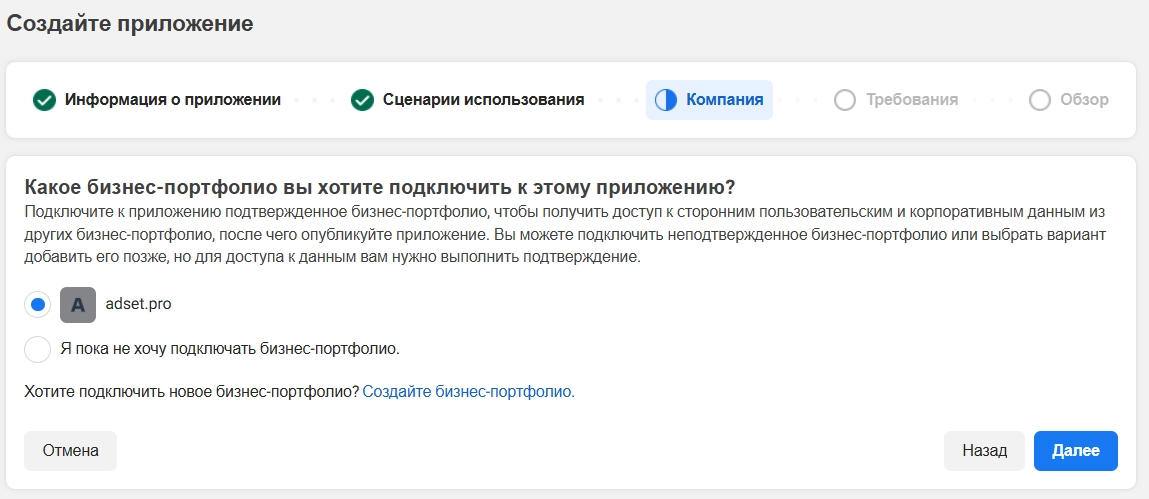
At the app creation stage, Meta will prompt you to select a Business portfolio.
Choose the Business Manager that contains the necessary ad accounts, pages, and other assets.
Important: if the app is not linked to the required business portfolio, errors may occur later when generating the token or assigning access to the system user.
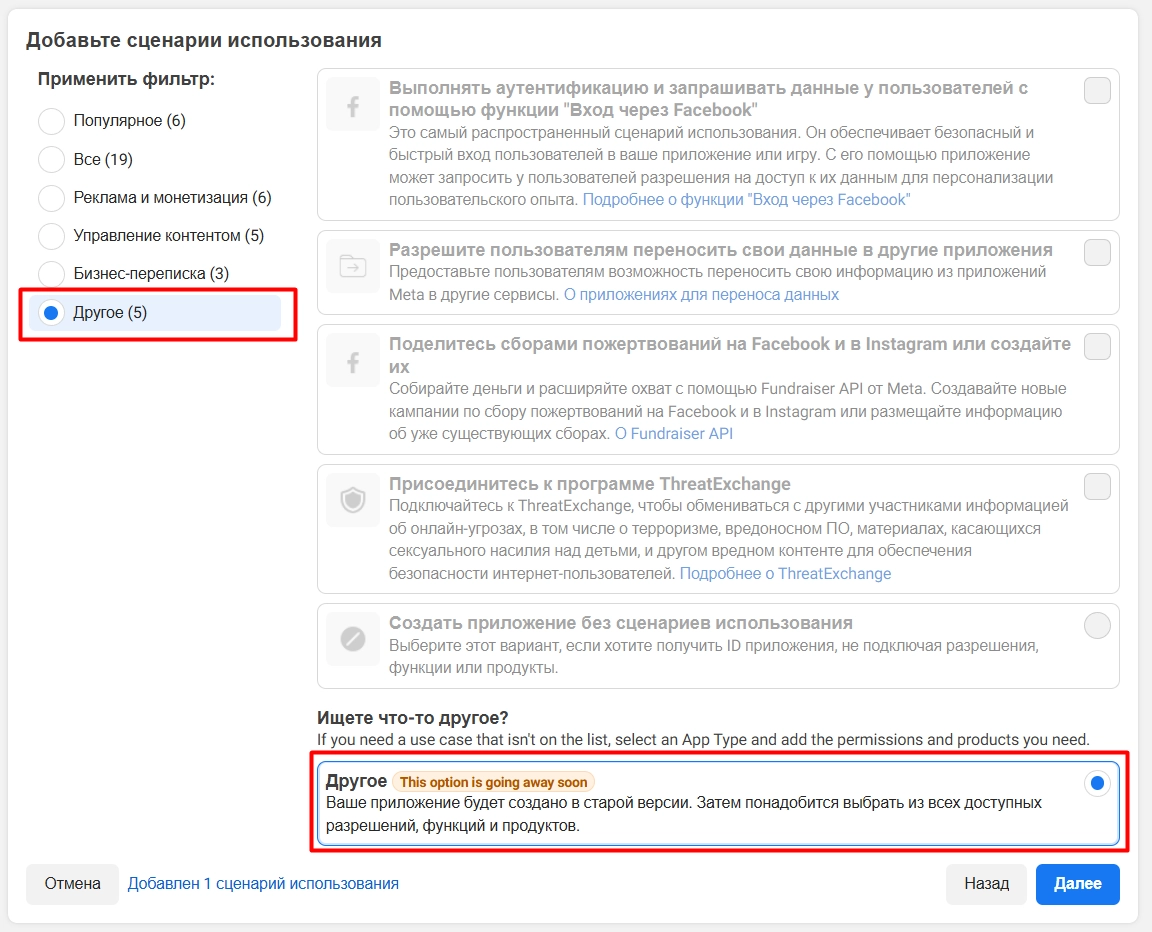
If the item - Create & manage ads with Marketing API is not present
Select Others in the left menu of filters.
And at the very bottom, select Others.
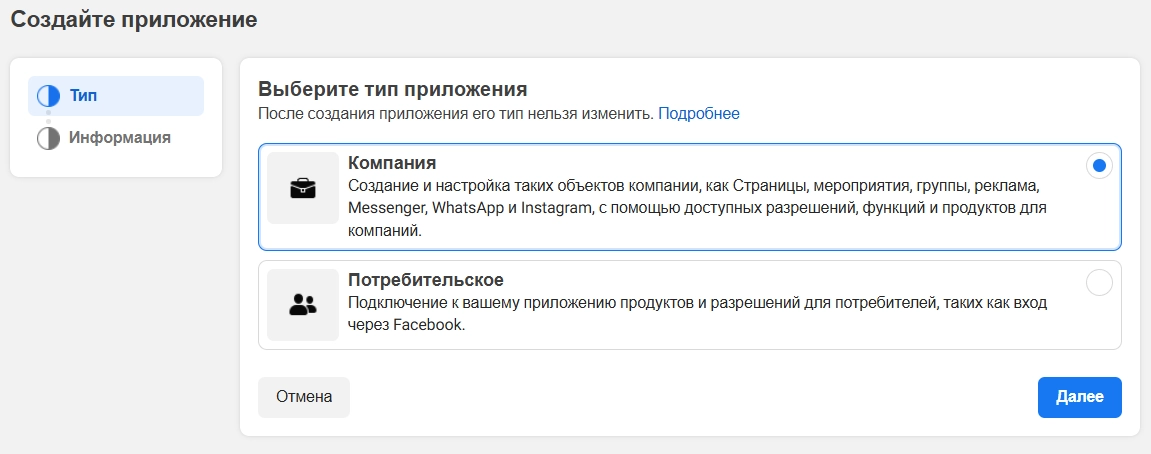
Choose the app type Business.
Next, select your Business Portfolio - BM.
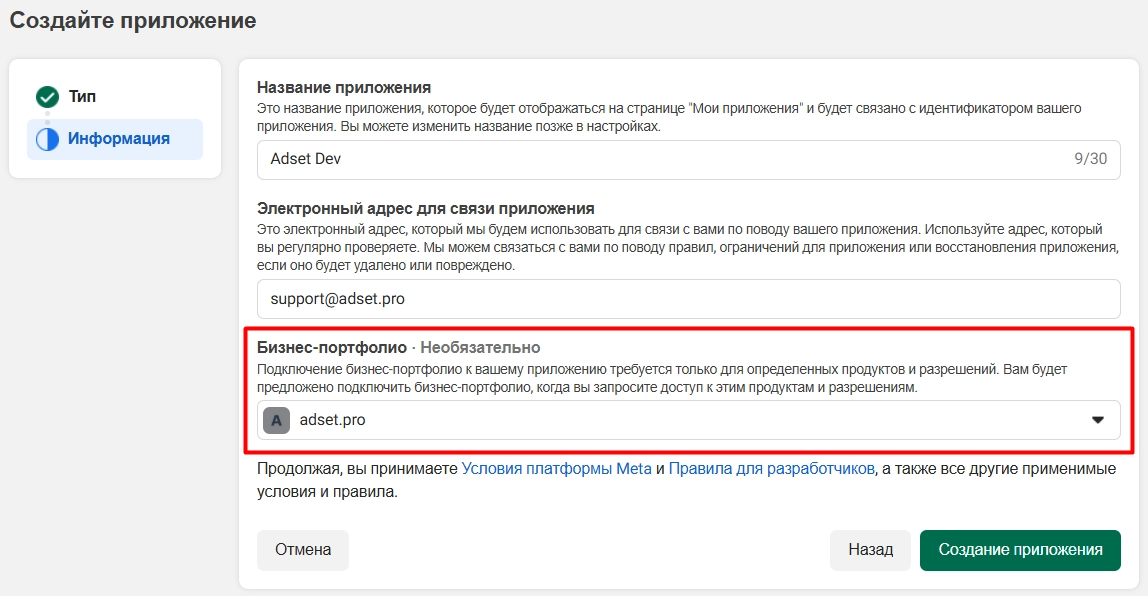
Create the app, checking all entered data.
Step 2. Fill in the Basic Settings of the App
After creating the app, open:
App Dashboard → App settings → Basic
Check and fill in:
Display Name;
Contact Email;
Privacy Policy URL;
User Data Deletion URL;
Category;
if necessary — App icon and Terms of Service URL.
To generate a Privacy Policy, use the generator FreePrivacyPolicy. The logic is simple: create a public policy page, copy the link, and paste it into the Privacy Policy URL field in the app settings.
When using this generator, do not select the presence of paid features when filling out the data.
For User Data Deletion, you can specify a separate link with instructions for data deletion or a link to the Privacy Policy section that describes the procedure for deleting user data. Meta requires specifying a data deletion callback URL or instructions URL in Basic Settings.
After filling in, click Save Changes.
Step 3. Publish the App
In the left menu of the app, open: Publish
Check that the mandatory settings are filled in.
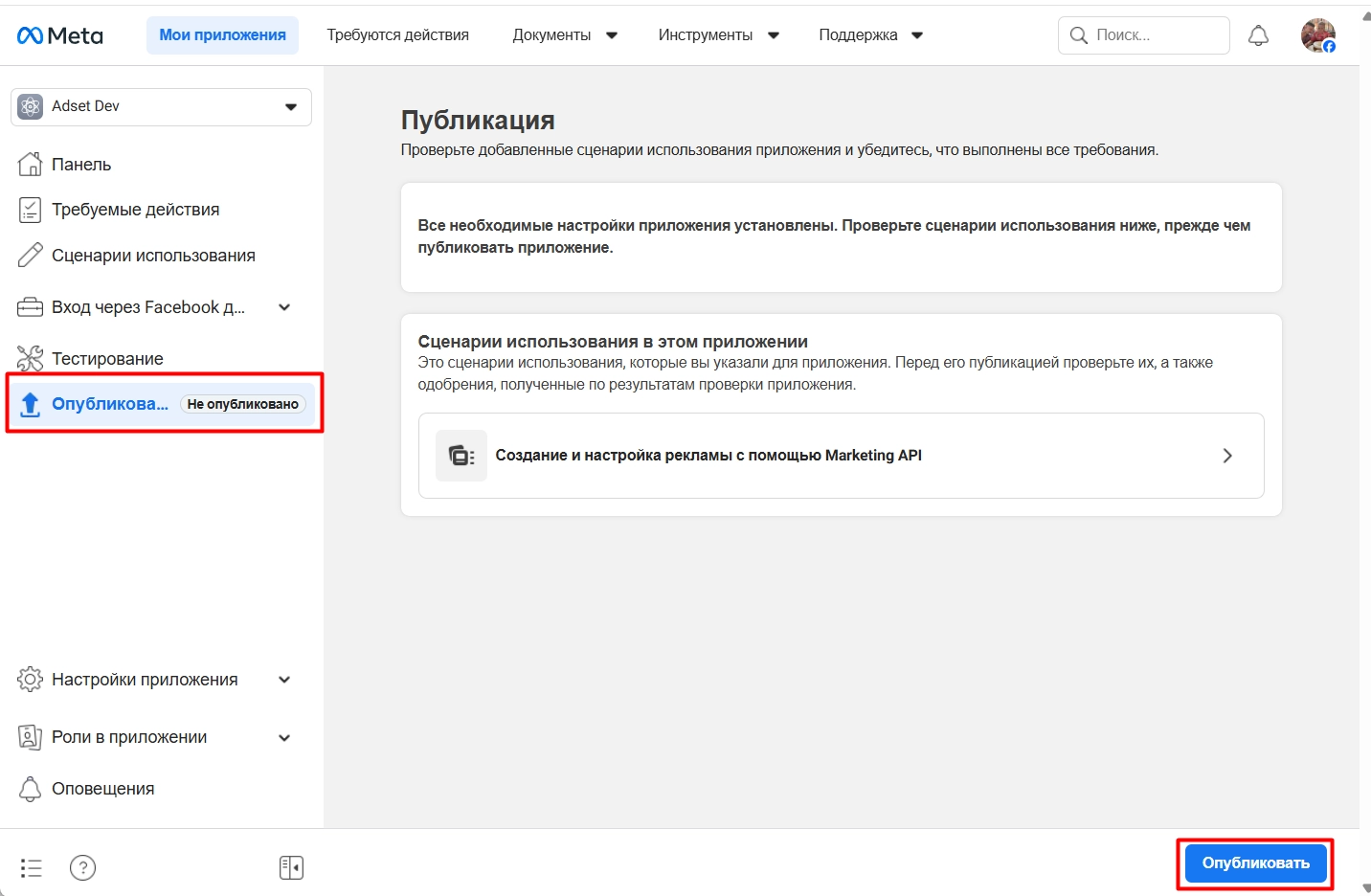
Then click Publish.
If everything went well, you will see that the app is published.

Step 4. Go to Meta Business Settings
Open: https://business.facebook.com/settings
Select the required Business Portfolio.
Next, go to:
Users → System Users
Select the system user, but if there is none, create a new one.
Click Add and specify:
System User Name — for example
Adset,Ads Connector,Conversions API System User;System User Role — it is better to choose Admin if the token should manage accounts and have full access to assets.
Click Create System User.
Step 5. Assign Assets to the System User
Select the system user and click:
Add Assets
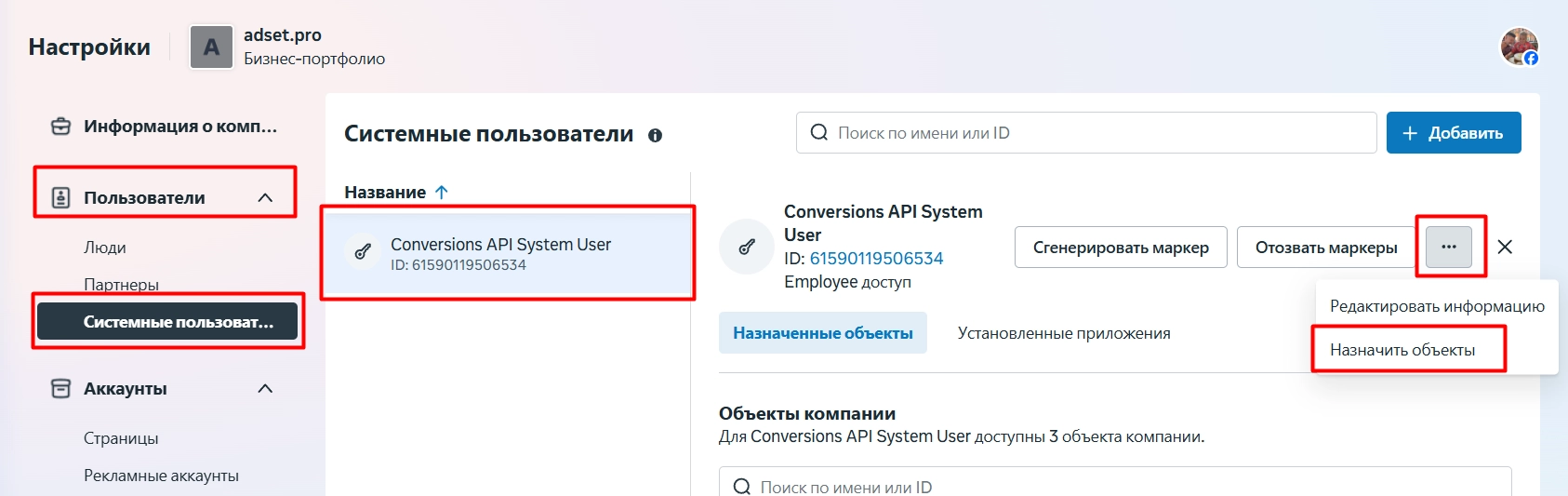
Next, sequentially assign the necessary types of assets.
Facebook Pages
Select the required pages or click Select All.
For pages, permissions like:
Content;
Community Activity;
Messages and Calls;
Ads;
Insights.
Ad Accounts
Select the ad accounts that need to be connected.
For ad accounts, enable access:
Manage Campaigns / Ads;
View Performance;
if necessary — Manage Ad Accounts / Full Control.
Apps
Assign the created app to the system user.
For the app, it is advisable to give full access so that the system user can generate a token on behalf of this app.
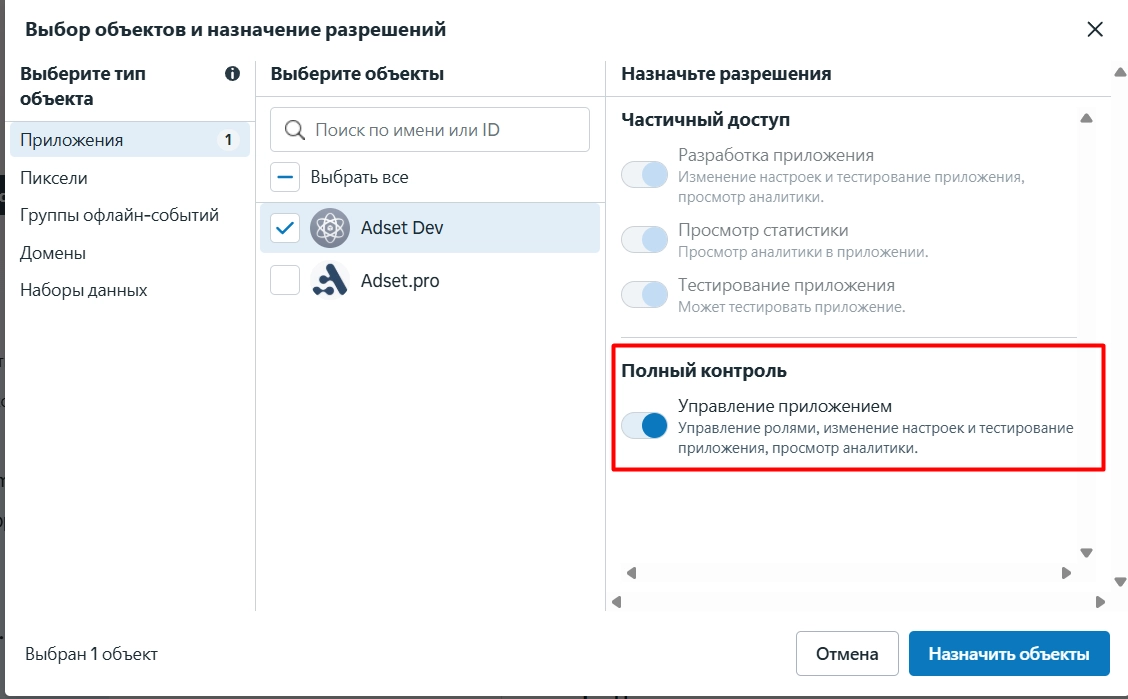
After selecting the assets, click Assign Assets or Save Changes.
This is an important step: if you do not assign the ad accounts and app to the system user, the token may be created but will not have access to the necessary data. In third-party instructions for System User Access Token, the assignment of Ad Account, Pixel, or App before token generation is also highlighted separately.
Step 6. Generate the Token
In the System Users section, select the required system user.
Click: Generate Token
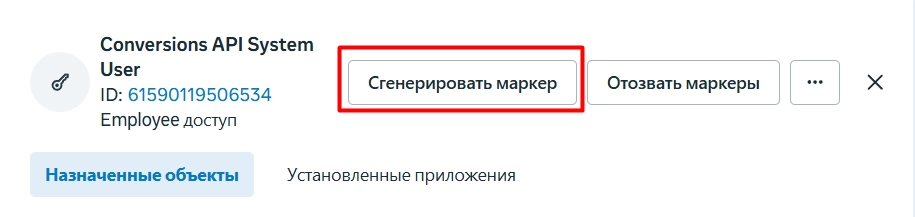
Next, Meta will open the token generation wizard.
1. Select App
Select the created app.
For example: Token, Adset Token, or another name that you specified in Meta Developers.
2. Set Expiration
Select the token expiration — Never.
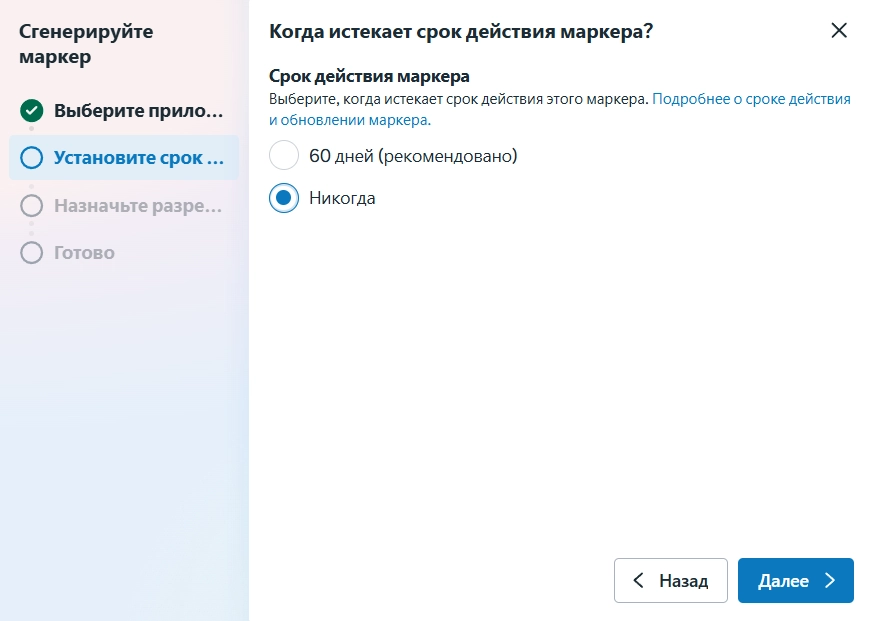
This is convenient for long-term integration.
3. Assign Permissions
Select permissions:
ads_management
ads_read
business_management
catalog_management
pages_manage_ads
pages_read_engagement
pages_show_list
threads_business_basic
ads_read
ads_management
business_management
ads_read is needed for reading ad statistics, ads_management is for working with ad accounts and ad objects, and business_management is for accessing business assets.
After selecting permissions, click Generate Token.
Step 7. Confirm the Token Generation Request
In the video after generation, a message appears:
Approval Needed
This means that the request must be approved by the administrator of the Business Portfolio.
Go to:
Business Settings → Requests
Open the request for generating the access token and click:
Approve
After confirmation, return to the system user and click Generate Token again if the token was not shown automatically.
Step 8. Copy and Save the Token
After successful generation, Meta will show the access token.
Immediately copy it and add it to Adset.pro.
Important:
the token should not be sent in open chats;
it should not be stored in Google Docs without access restrictions;
it should not be committed to Git;
it is better to store it in a password manager, vault, or encrypted field in your service;
if the token is compromised — go to System Users and click Revoke Tokens.
After generation, the token should be saved immediately, as it may not be possible to view it again later.
Step 9. Transfer the Token to Adset.pro
In the interface, open the Meta connection section.
Paste the obtained token into the Facebook Dev Token / System User Token field.
After saving, the service should gain access to the ad accounts and pages that were assigned to the system user in Business Settings.