
Managing Social Profiles and Connection Types
Social profile is the connection of Adset.pro to your Facebook or TikTok advertising account. The profile answers four questions: which platform, how we obtain data, whose account it is (owner, team, agency), and to which traffic source it relates. Without a profile, the Meta / TikTok section is empty: expenses, ad structure, and creatives come through it specifically.
Screen: menu Meta / TikTok → Social Profiles (/ads/team-accounts). The title of the screen itself is "Advertising Accounts", which is the same.
Connection Types (Transports)
The connection method is chosen when creating the profile and cannot be changed later — if another transport is needed, create a new profile. For one team, different methods can be combined: some accounts on Dev token, some on the plugin, some on the agent.
Method | How it works | What you need to provide | When to choose |
|---|---|---|---|
Through Dev token | The Adset.pro server accesses the Marketing API using your System User token | Issue a token in Meta, insert it into the profile, specify a proxy if necessary | You have access to Business Manager and need full automation without an open browser |
Through browser plugin | The Chrome extension collects data from your logged-in Facebook session and sends it to Adset.pro | Generate a token in the profile, install the extension, keep the Ads Manager tab open | No access to System User or do not want to create a Meta app |
Anti-detect agent | The agent program retrieves the session from the anti-detect browser profile and sends it to the server — further synchronization occurs on the server | Install the agent, link the token to the anti-detect profile; the profile must have a proxy | Accounts live in the anti-detect browser, need automation without a constantly open tab |
Meta App | Official OAuth authorization | — | In development: marked as "Coming soon" in the list and not available for selection |
Detailed step-by-step instructions for each method are in separate articles: "Pulling Expenses from Facebook" (Dev token and plugin), "How to Get a Facebook Dev Token", "Synchronizing Expenses via Anti-detect Agent".
TikTok
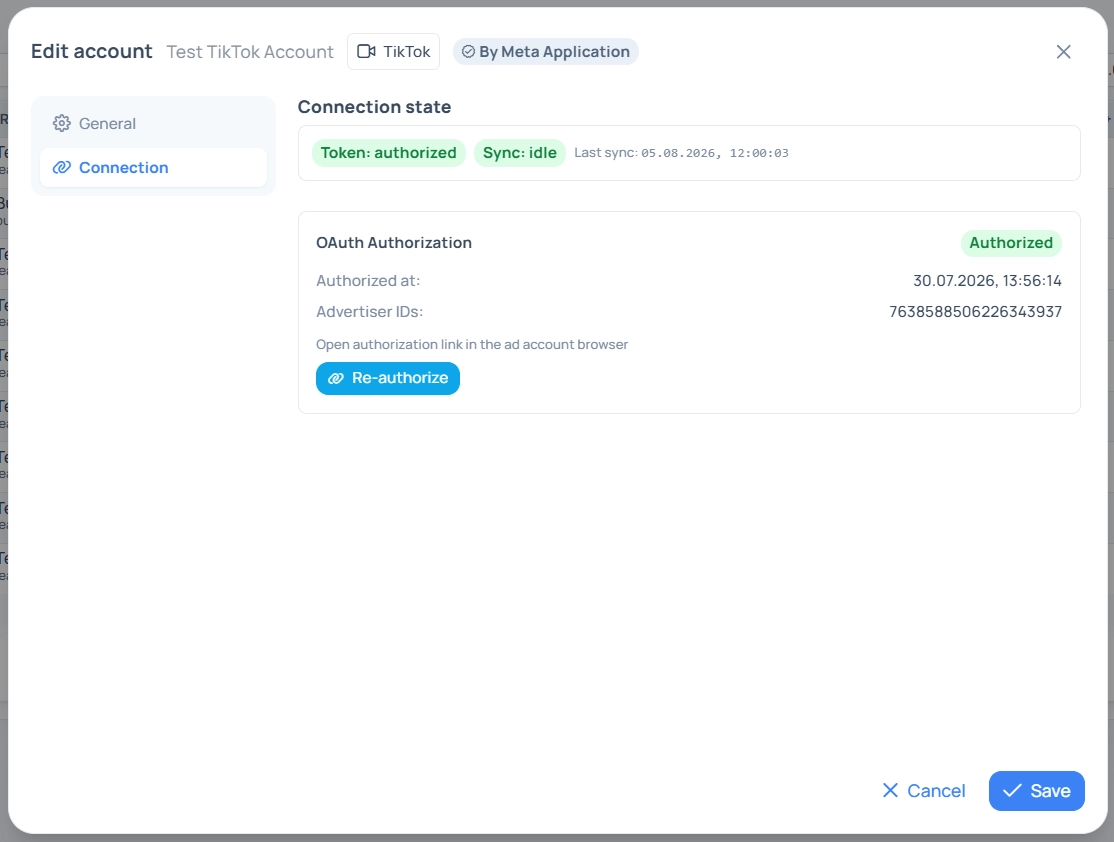
For TikTok, there is only one connection method — OAuth, so the method selector is not displayed. You create a profile, open the "Connection" tab, click "Authorize", and go to the link in the browser where the required advertising account is logged in (the link can be copied with the button and opened in another browser or anti-detect profile). After confirmation, TikTok will return you to the dashboard, and the advertiser IDs and token lifetime will appear in the profile.
Differences between TikTok and Facebook:
Requests to TikTok go directly, without a proxy — the proxy field for TikTok is not used;
Comment cleaning for TikTok is not available;
TikTok creatives do not get into the library — the platform does not provide media ads through the API.
Step-by-step instruction — "Pulling Expenses from TikTok".
Creating a Profile: "Main" Tab
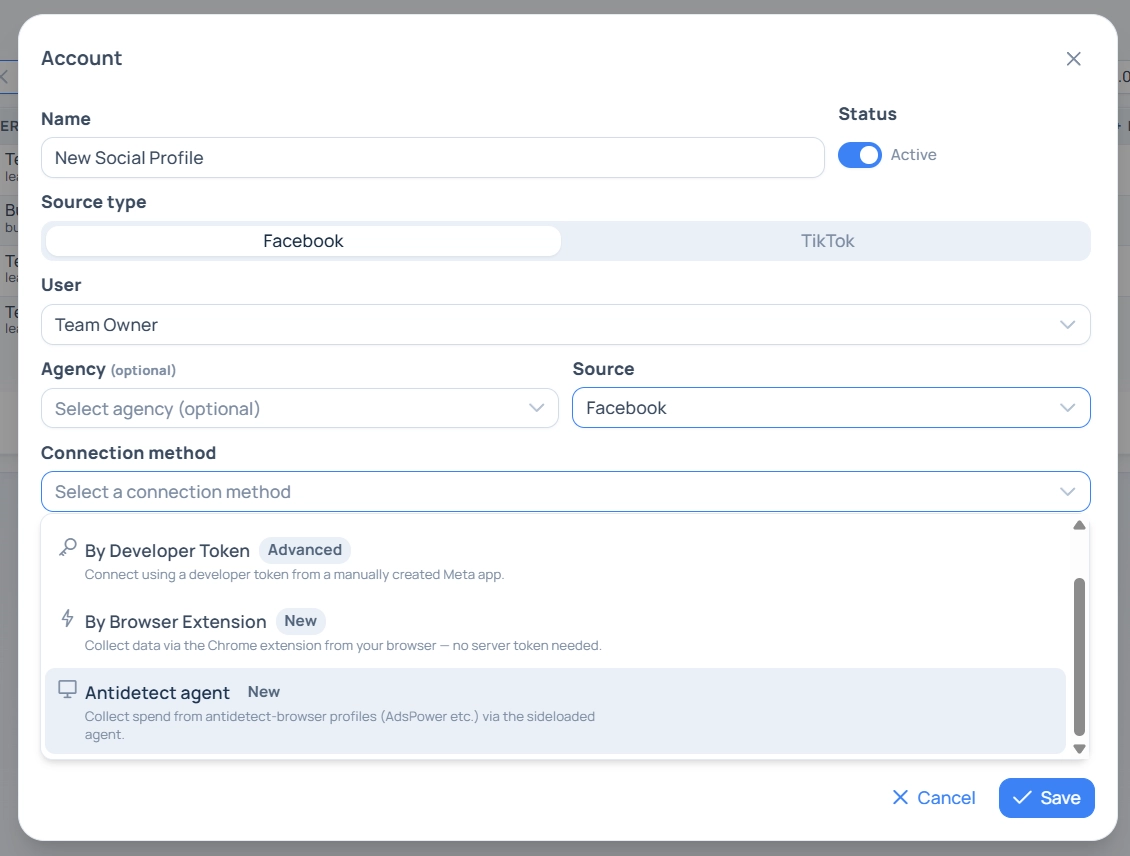
Click the "Account" button above the table and fill out the card.
Field | What to specify | Can it be changed later |
|---|---|---|
Name | How you name the account in work. Up to 255 characters | Yes |
Status | Toggle "Active" / "Pause". Synchronization does not start when paused | Yes |
Source Type | Facebook or TikTok. While not selected, other fields are hidden | No |
Connection Method | Only for Facebook — see the transport table above | No |
Team / User | Profile owner. The buyer creates profiles only for themselves; team selection is available to the platform administrator | No |
Agency | Optional. Needed for the supplier's commission to apply to the expense | Yes |
Source | Mandatory field. The traffic source you are pouring from this account — expenses are reconciled with clicks and conversions | Yes |
Proxy | Only for Dev token. If not specified, requests go through the system proxy or directly. For the agent, the proxy is sent by the agent itself | Yes |
Developer access token | Only for Dev token. The value is hidden, the eye button shows it. When editing, an empty field means "do not change the token" | Yes |
Expense synchronization interval | Every 15 / 30 minutes or every hour. Available values depend on the tariff | Yes |
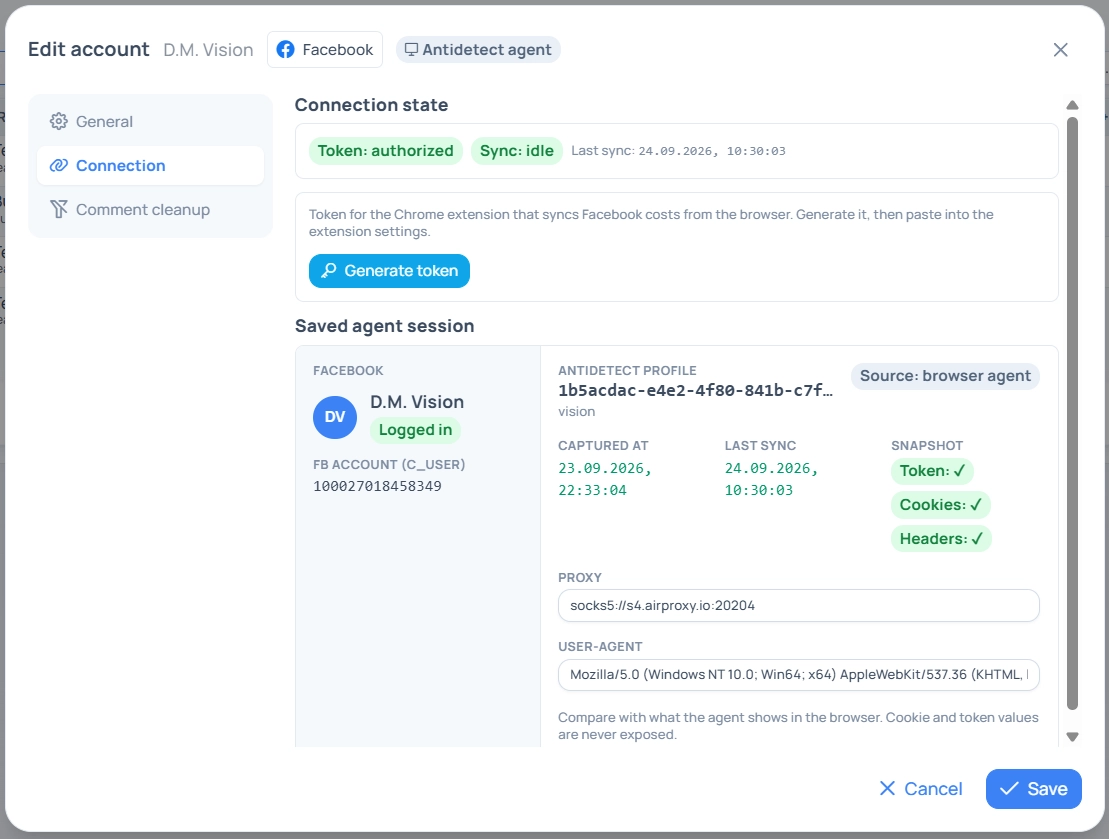
After the first save, the window does not close but switches to the "Connection" tab — there the binding is completed.
"Connection" Tab
The tab appears only for the saved profile. There are three blocks (the composition depends on the transport):
Connection Status — token status, synchronization status, time of the last sync, and text of the last platform error. If something is wrong, a hint is displayed under the status indicating what to do.
Token for plugin or agent — button "Generate Token", then "Copy". The token is shown once; "Reissue Token" makes the previous one invalid. This block is also used for the anti-detect agent.
Saved agent session (only for anti-detect agent) — whether Facebook is logged in, which anti-detect profile is linked, when the session was removed, whether there is a token, cookies, and headers, what proxy and User-Agent. The actual values of cookies and tokens are not disclosed.
OAuth Authorization (TikTok) — authorization, link for another browser, advertiser IDs, token lifetime.
Profile List
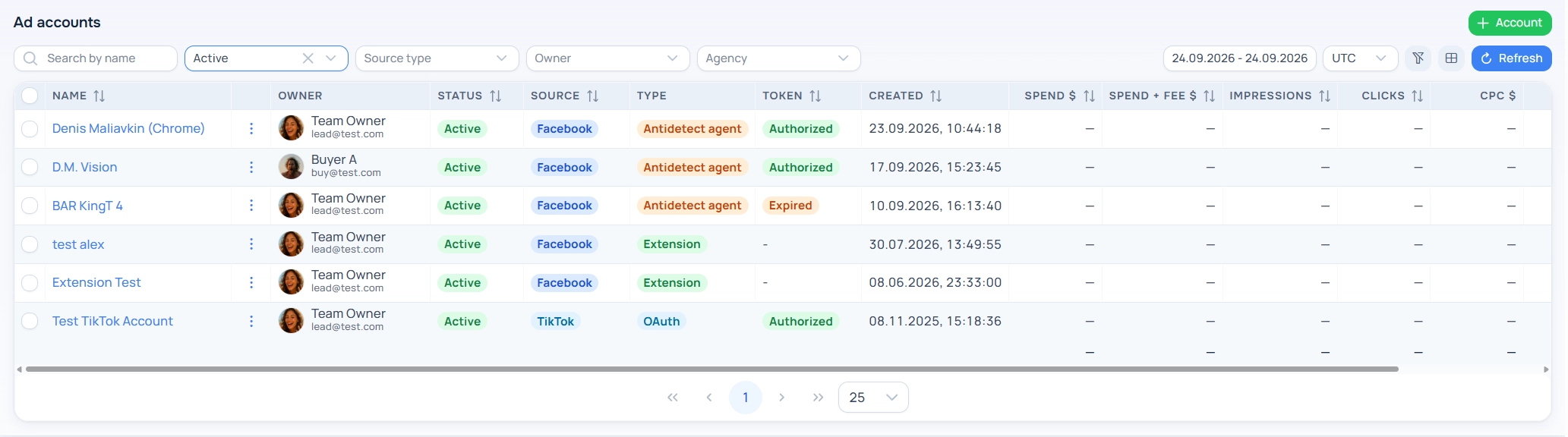
By default, active profiles are displayed. Columns:
Column | Values |
|---|---|
Name | Link to the accounts of this profile |
Owner / Team | Whose profile |
Status | Active / Pause / Closed |
Source | Facebook or TikTok |
Type | OAuth / Dev Token / Extension / Anti-detect Agent |
Token | Authorized / Expired / Revoked / Pending |
Plus expense metrics for the selected period: Expense $, Expense + Commission $, Impressions, Clicks, CPC, CPM, CTR. Filters: search by name, status, source type, owner, agency, period; for the administrator — team.
Actions in the row menu:
Edit — profile card.
Synchronize — unscheduled launch. Available only when the token status is "Authorized".
Update FB token — server update of the anti-detect profile session. Available only to the platform administrator and only for agency profiles with a proxy.
Delete — changes the profile status to "Closed" and removes related accounts, campaigns, ad sets, and ads from the tables. Historical expenses in analytics are preserved.
How Often the Profile is Synchronized
Transport | Expenses | Ad Structure |
|---|---|---|
Dev token | By interval from the profile (30 / 60 minutes) | Once an hour |
Browser plugin | When you start sync in the plugin or by its timer — while the browser is open | With the same launch, before expenses |
Anti-detect agent | In one cycle with the structure, no more than once every 30 minutes | With the same cycle |
TikTok (OAuth) | By interval from the profile | Once an hour |
Expenses are always read with a margin: at the first launch — for the last week, then — for three days back. This way, platform clarifications are picked up retroactively.
What to Do if Synchronization Stops
Token Status | What happened | What to do |
|---|---|---|
Expired | The token or session has expired | Dev token — insert a new one; TikTok — reauthorize; agent — open the anti-detect profile, the agent will send a fresh session (the server will retry) |
Revoked | The platform revoked access: the token was deleted, the password changed, security check triggered. A common reason for agency profiles is a request bypassing the profile's proxy | Reconnect the profile: new token, new authorization, or fresh session from the agent |
Pending | The profile was created, but the binding is not completed | Insert the token, go through OAuth or generate a token for the plugin / agent |
A profile with an unauthorized token drops out of the schedule — until the status becomes "Authorized", data will not be updated. The profile owner receives a notification when the platform revokes access.
If the token status is "Authorized", but there is no data, open the "Connection" tab and read the text of the last error — it comes from the platform as is and usually directly names the reason (no rights to the cabinet, request limit exceeded, requires re-login).
Access Rights
Buyer creates profiles only for themselves and sees only their own. They cannot change the owner or team of the profile.
Team Lead sees their profiles and the profiles of subordinates, team owner and tech — all profiles of the team.
Platform Administrator sees all teams and can perform a server update of the token for the agency profile.
What to Configure Immediately After Connection
Mapping Macros in the Source — a mandatory step. Without it, expenses are visible in the tables of the section, but will not match with traffic and conversions.
Comment Cleaner — if the Facebook profile is connected via the plugin or anti-detect agent.