
Accounts, Campaigns, Ad Sets, Ads: Tabular Data
Four screens — Accounts, Campaigns, Ad Sets and Ads — are the showcase of the advertising structure of Facebook and TikTok within Adset.pro. Adset.pro synchronizes them via the platform APIs and compiles platform spending with conversions and tracker payouts, so you can see both how much you spent and how much you earned in one line.
The screens are located in the Meta / TikTok menu: Accounts (/ads/ad-accounts), Campaigns (/ads/campaigns), Ad Sets (/ads/adsets), Ads (/ads/ads-list).
Tables are read-only. You cannot pause a campaign, change the budget or bid from Adset.pro — ad management remains in Ads Manager and TikTok Ads.
Four Levels and Transitions Between Them
The structure repeats the platform structure: account → campaign → ad set (in TikTok — ad group) → ad. It is more convenient to drill down by clicking on the name: filters are preserved and added.
Screen | What in the row | Clicking on the name leads to |
|---|---|---|
Accounts | Ad account: status, currency, balance, total spent, business portfolio | To the "Campaigns" of this account |
Campaigns | Platform campaign: goal, daily and total budget, statuses | To the "Ad Sets" of this campaign |
Ad Sets | Ad set / ad group: optimization goal, budgets, statuses | To the "Ads" of this ad set |
Ads | Ad: creative preview, link, binding to campaign tracker | — |
Under the name of each row, the external ID is displayed in small print — the entity identifier on the platform. It is convenient for cross-referencing with Ads Manager and searching in filters.
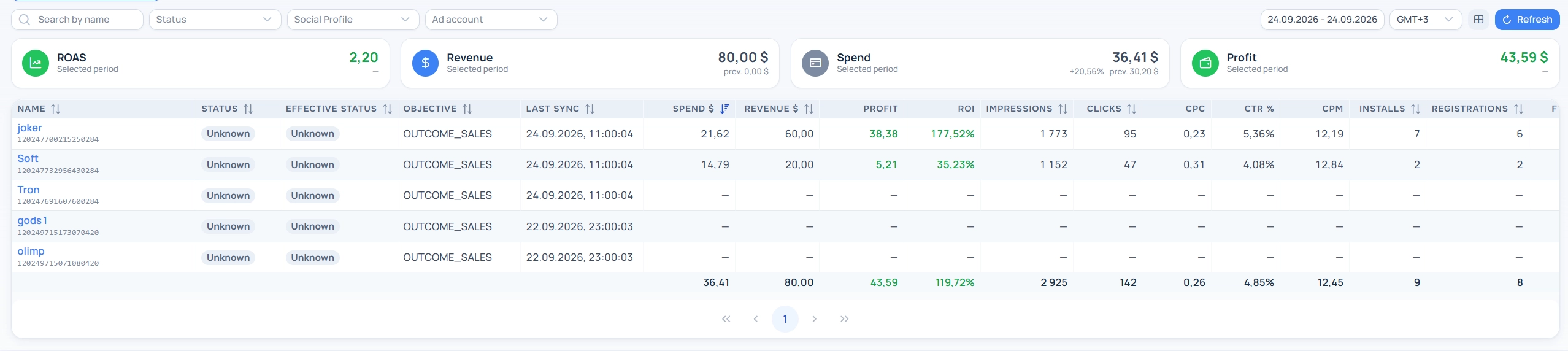
Metrics
Metrics are divided into two groups — those that came from the platform and those calculated by the tracker.
Metric | Source | How it is calculated |
|---|---|---|
Spend $ | Platform | Spend converted to dollars at the exchange rate at the time of synchronization |
Spend + commission $ | Platform + agency | Spend with the agency markup specified in the social profile |
Impressions, Clicks | Platform | Data from the ad account |
CPC, CPM, CTR % | Calculation | Spend ÷ clicks; spend ÷ impressions × 1000; clicks ÷ impressions × 100 |
Installs, Registrations, FTD | Tracker | Tracking events linked to the ad by external IDs |
Revenue $ | Tracker | Payouts from postbacks of affiliate networks |
Profit | Calculation | Revenue − spend |
ROI | Calculation | (Revenue − spend) ÷ spend × 100 % |
Click 2 Install / Registration / FTD | Calculation | Conversion from clicks platform to tracker events |
Install 2 Registration / FTD, Registration 2 FTD | Calculation | Transitions between stages in the tracker funnel |
Important details for reading numbers:
Profit and ROI are shown as a dash if there are no tracker data for the entity. This is intentional: an ad without a single conversion would show ROI −100 %, which would confuse it with a truly unprofitable one.
ROI is highlighted by color: red — negative, orange — from 0 to 30 %, green — above 30 %. Profit is green when the value is greater than zero.
The denominator of the Click 2 X metrics is platform clicks (link clicks from the account statistics), not tracker clicks. Some clicks do not reach the tracker, so values above 100 % are not anomalies in themselves.
There are no conversions, revenue, and ROI on "Accounts" — tracker events are linked to the campaign, ad set, and ad, not to the account as a whole.
Sorting by calculated metrics is not available (CPC, CTR, CPM, Click 2 X, Install 2 X, Profit, ROI): they are calculated on top of already selected rows. Sort by spend, clicks, impressions, conversions, or revenue.
By default, a basic set of metrics is displayed; others — spend with commission and funnel ratios — can be included with the column selection button. The set of columns is saved in the browser separately for each screen.
KPI Block and Attribution Banner
Above the table, KPI cards for the selected period are displayed: ROAS, Revenue, Spend, Profit, and on "Accounts" — Spend, Impressions, Clicks, CPC. Under each value — a comparison with the previous period of the same length.
If part of the tracker revenue is not linked to ads, a warning appears like "Partial data: N % of tracker revenue is linked to ads" with a list of sources that do not have the ad ID macro set, and a button "Configure". This is a direct indicator of incorrect mapping — see the article "Setting Up Traffic Sources for Correct Mapping".
Filters
Search by name — by the name of the entity on the platform.
Status — Active, Paused, Under Review, With Issues, Disabled, Archived, Deleted, Unknown. For Facebook and TikTok, statuses are brought to a common view, so the filter works the same for both platforms.
Social profile — shows data for a specific connection. The filter is preserved when drilling down through levels.
Account / Campaign / Ad Set — contextual filters at lower levels; these are set when clicking on the name.
Period and timezone — by default today. Metrics are calculated for the selected period, the properties of the entity (budget, status) are always current.
Team — for platform administrator only.
The selected filters are reflected in the address bar, so you can send a link to the desired slice to a colleague.
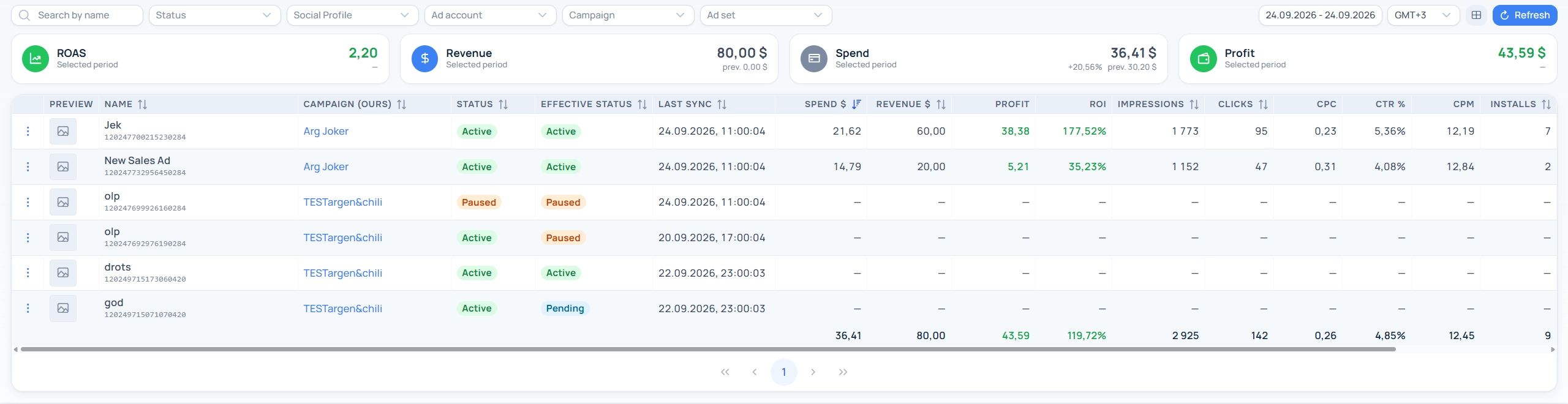
"Campaign (Our)" Column
On the "Ads" screen, there is a "Campaign (Our)" column — this is the connection of the platform ad with the tracker campaign. Adset.pro determines it in two ways:
By the creative link — if the ad has an Adset.pro tracking link, the campaign is determined immediately upon synchronization of the structure.
By clicks — the system searches among clicks for the last 30 days for those that brought the ID of this ad (or its ad set, or campaign), and restores the connection based on them.
The value "Not Linked" means that the ad could not be matched with any tracker campaign: spend for it is visible in these tables, but will not appear in tracker reports. Check the tracking link in the creative and the mapping of the source macros.
Actions with the Row
On the "Ads" screen, the following actions are available in the row menu:
Link — open the target URL of the ad.
Download Creative — export the original images and videos of the ad as an archive. Available only for Facebook: TikTok does not provide ad media files through the API.
There are no bulk operations in these tables — data is synchronized, not edited.
How Often Data is Updated
What is updated | Frequency |
|---|---|
Facebook structure (accounts, campaigns, ad sets, ads) | Once an hour |
TikTok structure | Once an hour |
Expenses | By the interval set in the social profile (15 / 30 / 60 minutes) |
Connection via anti-detect agent | Structure and expenses in one cycle, no more than once every 30 minutes |
During each synchronization, expenses are recalculated not only for today but also for the previous three days, and during the very first run — for a week. This captures adjustments that platforms make retroactively. The "Synchronization" column shows when the row was last updated.
The same ad account connected with multiple social profiles is displayed as one row — there will be no duplicates.
Frequently Asked Questions
The table is empty, says "No data. Run synchronization"
Either synchronization has not yet occurred (after connecting the profile, wait for the next cycle), or the selected period had no activity, or an active filter by profile or status is hiding rows. Start by resetting filters and setting the period to "last 7 days".
There is spend, but no conversions or revenue
This means that tracker events did not link to the ad. The reason is almost always in the mapping of the source: the click link does not pass the IDs of the campaign, ad set, and ad, or they go into the wrong sub-parameters. Details — in the article "Setting Up Traffic Sources for Correct Mapping".
The numbers do not match Ads Manager
Today's platform data is provisional and is clarified over the course of the day. Also, compare the same periods and time zones: in Adset.pro tables, the period is calculated in the timezone you selected. A detailed analysis of discrepancies — in the article "Why Facebook and Adset.pro May Show Different Data".
Who sees which rows
A buyer sees ads only from their social profiles, a team lead — their own and their subordinates', a team owner and those — the entire team, a platform administrator — all teams. No role has the right to modify advertising data: the screens are read-only.