
Setting Access for Team Members
Introduction
Access settings let you flexibly manage what each team member sees and can edit. They are configured for the Team Lead and Buyer roles — separately for each platform section, down to specific elements. For example, you can allow a buyer to see only their own campaigns or grant access to certain PWAs.
Who configures access:
Buyer access — the team owner or their Team Lead;
Team Lead access — the team owner;
a user cannot change their own access settings.
Where to Configure
There are two ways:
The Users table (Team → Users). Access cells per section are displayed next to each member. Clicking a cell opens a quick editor: the access level and, if needed, the selection of specific elements.
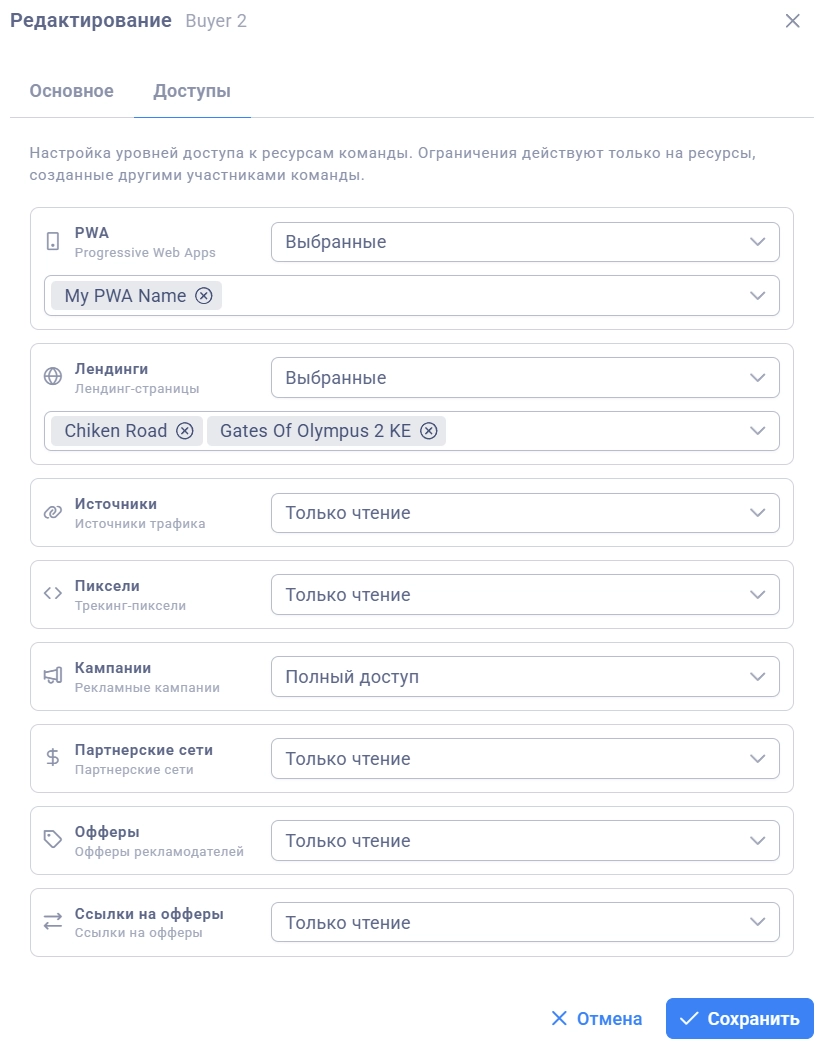
User card → Access tab. Open a user for editing and switch to the tab. The tab appears only when editing an existing user — it is not available when creating a new one.
Resource Sections
Access is configured separately for each section:
Section | Description |
|---|---|
PWA | Play Store Builder |
Landings | Pre-landings and games |
Sources | Traffic sources Regulates access to the list of sources when editing campaigns |
Pixels | Tracking pixels |
Campaigns | Advertising campaigns |
Affiliate Networks | Affiliate networks Regulates access to the list of affiliate networks when editing campaigns |
Offers | Advertiser offers |
Links to Offers | Streams (links) to offers |
Domains | Team domains for campaigns |
White Pages | White pages for campaign domains System (shared) white pages are visible to all teams at any level |
Push Groups | Push mailing groups Access to individual push notifications follows from access to their groups; your own pushes are always visible |
Subscriptions | Push notification subscribers Controlled by level only, without selecting specific elements |
For a Team Lead, an additional section is available — Team Members. It defines which buyers the team lead sees and can manage (their group).
Access Levels
For each section, you choose one of three levels.
Full
The user sees all resources of the section in the team and can edit, delete, and create new ones.
When to use: for experienced members who need full control over the team's shared resources.
Read
The user sees all team resources in the section, but can edit and delete only those they created themselves. They can create new resources without restrictions.
When to use: when the user needs to see colleagues' resources (for example, for training or copying settings) without the risk of accidentally changing someone else's data.
Own
The user sees and works only with their own resources — those they created themselves. Resources of other team members are not visible to them.
When to use: for isolated work when access to others' data is not needed.
Selecting Specific Elements
At the Full and Read levels, a multi-selector of specific section elements is available below the level selector. It works as a filter on top of the level:
empty — the level applies to all team resources;
elements selected — access is limited to "own + selected" within the level.
These combinations replace the former "Selected" level: "Full + selected" — full access to own and selected resources; "Read + selected" — reading own and selected, writing only to own.
How to set up:
Choose the "Full" or "Read" level
In the multi-selector that appears, start typing a name to filter or scroll through the list
Mark the necessary elements — they will be displayed as chips
Click Save
Only active elements are displayed in the multi-selector. For the "Subscriptions" section, element selection is not available — it is controlled by level only.
Default Values
When creating a new Buyer, the following levels are set automatically:
Section | Default Level |
|---|---|
PWA | Own |
Landings | Own |
Sources | Read |
Pixels | Own |
Campaigns | Own |
Affiliate Networks | Read |
Offers | Read |
Links to Offers | Read |
Domains | Read |
White Pages | Read |
Push Groups | Own |
Subscriptions | Own |
This configuration allows the buyer to start working immediately: they create their own campaigns and PWAs while seeing the team's shared sources, networks, offers, domains, and white pages for use in their settings.
Defaults for a new Team Lead: "Team Members" and the working sections (PWA, Landings, Sources, Pixels, Campaigns, Affiliate Networks, Offers, Links to Offers) — Full; Domains and White Pages — Read; Push Groups and Subscriptions — Own.
Team Lead Access and the Buyer Ceiling
The team owner configures the team lead's access using the same set of levels per section.
The Team Members section defines the team lead's group: "Full + selected buyers" — they manage only those; "Full" with an empty list — the whole team; "Own" — they manage no one.
A buyer cannot get broader access than their Team Lead. The buyer's levels and selected element lists are automatically capped by their team lead's settings (the ceiling). For example, if the team lead has "Own" for campaigns, the buyer's "Full" will still apply only to the buyer's own campaigns.
Typical Scenarios
New Buyer in the Team
Leave the default settings. The buyer will work only with their own resources but will see shared sources, offers, and white pages for campaign setup.
Experienced Mentor Buyer
Set Read for PWAs, landings, and campaigns. They will be able to view colleagues' settings to train newcomers but can change only their own.
Full Trust
Set Full for all sections. The buyer will have the same resource capabilities as the Team Lead.
Collaborative Project Work
Use specific element selection at the "Full" level for the necessary sections. For example:
Two buyers work with one PWA → add this PWA to the selected list for both
The team uses a shared pixel → add it to the selected list in the Pixels section
Information for the Team Owner and Tech Roles
Team Owner — always has full access to all team resources, no configuration needed.
Tech — broad access similar to the owner, but with restrictions:
Cannot manage team settings
Cannot manage billing
Cannot approve expenses
Does not have access to the referral program
Important to Know
Changes take effect immediately after saving. The user will see the new restrictions on their next request (it may take up to 10 minutes due to caching).
Own resources are always available. At any level, the user sees and can work with the resources they created themselves.
A user cannot change their own access settings. Buyer access is configured by the team owner and their Team Lead; team lead access — by the team owner.
Deleted and deactivated elements are not displayed in the multi-selector — only active ones.
When switching the level to "Own", the list of selected elements is reset — when returning to "Full"/"Read" it needs to be selected again.