
Role System and Access Management
1. User Roles
The platform uses a hierarchical role-based access control (RBAC) model. Each user belongs to one team and has one role.
Role Hierarchy
Team Owner
  ├── Tech
  └── Team Lead
        └── Buyer
Role Descriptions
Role | Description | Resource Access |
|---|---|---|
Team Owner | Team owner. Can own multiple teams. Sees all resources of their team, manages team leads, techs, and buyers. | Full within the team |
Tech | Technical specialist. Has broad access to team resources, similar to Team Owner, but cannot manage team finances. | Full within the team |
Team Lead | Team leader. Manages assigned buyers. Resource access is configured via | Configurable (see below) |
Buyer | Executor. Works with resources within the access granted by the team lead or administrator. | Configurable, limited by team lead's scope |
Blocked | Blocked user. Has no access to the platform. | No access |
Who Can Edit Whom
Actor | Can Edit |
|---|---|
Team Owner | Team Lead, Tech, Buyer (of their team) |
Tech | Team Lead, Tech, Buyer (of their team) |
Team Lead | Only their Buyers |
Buyer | No one (only their profile, without changing role/access) |
Important: A user cannot elevate their role or change their access settings (
resourceAccess).
2. Team and User Hierarchy
Team Structure
Each team has a tree-like structure:
Team Owner
  ├── Tech (one or more)
  ├── Team Lead #1
  │     ├── Buyer A (assigned)
  │     └── Buyer B (assigned)
  ├── Team Lead #2
  │     └── Buyer C (assigned)
  └── Buyer D (not assigned to any team lead)
Assigning Buyers to Team Leads
- Each buyer can be assigned to only one team lead.
- Assignment occurs through the Access settings of the team lead.
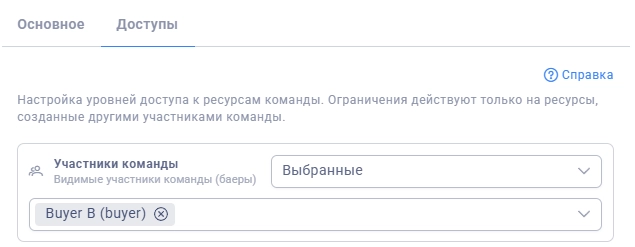
- Unassigned buyers are displayed at the root level in the user list.
- On the
/userspage, the list is displayed as a tree (TreeTable), showing the hierarchy of subordination.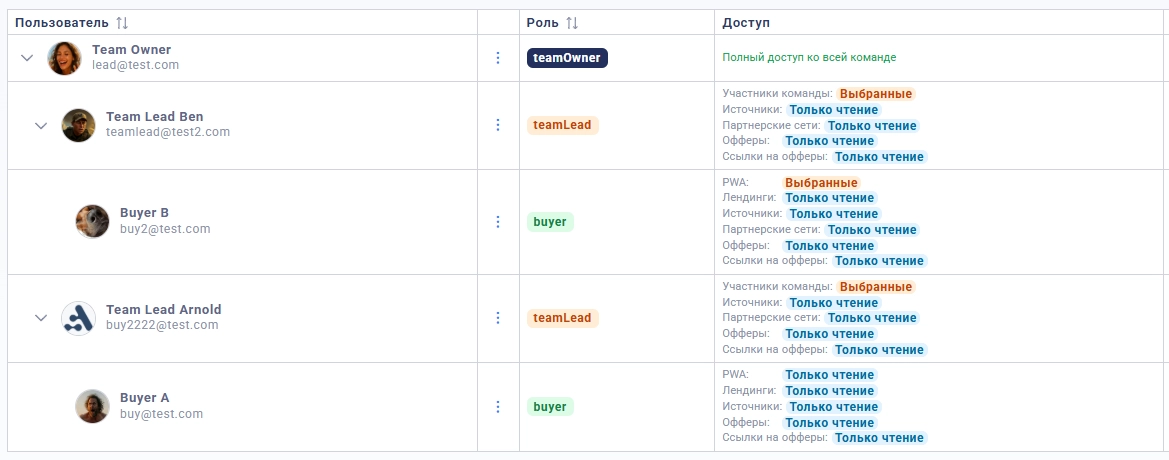
3. Resource Access Levels
Access to resources is configured for the Team Lead and Buyer roles in the user profile.
Four Access Levels
Level | Name | Read | Write (create/edit/delete) |
|---|---|---|---|
Full | Full access | All team resources | All team resources |
Read | Read-only of others | All team resources | Only their resources |
Selective | Their + selected | Their + specific resources from the list | Their + specific resources from the list |
Only Their | Only their own | Only their resources | Only their resources |
“Their resources” are objects created by the user, or where the user is assigned as the owner.
Order of Levels (from strict to permissive)
Only their → Selective → Read → Full4. Resource Groups
Each group is configured independently — full access can be granted to PWA, but campaigns can be restricted.
Group | Default (Buyer) |
|---|---|
PWA |
|
Landings |
|
Sources |
|
Pixels |
|
Campaigns |
|
Affiliate Networks |
|
Offers |
|
Flows |
|
Push Groups |
|
The “Users” group is available only for Team Leads. It defines which buyers the team lead sees and can edit. The Buyer does not see this group.
Access to Push Notifications
“Push Groups” is the single access control for push notifications. Individual pushes have no separate setting: access to them follows the access to the group. Levels work like campaigns:
- Only their (or Read without selected groups) — their groups and their pushes;
- Read + selected groups — their own + these groups and their pushes (view; edit — only their own);
- Full + selected groups — the same, plus editing the selected groups;
- Full without selection — all groups and pushes of the team.
A specific group granted to a buyer is visible to them even if their team lead is restricted. System groups (global, for selection in a campaign) are available to everyone for selection, but not for editing.
5. Cascading Access (CPA → Offer → Flow)
The resources Affiliate Networks, Offers, and Flows are hierarchically linked:
Affiliate Network
  └── Offer
        └── Links to Offer
Cascading Rules
If access to the parent group is restricted to the Selective level with specific items, all child resources are automatically restricted to belonging to those items.
Affiliate Network | Offer | Links to Offer | Visible Offers | Visible Links |
|---|---|---|---|---|
Selective | Full | Full | Only offers from | Only flows from |
Selective | Selective | Full | Only | Flows from |
Full | Selective | Full | Only | Only flows |
Full | Full | Full | All team offers | All team flows |
Example
The team lead has the following access configured:
- CPA:
Selective— selected network “Affiliate A” - Offer:
Full - Flow:
Full
Result: the team lead sees all offers and flows, but only belonging to “Affiliate A”. Offers from other CPA networks of the team are hidden.
6. Scope Inheritance (Buyer ← Team Lead)
Principle
A buyer cannot have broader access than their team lead. The effective access of the buyer is the minimum of their own settings and those of their team lead.
How Capping Works
Buyer Access | Team Lead Access | Effective Buyer Access |
|---|---|---|
Full | Full | Full |
Full | Only their | Only their (capped) |
Full | Selective | Selective |
Read | Only their | Only their (capped) |
Selective | Selective | Selective |
Only their | Full | Only their (buyer is stricter — keep it) |
Scope Visibility When Capped
When the buyer's access is capped to the team lead's level, the buyer sees the same scope as the team lead:
- Their resources
- Team lead's resources
- Colleagues' resources (other buyers of the same team lead)
Buyer Without Team Lead
If a buyer is not assigned to any team lead, capping does not apply. Their access settings are used as is.
7. Access Settings for Team Lead
By default, the Team Lead receives full access to all resource groups except the “Users” group:
Group | Default (Team Lead) |
|---|---|
Users |
|
PWA |
|
Landings |
|
Sources |
|
Pixels |
|
Campaigns |
|
Affiliate Networks |
|
Offers |
|
Flows |
|
Push Groups |
|
The “Users” Group for Team Lead
This group defines which buyers the team lead manages:
Level | Behavior |
|---|---|
Selective | The team lead sees and manages only specific buyers from the list |
Full | The team lead sees and manages all team members |
Only Their | The team lead sees only themselves in the user list |
The level of the “Users” group for the team lead also affects the scope of resource visibility: if the team lead has Only their access to PWA, but Full to Users — they see the PWA of the entire team. If Users = Selective [Buyer A] — the team lead sees their PWA + PWA of Buyer A.
8. Scenario Examples
Scenario 1: Standard Team
Team Owner (full access)
  ├── Tech (full access to resources)
  ├── Team Lead #1
  │     Users: Selective [Buyer A, Buyer B]
  │     PWA/Campaigns/...: Full
  │
  │     ├── Buyer A
  │     │     PWA: Full → effectively: Full (team lead also Full)
  │     │     Campaigns: Only their → effectively: Only their
  │     │
  │     └── Buyer B
  │           PWA: Only their → effectively: Only their
  │           Campaigns: Read → effectively: Read
  │
  └── Team Lead #2
        Users: Selective [Buyer C]
        CPA: Selective [CPA-1]
        Offer: Full
        Flow: Full

        └── Buyer C
              CPA: Full → effectively: Selective [CPA-1] (capped to team lead)
              Offer: Full → effectively: Full, but only offers from CPA-1 (cascading)
              Flow: Full → effectively: Full, but only flows from CPA-1 (cascading)
Scenario 2: Restricted Access to Specific Objects
The team lead needs to give access only to certain sources:
- Sources:
Selective→ select specific sources from the list - Campaigns:
Only their→ buyers see only their campaigns - PWA:
Read→ buyers see all team PWA, but create/edit only their own