
Inviting Participants to the Team
Overview
The invitation system allows you to add new participants to your team. An invitation is sent to the email, after which the recipient registers and automatically joins the team with the assigned role.
Who Can Invite
Your Role | Available Roles for Invitation |
|---|---|
Team Owner | Buyer, Tech Specialist, Team Lead |
Tech Specialist | Buyer, Tech Specialist, Team Lead |
Team Lead | Buyer, Tech Specialist |
Buyer | — (cannot invite) |
Important: A Team Lead cannot invite other Team Leads. This role is assigned only by the Team Owner or Tech Specialist.
How to Send an Invitation
Step 1. Open the “Users” Section
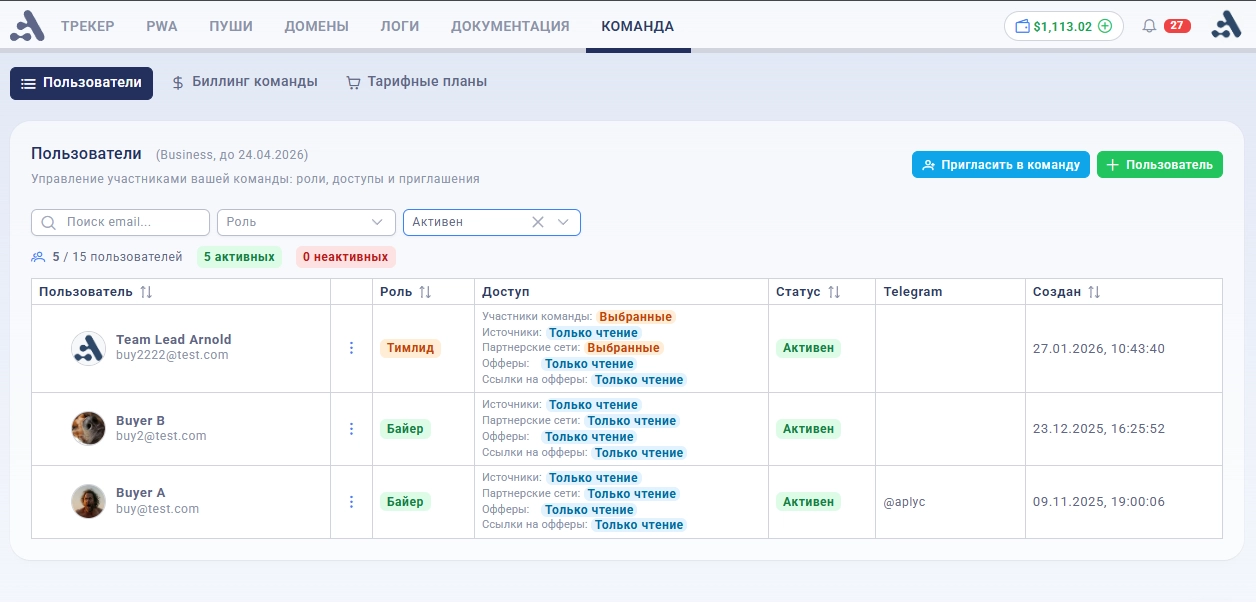
Go to Users in the side menu. Above the participant table, click the “Invite” button (the + icon with a user).
Step 2. Fill Out the Invitation Form
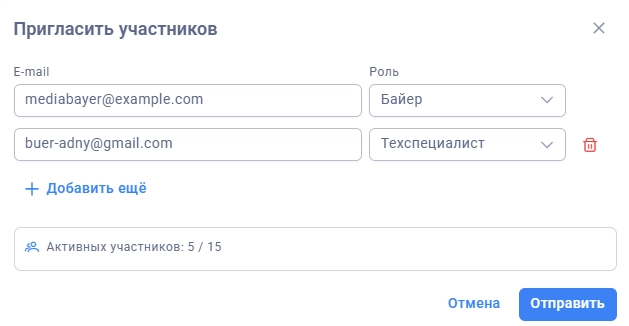
In the opened dialog, specify:
E-mail — the email address of the invitee. The address must not already be registered in the system.
Role — select a role from the dropdown list:
Buyer — basic role for working with campaigns, PWA, landing pages, etc.
Tech Specialist — extended access to all team resources (except billing and team management).
Team Lead — manages a subgroup of buyers with customizable access to resources.
Step 3. Add Multiple Invitations (Optional)
Click “Add More” to invite several participants at once. For each, specify a separate email and role. You can delete an extra row using the button with the trash icon.
Step 4. Check Limits
If your tariff plan has a limit on the number of participants, information is displayed at the bottom of the dialog:
Active Participants: X / Y — current number and limit of the plan.
Exceeding Warning — if the number of invitations exceeds the limit, the system will show a warning about possible additional payment for each participant over the limit.
Step 5. Send Invitations
Click “Send”. The system:
Checks that the email is not registered.
Generates a unique invitation link for each address.
Sends an email with the invitation.
Displays a success notification with the number of invitations sent.
What the Invited Gets
An email arrives at the specified address with the subject “You're Invited to Join a Team”, containing:
The name of the inviter
The name of the team
A link to accept the invitation
Validity Period: the invitation link is active for 24 hours. After the expiration, a new invitation will need to be sent.
How the Invited Joins the Team
Option 1: Registration via Email and Password
The invitee clicks the link in the email.
The system checks the validity of the token and redirects to the registration page.
The invitee fills out the form: name, email, password, Telegram (optional).
After registration, the user automatically:
Receives the role specified in the invitation
Joins the team of the inviter
Logs into the system
Option 2: Registration via Google
The invitee clicks the link in the email.
On the registration page, selects “Sign in with Google”.
After authorization in Google, the system automatically creates an account with the role from the invitation and links it to the team.
Note: Each invitation is one-time use. After use, the token is invalidated, and re-registration via the same link is not possible.
Participant Roles
Role | Description |
|---|---|
Team Owner | Full access: team management, billing, all resources. One per team, assigned at creation. |
Team Lead | Manages the assigned subgroup of buyers. Has customizable access to resources through the Resource Access system. |
Tech Specialist | Full access to all team resources, except billing and team composition management. |
Buyer | Works with assigned resources (campaigns, PWA, landing pages, etc.) within the granted rights. |
Possible Errors
Error | Cause | Solution |
|---|---|---|
email_already_exists | A user with this email is already registered | Use another email or manually add the existing user |
role_not_allowed | Attempt to invite with an invalid role (e.g., team lead invites a team lead) | Select a valid role for your access level |
invitation_invalid_or_expired | The invitation link has expired or has already been used | Send a new invitation |
team_required | Failed to determine the team (no team binding) | Contact the administrator |
Frequently Asked Questions
Can I cancel a sent invitation?
There is no separate cancel button. The invitation will automatically expire after 24 hours. If the user does not click the link within this time, the invitation will become invalid.
Can I change the role after the invitation?
The role is fixed at the moment of sending the invitation. To assign a different role, send a new invitation. If the user has already registered — change the role in the “Users” section through editing.
What happens if the participant limit is exceeded?
The system will warn about possible additional payment. The invitation will still be sent — the limit is tracked at the billing level.
Can I invite several people at once? Yes. Use the “Add More” button to add rows. All invitations are sent in one request.