
Custom Landing Pages
What is a Custom Landing Page
A custom (hosted) landing page is an arbitrary HTML page uploaded to the system as a ZIP archive. It is displayed to the user within the Flow of the campaign: after clicking on the tracking link and before redirecting to the offer.
The landing page can be of any design — a wheel of fortune, a slot, a game screen, a registration form, etc. The platform automatically embeds the necessary tracking and push subscription logic into it.
All uploaded landing pages must comply with the acceptable use policy of the service.
ZIP Archive Structure
The archive must contain the index.html (or index.twig) file at the root. All static files (images, CSS, JS, fonts) must be located alongside or in nested folders.
landing.zip
├── index.html        ← required
├── style.css
├── script.js
└── images/
    └── bg.jpg
The system unpacks the archive and serves the files via S3. All asset paths inside the HTML must be relative.
Relative Asset Paths
The platform publishes the landing page at a dynamic URL of the form:
https://cdn.example.com/landings/<id>/
Therefore, all links to files inside index.html must be relative — without a leading / and without specifying the domain.
Examples of Correct Paths
<!-- Styles -->
<link rel="stylesheet" href="style.css">
<link rel="stylesheet" href="css/main.css">

<!-- Scripts -->
<script src="script.js"></script>
<script src="js/vendor/gsap.min.js"></script>

<!-- Images -->
<img src="images/bg.jpg" alt="background">
<img src="images/logo.png" alt="logo">

<!-- Background image in CSS -->
<style>
  .wheel {
    background-image: url('images/wheel.png');
  }
</style>

<!-- Fonts (in style.css) -->
@font-face {
  font-family: 'MyFont';
  src: url('fonts/myfont.woff2') format('woff2');
}

<!-- Video -->
<video src="video/promo.mp4" autoplay muted loop></video>

<!-- Audio -->
<audio src="sfx/spin.mp3"></audio>
Examples of Incorrect Paths ❌
<!-- Absolute path from root — will break upon publication -->
<link rel="stylesheet" href="/style.css">
<img src="/images/bg.jpg">

<!-- Full URL — will not work in the landing environment -->
<script src="https://mysite.com/script.js"></script>
Uploading a Landing Page
-
Go to the
/app/landingspage -
Click the Upload Landing button
-
Fill out the form:
Field | Required | Description |
|---|---|---|
Logo | Yes | Preview icon (300×300 px) — displayed in the list, used for the application icon if the landing is used in PWA format |
Name | Yes | Internal name for identification in the system |
Title | Yes | Title (for example, for display in PWA) |
ZIP file | Yes (when creating) | Archive with landing files ( |
Active | — | Is the landing active (enabled by default) |
- Click Save — the system will upload the archive, unpack it, and publish the landing
After a successful upload, the landing appears in the table and is available for use in the Flow campaign.
Editing a Landing Page
Click the ⋮ button next to the desired entry → Edit. You can change the name, logo, status, and upload a new version of the ZIP archive.
The ZIP field is optional when editing — if you do not select a new file, the current content is preserved.
HTML Template Editor
For each landing page, there is built-in editing of the index.html file directly in the interface — without re-uploading the ZIP archive.
How to Open
-
Click the ⋮ button next to the desired landing
-
Select Edit Template
A full-screen dialog will open with two panels.
Editor Panels
Panel | Description |
|---|---|
Editor (left) | Code editor with syntax highlighting for editing |
Preview (right) | Live preview: renders the Twig template and displays the result in |
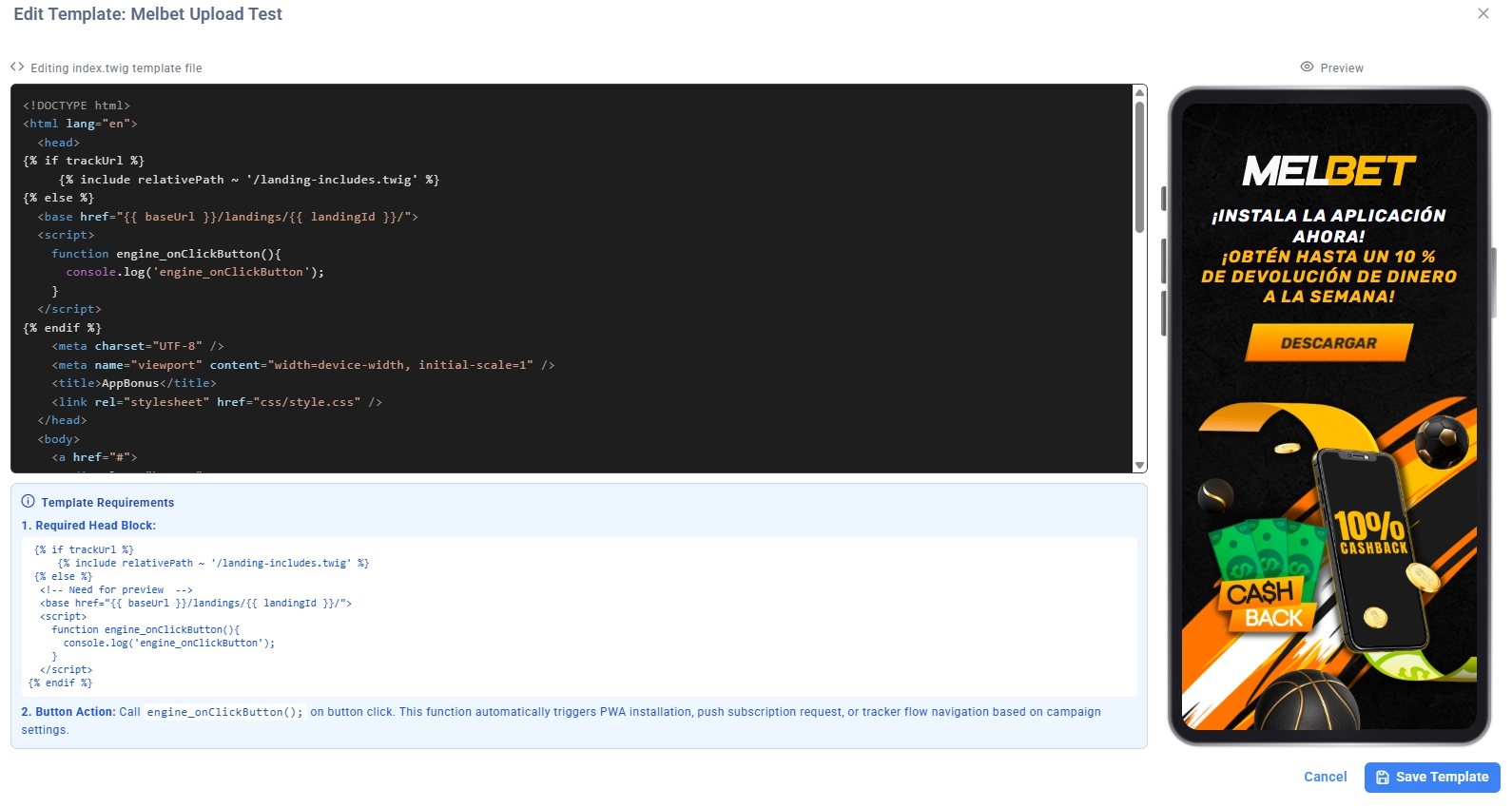
The preview updates automatically as you type — allowing you to see the results of layout changes immediately without saving.
Important: the editor works with the index.html file — the main template of the landing page. Other files in the archive (CSS, JS, images) remain unchanged.
Saving
Click Save Template — changes are applied immediately. No need to upload a new ZIP.
How the Platform Embeds Logic into the Landing Page
When displaying the landing page, the system automatically adds a block with the necessary scripts (landing-includes) to the HTML. This happens on the server side — no edits to the HTML are needed.
What is automatically embedded:
1. Global Variable trackUrl
const trackUrl = '...'; // tracking link with click parameters
This is the link that the user should follow after performing an action on the landing page. It is used by the engine_onClickButton() function.
2. Function engine_onClickButton()
The main function of the engine — leads the user further in the campaign. The behavior depends on the context:
Context | Behavior |
|---|---|
Regular landing (without PWA) | Goes to |
Landing with push subscription | First requests a subscription, then goes to |
Landing as PWA | Starts PWA installation, after installation opens the application |
iOS / fallback | Immediate transition to |
3. Automatic Binding of <a> Elements
All <a> tags on the page automatically receive:
-
href= value oftrackUrl -
click handler that calls
engine_onClickButton()
This means that any link on the landing page automatically leads the user through the Flow — without any additional settings on your part.
How to Use engine_onClickButton() on Your Elements
If there are buttons, div blocks, or other interactive elements (not <a>) on the landing page that should lead the user further in the campaign — attach engine_onClickButton to them via addEventListener:
// Attach to button
document.getElementById('spin-button').addEventListener('click', engine_onClickButton);

// Attach to arbitrary element
document.querySelector('.play-btn').addEventListener('click', engine_onClickButton);

// Attach after DOMContentLoaded
document.addEventListener('DOMContentLoaded', () => {
  document.querySelectorAll('.cta-button').forEach(el => {
    el.addEventListener('click', engine_onClickButton);
  });
});
The engine_onClickButton function is already defined by the platform — it is globally available in window.
Full Example of a Landing Page
<!DOCTYPE html>
<html>
<head>
  <meta charset="UTF-8">
  <title>Spin & Win</title>
  <link rel="stylesheet" href="style.css">
</head>
<body>

  <div class="wheel-container">
    <!-- Spin button — a-element, handler is attached automatically -->
    <a class="spin-btn">SPIN</a>
  </div>

  <!-- Or: regular button with manual binding -->
  <button id="play-btn">Play Now</button>

  <script src="wheel.js"></script>

  <!-- Block of code that attaches the click on the Play Now button to proceed further -->
  <script>
    document.addEventListener('DOMContentLoaded', () => {
      document.getElementById('play-btn').addEventListener('click', engine_onClickButton);
    });
  </script>
</body>
</html>
engine_onClickButton and trackUrl will be available, as the platform automatically inserts them into the page before your content.
Macro trackUrl
If you need to use the tracking link directly in HTML (for example, for href on an element without JS), the system also exposes the trackUrl variable on the page:
<a href="{{ trackUrl }}">Go</a>
However, the preferred way is to use engine_onClickButton(), as it correctly handles all scenarios (PWA, subscription, regular redirect).
Using the Landing Page in a Campaign
After uploading, the landing page is available in the rotation settings of the campaign (section /app/campaigns → edit campaign → stream sets → Rotation). Select the uploaded landing in the "Landing" field inside the desired stream set.
Frequently Asked Questions
Do I need to manually add tracking scripts to the HTML?
No. All scripts (subscription, engine_onClickButton, trackUrl) are embedded automatically by the platform.
Why does <a href="#"> already lead through the Flow without changes?
Because when the page loads, all <a> elements receive an automatic href = trackUrl and a click handler.
Can I use my own JS framework (React, Vue, etc.) inside the landing page?
Yes. The main thing is to attach engine_onClickButton via addEventListener after your application is initialized, since the function is defined by the platform asynchronously.
What happens if the ZIP does not contain index.html?
The landing page will be created, but when trying to open it, the user will get an error. Make sure that index.html is located at the root of the archive.
Can I update the landing page without changing its ID?
Yes. When editing the entry and uploading a new ZIP, the landing page ID remains the same — only the content is updated.